Room Scheduling System • Room Agent Installation and Configuration 21
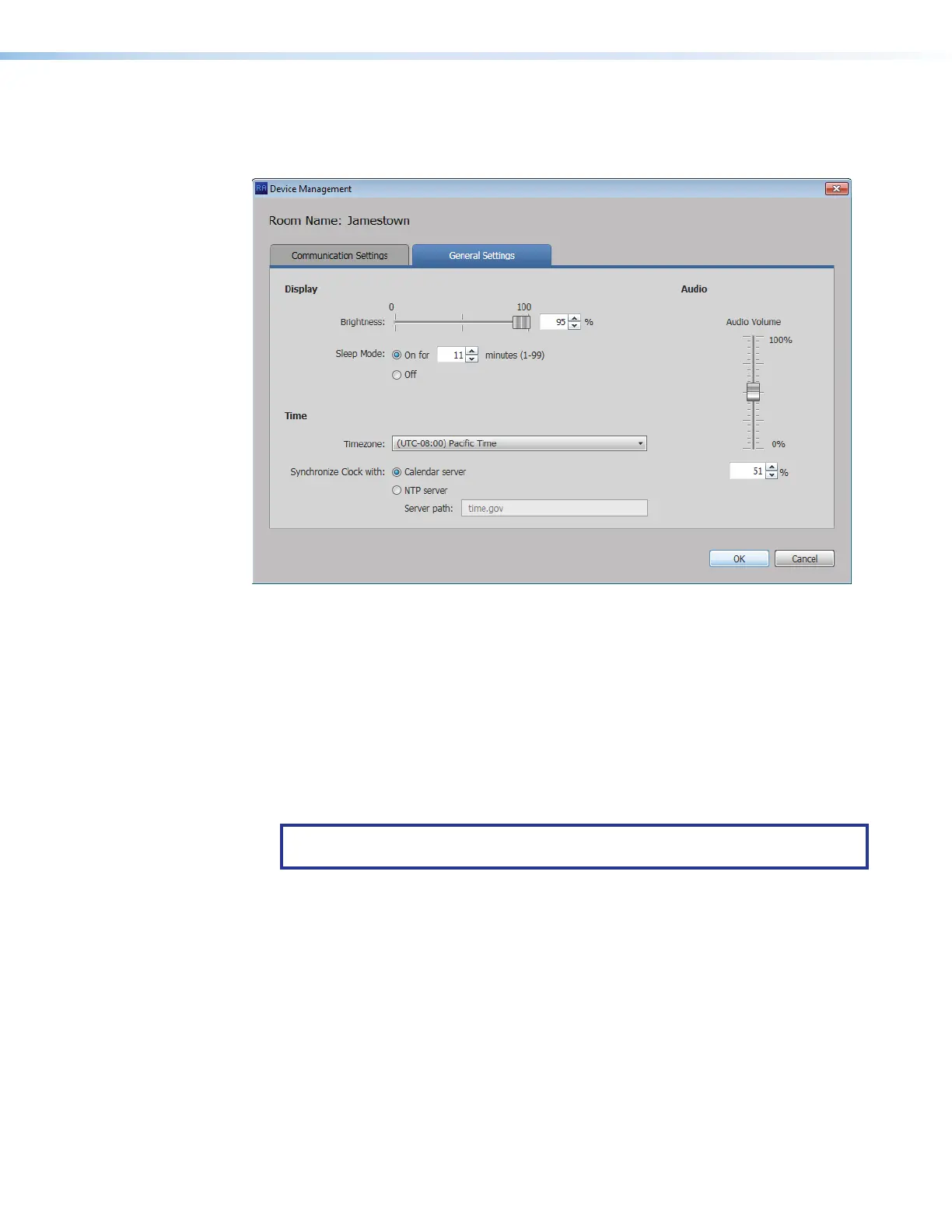
General Settings window
The General Settings tab on the Device Management window (see figure 16) provides a
set of tools for managing display, time, and audio settings of the connected panel.
6666666666
6666
7777777777
7777
8888888888
8888
2222222222
2222
3333333333
3333
4444444444
4444
5555555555
5555
1111111111
1111
Figure 16. Device Management Window, General Settings
1
Display Brightness — Set the panel illumination brightness, from 0 to 100 (percent)
using this fader control.
2
Display Sleep Mode — Toggle Sleep mode On and Off by selecting the appropriate
radio button. If Sleep mode is On, use the Minutes field to specify between 1 and 99
minutes.
3
Timezone — Use the drop-down list to select the appropriate time zone.
4
Synchronize Clock with — Toggle the clock synchronization source between the
Calendar server and NTP (Network Time Protocol — a networking protocol for clock
synchronization between computer systems) by selecting the appropriate radio button.
NOTE: If you select NTP, specify the path to the NTP server in the Server path:
field (
5
).
5
Server path: (available only if NTP is selected in
4
) — Specify a path for the NTP
server.
6
Audio Volume — Set the panel audio volume, from 0 to 100 (percent) using this fader
control.
Once you have made all desired changes available from the General Settings tab, click
either the OK button (
7
, the Device Management window closes) or the Communication
Settings tab (
8
, then communication settings are displayed, see figure 15 on the
previous page).
figure 16



 To Next Page