Room Scheduling System • Google Setup 58
Authenticate a Device to Google
NOTE: These instructions assume that you have already discovered or manually added
touchpanels to the Room Agent in the Panel Management screen.
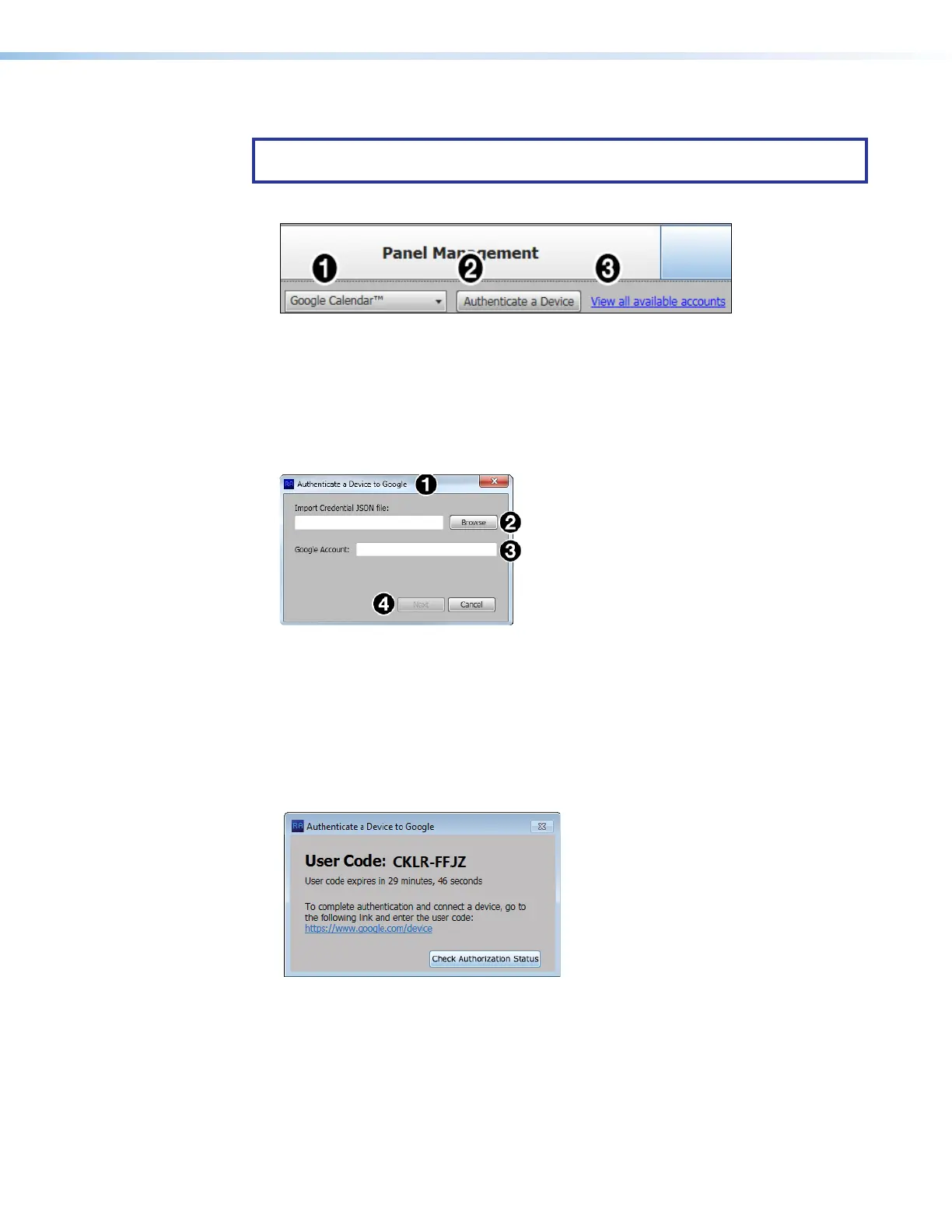
1. Open the Panel Configuration tab (see figure 64).
Figure 64. Selecting the Google Calendar
2. Select Google Calendar™ from the Select a Calendar Type drop-down list (
1
).
3. Select one or more touchpanels that will be associated with a particular calendar by
checking the Status box in the list of panels.
4. Click Authenticate to a Device (
2
).
The Authenticate a Device to Google dialog box opens (see figure 65,
1
).
Figure 65. Authenticate a Device to Google Dialog Box
5. Browse (
2
) to the location of the JSON file saved in step 13 of the previous section.
6. Enter the Google Account name (
3
).
This can be any character string that allows you to identify the account.
7. Click Next (
4
).
The Room Agent software retrieves a user code and prompts you to enter the code on
a Google Web page.
1111111111
1111
2222222222
2222
3333333333
3333
Figure 66. User Code to Authenticate Device to Google
8. Click the link to the Google site (see figure 66,
1
).
9. When prompted, enter the code provided (
2
).
10. Click Check Authorization Status (
3
).
figure 64



 To Next Page