Room Scheduling System • Google Setup 57
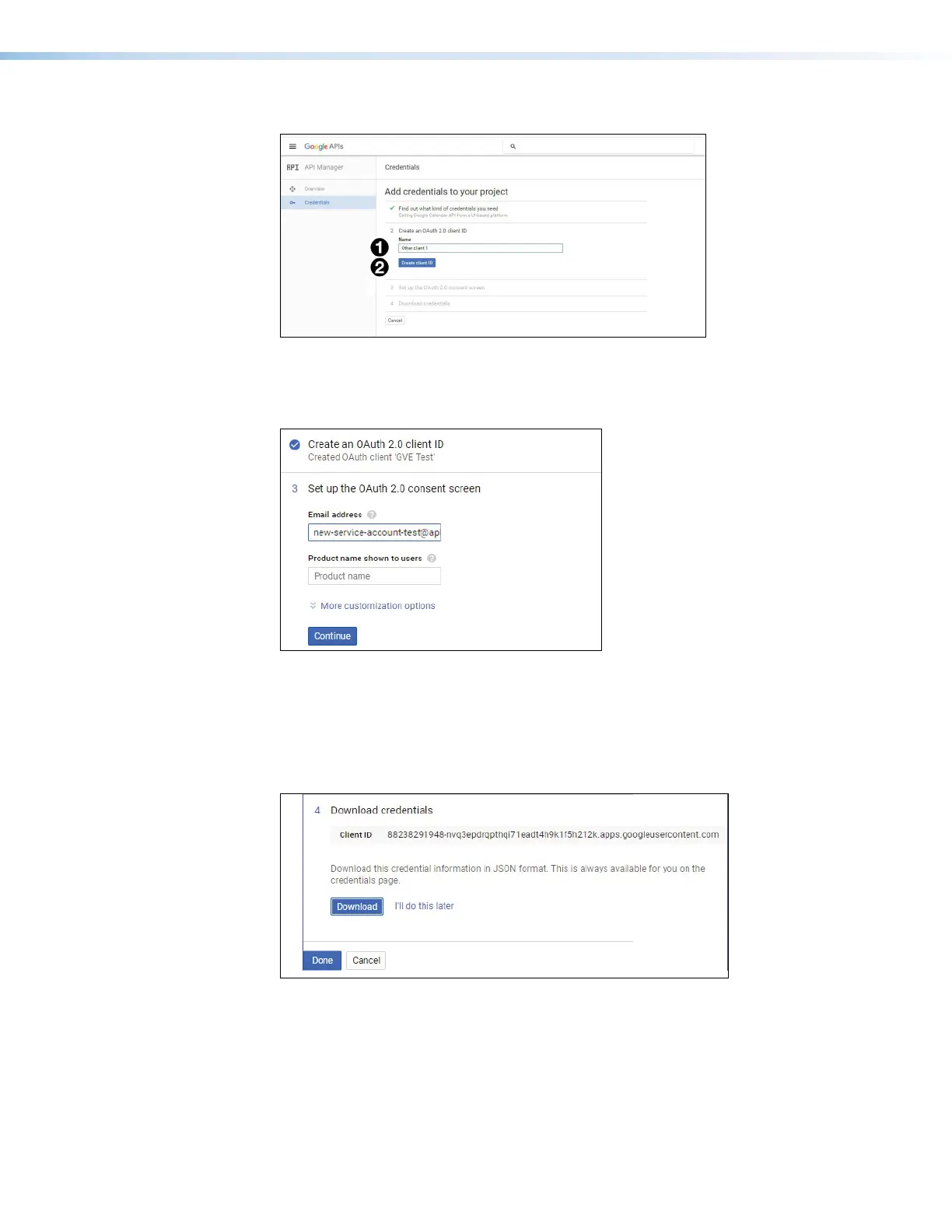
The Create an OAuth 2.0 client ID screen opens.
Figure 61. Create an OAuth 2.0 client ID
9. Enter a name (see figue 61,
1
) and click Create client ID (
2
).
The Set up the OAuth 2.0 consent screen opens.
11
1111
1111
22
2222
2222
33
3333
3333
Figure 62. Set up the OAuth 2.0 consent screen
10. Enter the Email address used to access Google Calendar (see figure 62,
1
).
11. Enter a Product name shown to users (
2
).
12. Click Continue (
3
).
The Download credentials screen opens;
11
1111
1111
22
2222
2222
33
3333
3333
Figure 63. Download Credentials Screen
Your Client ID is shown (see figure 63,
1
).
13. Click Download (
2
) to save the JSON file. Make a note of where it is saved as it is
required to authenticate the touchpanel.
14. Click Done (3).
step 13



 To Next Page