Room Scheduling System • Room Agent Installation and Configuration 24
3. Click OK to exit the clear operation.
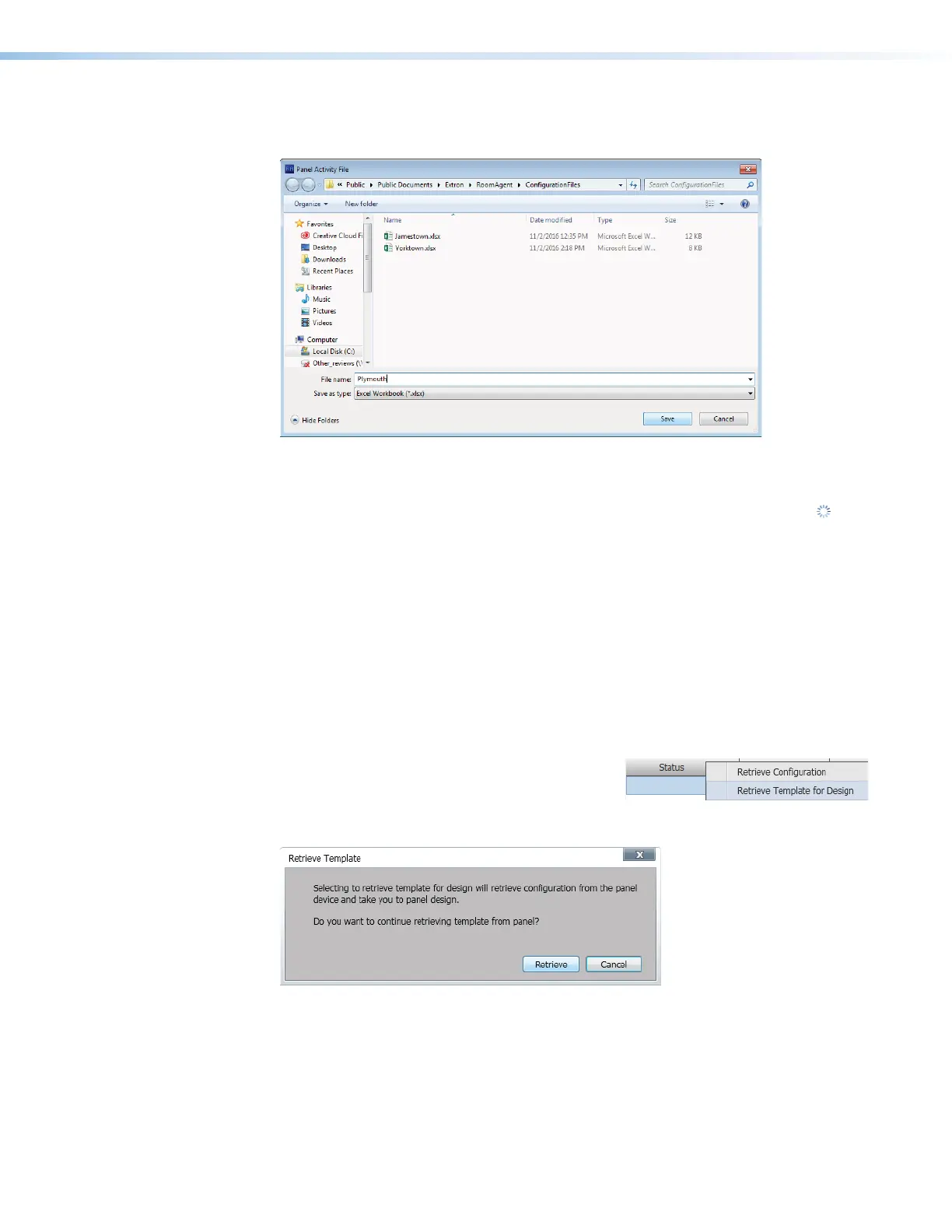
4. Enter a name for the retrieved activity file (
1
).
1111111111
1111
2222222222
2222
Figure 18. Panel Activity File
5. Click Save (
2
).
The Room Agent software saves the file. It reports that the Status is in progress ( )
and then reports Activity retrieved. and All activities have been retrieved
successfully.
Retrieve a template
Templates allow you to create a number of customized panel appearances. Templates are
selectable using the Panel Design menu in the Panel Configuration window (see figure 18, 7
on page 22 for an example). Templates can be created using a variety of tools in the Panel
Design window (see Panel Configuration Tab on page 21) and saved in the template pane
(see Templates pane on page 52).
You can retrieve the template assigned to a panel, for example to use as a starting point for
designing a new panel layout, as follows:
1. Right-click the panel in the Status column (see
1
, at right).
2. Click the pop-up Retrieve Template for
Design button (
2
). The Retrieve Template dialog box opens:
1111111111
1111
Figure 19. Retrieve Template Dialog Box
3. Click Retrieve (see figure 19,
1
). Room Agent software displays the Retrieving
Template ... activity indicator while it loads the template and then automatically
jumps to the Panel Design tab (see Panel Design Tab on page 25).
step 4
1111111111
1111
2222222222
2222



 To Next Page