KelNet Lock - User Guide A0U571B
44
7 FINGERPRINT
Fingerprint identification is always linked to a PIN code.
The biometric enrolment requires two different fingers to be registered.
When installing an Input Unit, it is important to delete all fingerprints via
the Technician menu (See §4.2).
This allows initialization of
biometrics.
Only 25 users can be configured in fingerprint mode.
7.1 Instructions for enrolling fingerprints
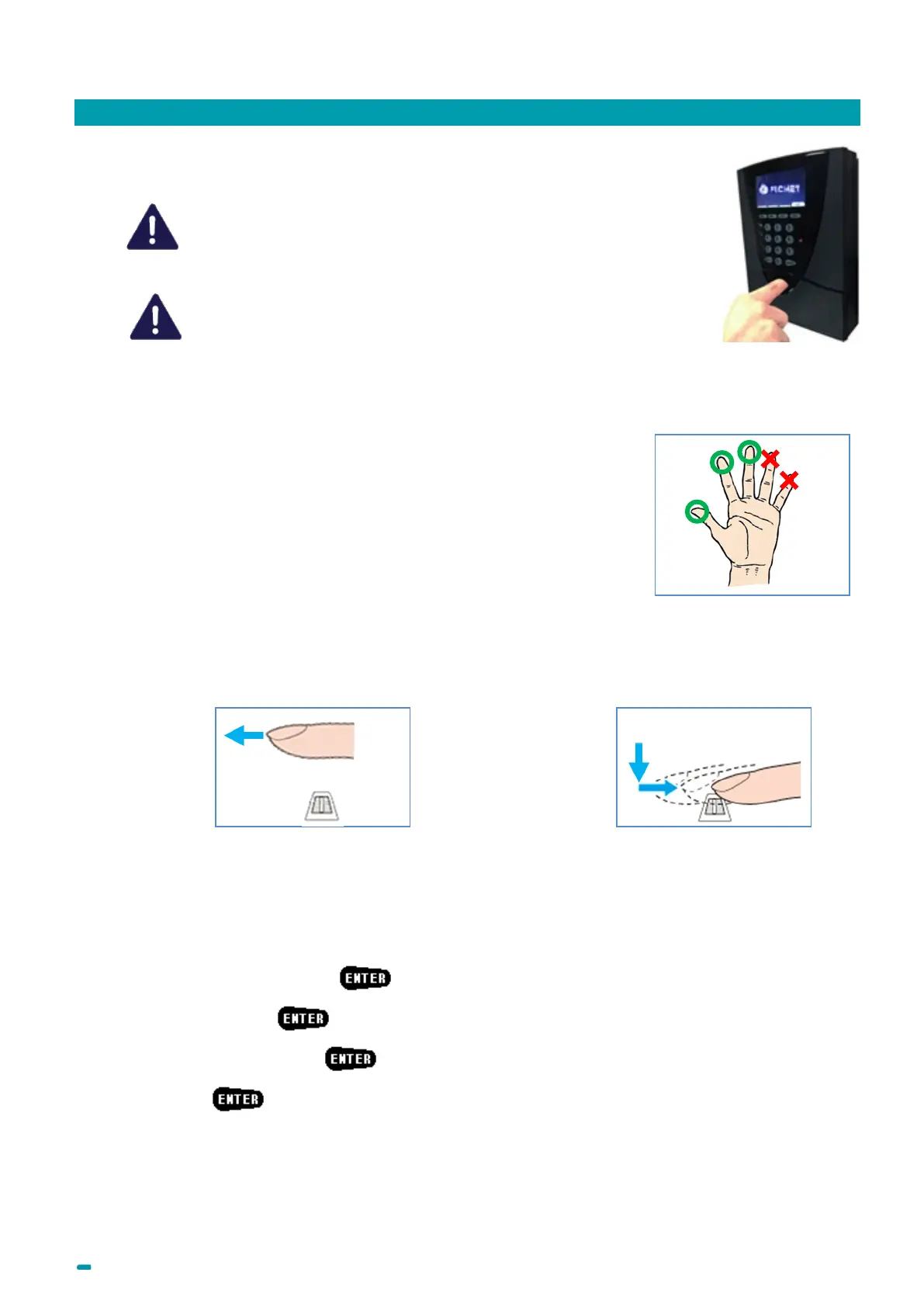
■ In order to get a better enrolment and read success rate, it is better to
avoid using smaller fingers (ring/little fingers).
■ Do not lift your finger off the biometric sensor as you move your finger
over it.
■ Enrolling or reading the fingerprint may fail if you move your finger too
quickly or too slowly.
■ Avoid twisting or rotating your finger as you move it over the sensor.
■ Positioning of the finger for optimum operation:
1. Push your finger in up against the stop
without touching the biometric sensor.
2. Ensure even pressure over the biometric sensor,
sliding the finger towards the outside.
7.2 Enrolment in mode “Code + Fingerprint”
In this mode, the user can enrol his fingerprint himself.
This procedure is done automatically the first time the user carries out an access procedure:
1. Select the Secure Unit +
2. Enter uour ID +
3. Enter your PIN code +
4. Press key: if this code is being used for the first time, you are prompted to change it (See
§3.11), then repeat the access procedure by entering your new code.
5. The enrolment procedure starts (see §7.3).



 To Next Page