Section 3: Model 9100 Controls: Modes of Operation 3-11
Final Width = 215mm
TODAYS DATE TIME
TODAYS DATE TIME
TODAYS DATE TIME
Printer Operation (Procedure
Mode and Test Mode only)
1. Using the direct print facility of
Procedure mode, the 9100 can
deliver one of two forms of printed
certificate. The certificate style is
determined by a selection made
elsewhere in Configuration mode.
2. After selecting a printer type, with
the printer connected and 'on line',
the 9100 will go into direct printing
state. During a procedure, results
will be fed to print a certificate of
the required style. With the printer
not connected, or not on line, the
procedure will not run, so if direct
printing is not required, it is better
to disable direct printing.
3. In Test mode, test results can also
be printed — in a pre-determined
format. The results are not printed
as the test proceeds, but are stored
until the print command is given
after the test is over. The results are
then downloaded to the printer
whether or not any printer type is
selected. The printer does not need
to be selected in Configuration
mode, unless the results print is
required to conform to the layout of
a particular type of printer.
4. The printer is set up only when an
attempt is made to print, following
two types of occasion:
a. printer type is changed in
Configuration mode;
b. 9100 is powered on.
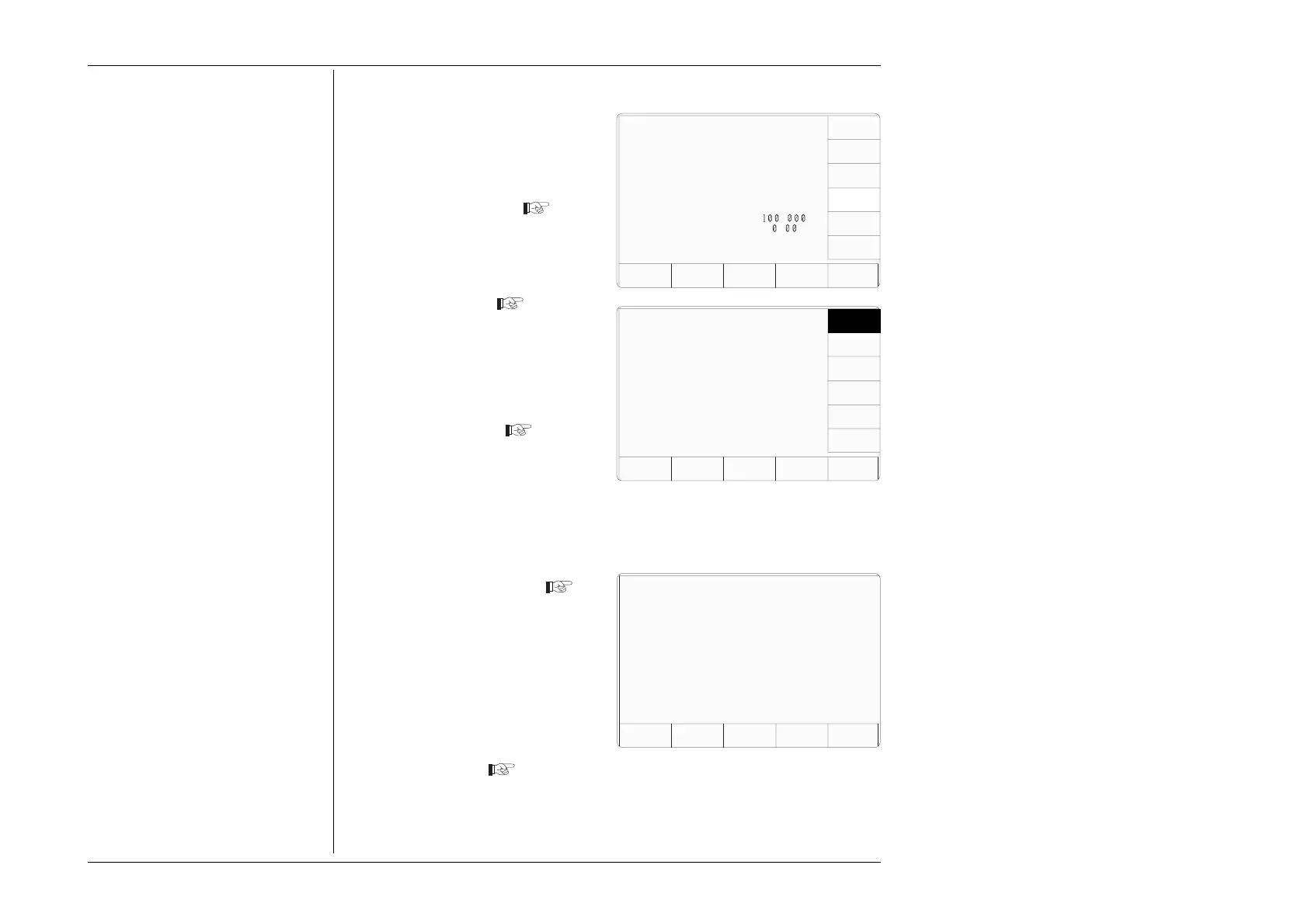
3.3.2.6 'PRINTER'
1. For access to select and enable a
particular printer type (or one using
the same formatting), press the
PRINTER screen key on the
'Present Settings' screen
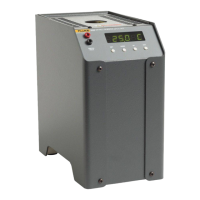
2. This transfers to a 'Configuration'
screen designed for changing 'The
current printer type'
3. Use the screen keys to select the
type of printer on the interface, or
to disable direct printing.
Power-on default is DISABLE.
4. EXIT returns to the 'Present
Settings' menu screen
During a Procedure mode print run, certain printer information will be returned to the
9100, which will respond by halting the procedure and placing an error message on the
screen (such as 'Printer out of paper' or 'Printer is not responding').
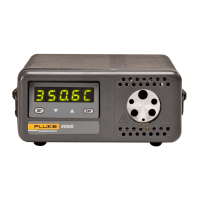
5. If the initialisation control codes
for the type of printer you are
using do not conform to one of
those listed, press the USER
DEFINED screen key. This
transfers to a 'Configuration' screen
designed to enter the initialisation
control codes for your printer
5. Obtain the initialisation control
codes from your printer's operating
manual. If necessary, convert the
codes to decimal. Use the 9100
keypad to type the decimal codes,
separated by spaces (→), then press
the ↵ key
6. EXIT returns to the 'The current
printer type' screen
Configuration
The current printer type is
indicated by the highlight.
Use the softkeys to select
another.
VOLTAGE
LIMIT
DATE
TIME
BORDER
LINE
SELECT
LANG
MORE
POWER
UP MODE
BUS
ADDRESS
RESULTS
CARD
CLEAR
USER
LIST
PRINTER
DISABLE
EPSON
BUBBLE
JET
DESKJET
USER
DEFINED
EXIT
Configuration
Enter the initialisation control codes
in decimal and confirm with enter.
Current string: 27 116 1 18 15
New String:
EXIT
Configuration
Present Settings:
Language English
Power-up mode Manual
Bus Address 1
Printer NONE
Results Card Disabled
Safety Voltage
.
V
Border Line
7
.
%
Scope option Option 600
Crystal option High acc
Ser. No. XXXXXX Rev. XXX


 To Next Page