Plate Designer
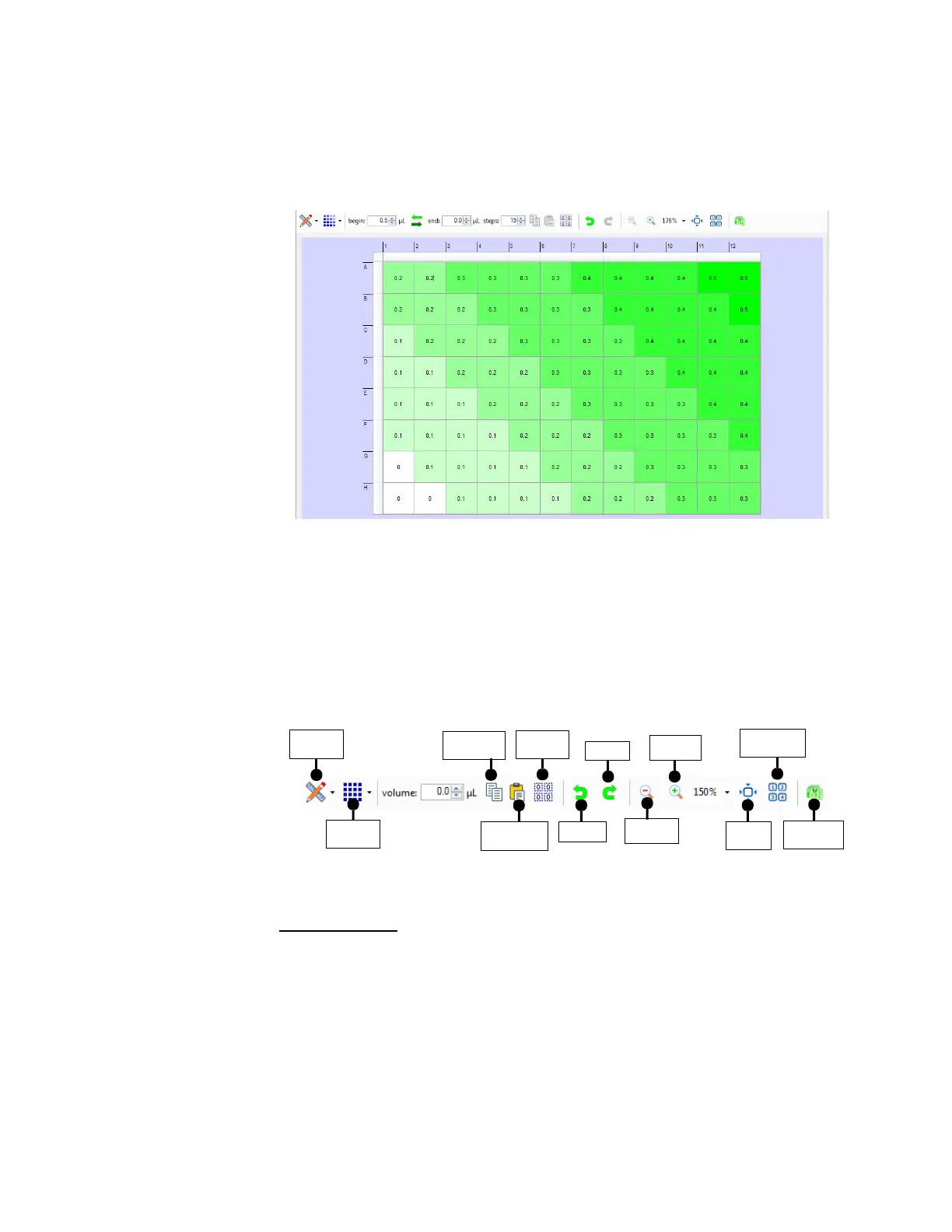
The Plate Designer is used to design the plate dispense. You can click on a single well to
select it; click and drag to select an area of wells, or hold down the Ctrl key on your
keyboard while clicking wells to select non-adjacent wells.
Plate Designer Toolbar Buttons
The Plate Designer has its own toolbar buttons that allow you to switch between Designer
View, Summary View, and Volume Error View; change the volume fill type, undo and redo
design actions; change the fit of the virtual plate on your screen; and edit a dispense
design using a spreadsheet editor.
While most of your work will be done using Designer view (the default plate view), you can
select other views by clicking the Plate View Type button from the toolbar at the top.
Volume Fill Types
The Volume Fill Type button displays a list that shows you different options for how to
vary the volume across a selected area. The default setting is Constant Volume, but you
can select either Horizontal Gradient, Vertical Gradient, Forward Diagonal Gradient,
Backward Diagonal Gradient, Checkerboard 1, Checkerboard 2, Backfill, or Scale.
Plate Designer
Plate View
Type
Volume Fill
Types
Copy
Selected
Zoom In
Redo
Clear All
Wells
Fit All Wells
with Volumes
Paste
Selected
Undo
Zoom Out
Fit All
Wells
Open
Spreadsheet
Plate Designer Toolbar Buttons
MANTIS User's Guide | Chapter 7: Software Overview


 To Next Page