The Dispense List Designer is where you create or import a dispense list and plate
dispense design. At the left of the Dispense List Designer is the Dispense List, which is a
list of reagents to be used in a particular plate dispense. At the right of the Dispense List is
a graphical view of your plate design. This area is where you design the dispense using the
reagents in your Dispense List.
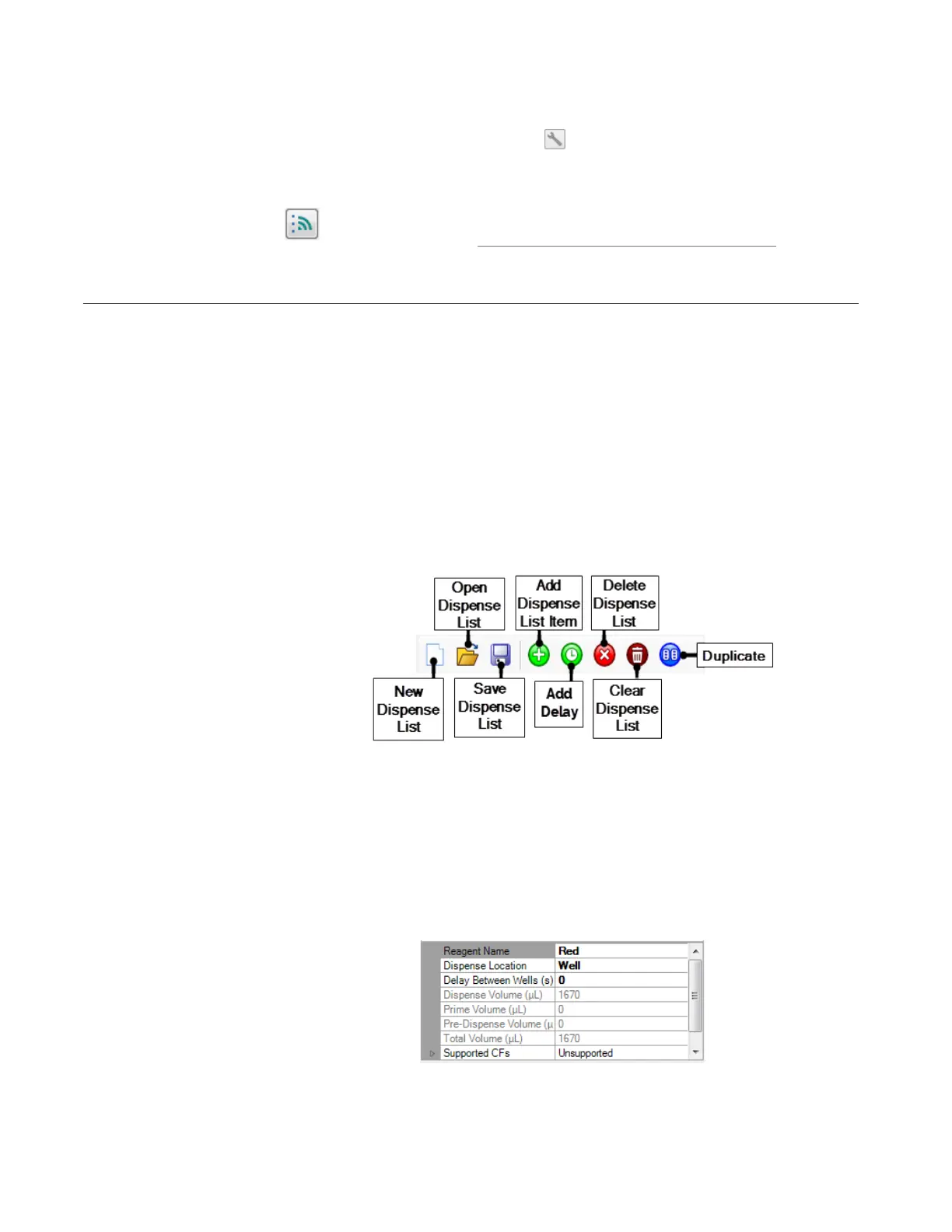
Dispense List Buttons
There are buttons along the top of the Dispense List that allow you to create a new
dispense list, open an existing dispense list, add a new reagent to the dispense list, delete
a reagent on the dispense list, duplicate a reagent on the dispense list, and increase or
decrease the dispense priority of an item.
Reagent Information Box
At the bottom of the dispense list is a box of information that changes based on which reagent
is highlighted in the dispense list. This table shows you the reagent's name, the dispense
location, the reagent's barcode (if any), the dispense volume, the prime volume, the
pre-dispense volume, the total volume, and the supported continuous flow chips. You can
change these items if they are shown in bold text. To see your options, click anywhere in the
text field of the bold text, then click the down-arrow to display the options.
MANTIS User's Guide | Chapter 7: Software Overview
Dispense List Designer
You can also access, modify and change the Input configuration through the
Configuration All Input Settings button .
Scan All RFID Chips
If your MANTIS is equipped with RFID, click the Scan All
RFID Chips button to scan all RFID chips at once, see
MANTIS Radio-Frequency Identification (RFID) on page 95.
Dispense List Buttons
Reagent Information Box


 To Next Page