13. Then, click the Load button to load the data into a Dispense List.
14. OPTIONAL: Go to the File menu, and select Import Dispense Data if you are not
satisfied with the way your current experiment was imported. The software will
remember the choices you have made during the import process and allow you
to modify them as necessary. This option is applicable only if you have not
restarted the MANTIS software.
15. Click the Run Dispense button .
OR
Press F5.
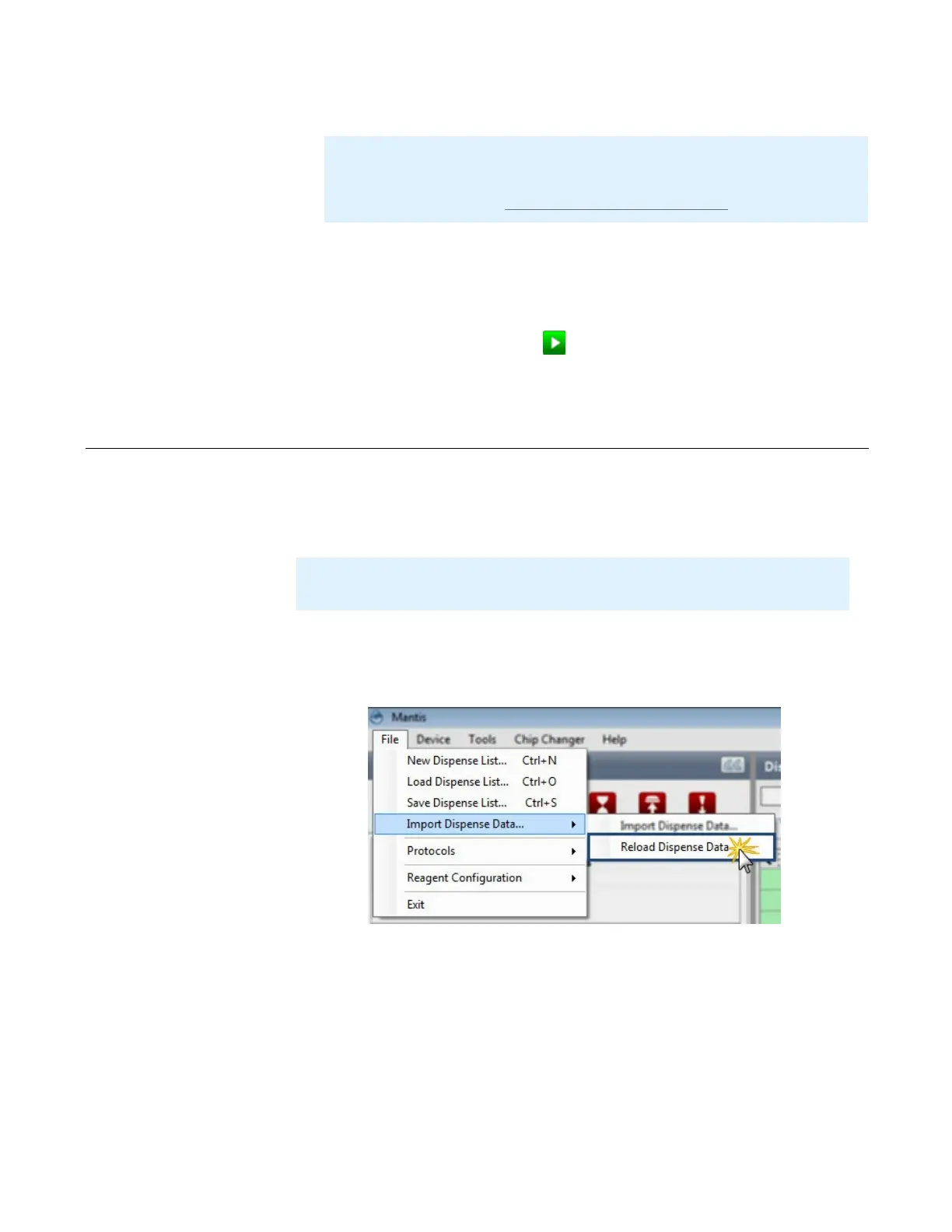
If you created a dispense list by importing external data via a CSV file, the Reload
Dispense Data option enables you to reload the updated dispense data from the .CSV file
into the dispense list.
To reload the dispense data into the dispense list:
1. Go to the File menu, point to Import Dispense Data and select Reload Dispense
Data.
2. On the warning message, click Yes if you want to overwrite the currently open
dispense list data. Please note that this does not automatically save the updated
dispense list.
OR
Click No to abort the process.
Note: If you choose a Continuous Flow chip and you have not calibrated your
reagents, the MANTIS Continuous Flow calibration window will appear after you
click the Load button. Follow the on-screen instructions to calibrate your chips.
For more information, see Calibrating Continuous Flow Chips on page 27.
Reloading Dispense Data
Note: You may not change the names of the reagents listed in the original .CSV file.
Otherwise, MANTIS will not reload it into the dispense list due to the mismatch.
MANTIS User's Guide | Chapter 9: Dispensing With the MANTIS
Reload Dispense Data


 To Next Page