Chapter 1 Product Description and Features
1.1 Front Panel
FUJITSU Storage ETERNUS LT40 S2/LT60 S2 LTO Library Installing, Starting Up and Maintaining
Copyright 2018 FUJITSU LIMITED P3AM-5392-07ENZ0
14
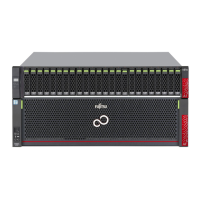
Figure 1.2 Front panel ETERNUS LT60 S2
Table 1.1 Front panel overview
No. Description
1Left magazine
2
Power button.
Pressing the button will initiate a controlled Power Down of the unit(soft power down).
3
LED "READY" (Green).
Illuminated when power is on. Blinking when there is tape or library robots activity.
4
LED "CLEAN" (Amber).
Illuminated when the tape drive has determined that a cleaning cartridge should be used. Cleaning is only
necessary when the library directs you to do so. Additional cleaning is not necessary.
5
LED "ATTENTION" (Amber).
Illuminated if the library has detected a condition that requires attention by the operator.
6
LED "ERROR" (Amber).
Illuminated if an unrecoverable tape drive or library error occurs. A corresponding error message displays on the
LCD screen (see for more information).
7
Control key "CANCEL" button [X].
The CANCEL button is used to cancel a user action and return to the last menu item.
8
Control key "DOWN" button [▼]
The PREVIOUS button is used to navigate through menu items.
9Right magazines
10 Air vents.
11
Control key "ENTER" button [].
The ENTER button to go to a sub menu or execute an action.
12
Control key "UP" button [▲]
The NEXT button is used to navigate through menu items.
13
Front panel "OCP" display, consisting of 128 x 64 characters.
The OCP screen displays actions and status information, menu items or error messages equivalent to the
operation mode.
14 Left magazine with Mailslot.



 To Next Page
 Loading...