6 GPSMAP 5000 Series Owner’s Manual
Using Charts
USinG
ChartS
Overlay Numbers—controls how charting numbers appear on the screen. Choose to show or hide
the numbers by category. When set to Auto, the overlay numbers appear only when that category is
active.
Cruising: GPS position, GPS heading, GPS speed, and depth. Depth is only available if
connected to a sonar unit (page 49).
Navigation: GPS position, Distance to destination, arrival (time), bearing (to destination), GPS
heading, and GPS speed. These numbers appear only when navigating to a destination (page 21).
Fishing: GPS position, depth, water temperature, and water speed. Depth, temperature, and speed
are only available when connected to a sonar unit (page 49).
Sailing: GPS position, waypoint velocity made good (VMG), wind speed, wind direction, water
speed, and depth. Wind speed and direction are only available when connected to a NMEA 0183
wind sensor. Water speed and depth are only available when connected to a sonar unit. If you
have a wind sensor, setting the sailing overlay numbers to Auto places an indicator around the
boat icon on the Navigation chart to represent wind speed and direction.
Chart Setup—customizes the Navigation chart. See page 13.
Understanding Chart Data
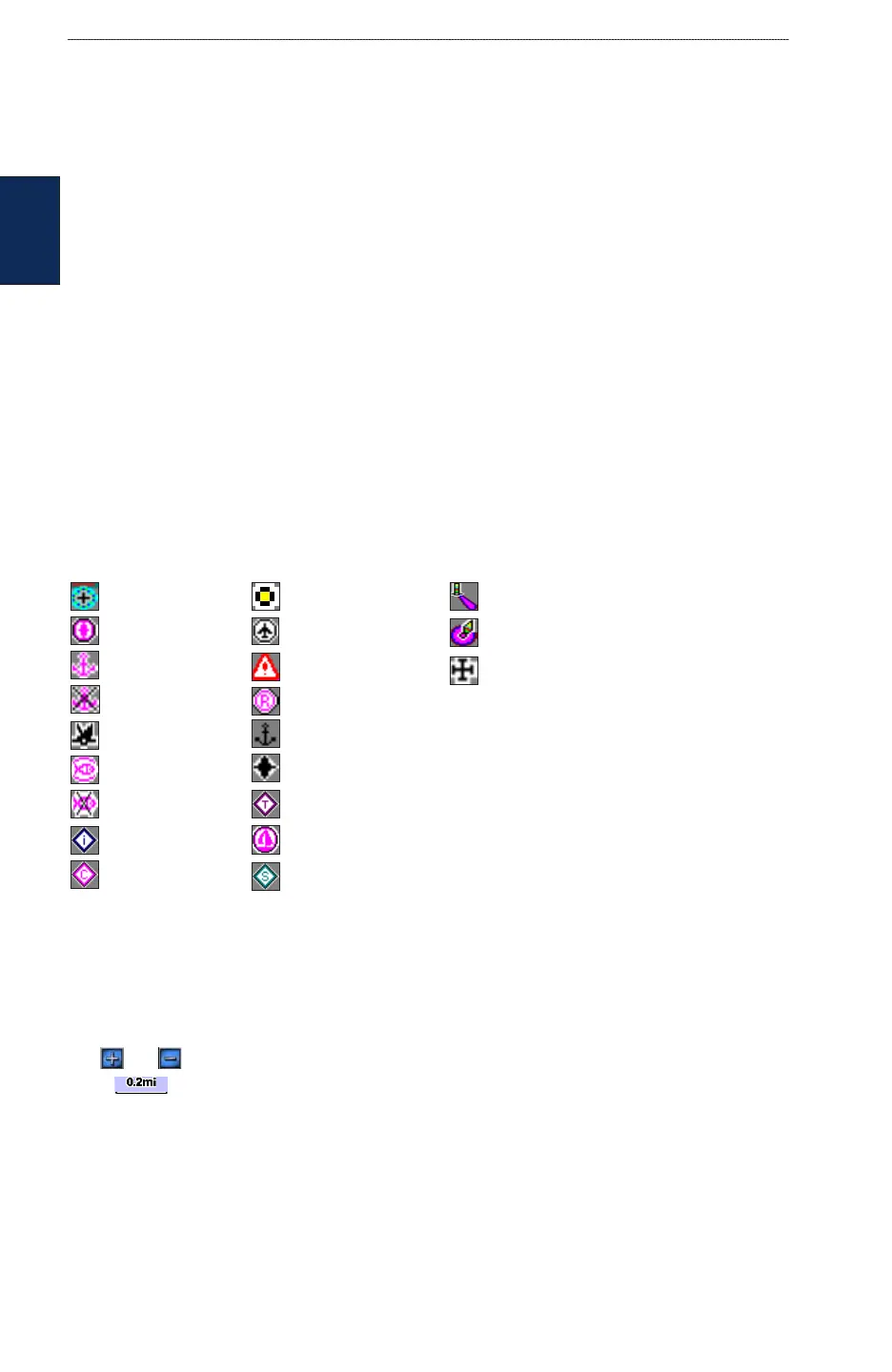
BlueChart g2 and BlueChart g2 Vision charts use graphic symbols to denote map features. Some
common symbols you might see include, but are not limited to, the following:*
Dangerous Rock Exposed Rock Beacon
Pilot Boarding Area Airport/Seaplane Base Buoy
Anchorage Berth Precautionary Area Church
Anchoring Prohibited Radio Report Point
Exposed Wreck Recommended Anchorage
Fishing Harbor Rescue Station
Fishing Prohibited Tide Station
Information Yacht Harbor
Current Station Marine Services
*Some symbols might appear differently on your Garmin unit.
Other features common to most charts include depth contour lines (with deep water represented in
white), intertidal zones, spot soundings (as depicted on the original paper chart), navigational aids
and symbols, and obstructions and cable areas.
Zooming In and Out on the Map
The and keys control the zoom level, indicated by the scale at the bottom of the Navigation
chart ( ). The bar under the number represents that distance on the map.
Navigating to a Point on the chart
1. From the Home screen, touch Charts.
2. Touch Navigation Chart, Fishing Chart, or Radar Overlay.
3. Touch the point on the chart where you want to go.
4. Touch Navigate To.
•
•
•
•


 To Next Page