46 GPSMAP 5000 Series Owner’s Manual
Using Radar
USinG
radar
Nav Features—shows or hides distance, arrival time, and bearing when navigating to a destination.
Overlay Numbers
—shows or hides cruising, navigation, shing, or sailing numbers as on the
Navigation chart (page 6).
Radar Setup—accesses advanced radar settings (page 48).
Targeting on the Cruising Screen
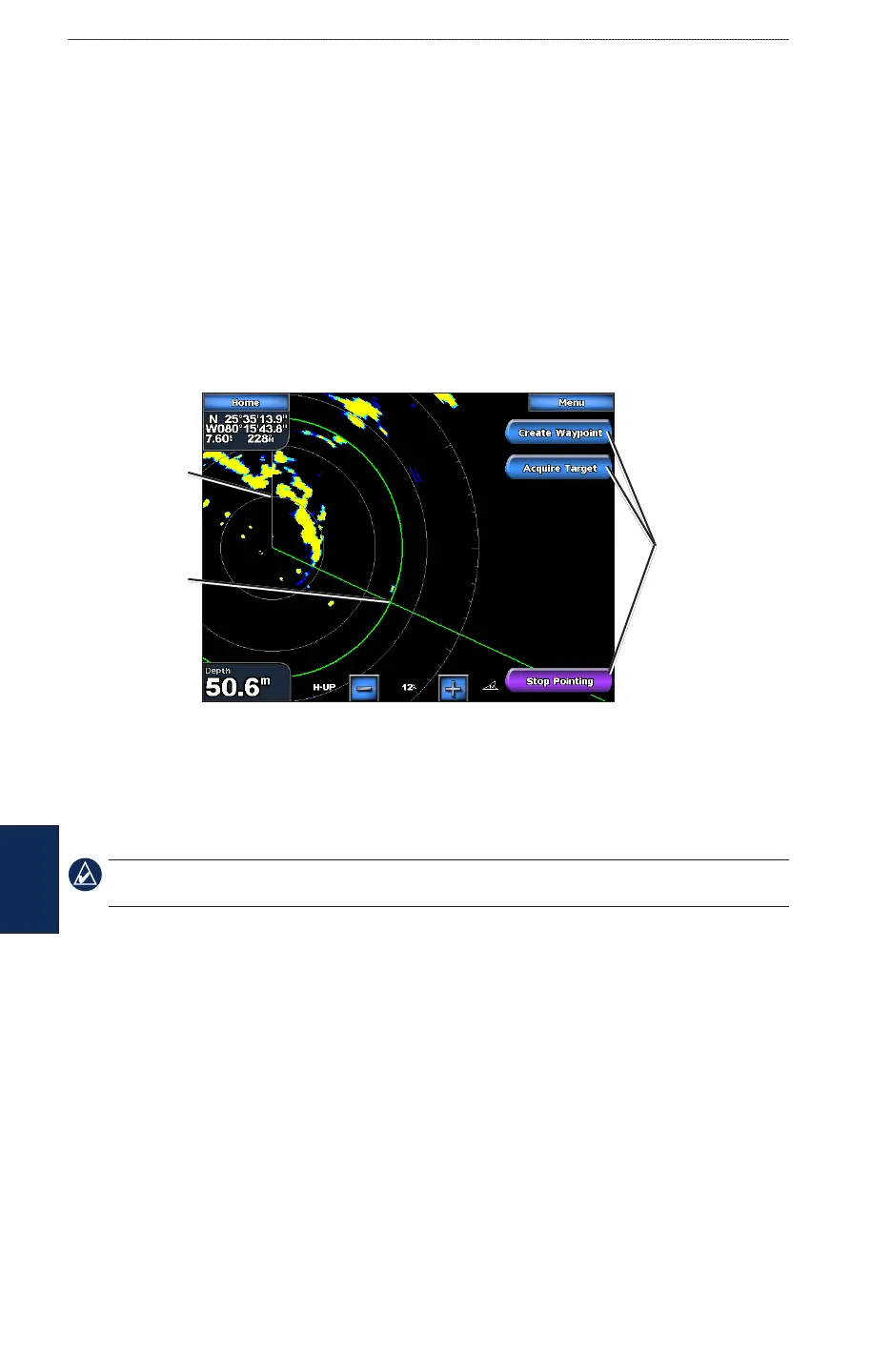
Touch the target location on the cruising screen to begin targeting. A green ring and a green line
appear. The green ring corresponds with the range rings to help dene an object’s distance from your
location. The green line corresponds with the heading line to help dene an object’s bearing from
your location. The intersection of the green ring and green line indicate your target. If you select a
target on the side of the screen, the radar shifts to permit easier intersection with the target. You can
reposition the radar by touching and dragging the screen.
Cruising Screen - Targeting
Target
(intersection)
Target options
Heading
Line
To stop targeting and recenter your location, touch Stop Pointing.
Create Waypoint—marks a waypoint at the targeted object or location.
Acquire Target—
assigns a MARPA (Mini Automatic Radar Plotting Aid) tag to the targeted object.
NOTE: MARPA requires the use of a heading sensor. The heading sensor must output the NMEA 0183
sentence HDM or HDG.


 To Next Page