12 GPSMAP 5000 Series Owner’s Manual
Using Charts
USinG
ChartS
Touch the button to move the view closer to your boat and lower to the water. Touch the
button to move the view away from the boat. This is indicated by the scale ( ) temporarily
displayed at the bottom of the screen.
Mariner’s Eye 3D Settings
To access additional settings or options from the Mariner’s Eye 3D screen, touch Menu. The options
and additional settings are the same as the Mariner’s Eye screen (page 9), with the exception of
Colors.
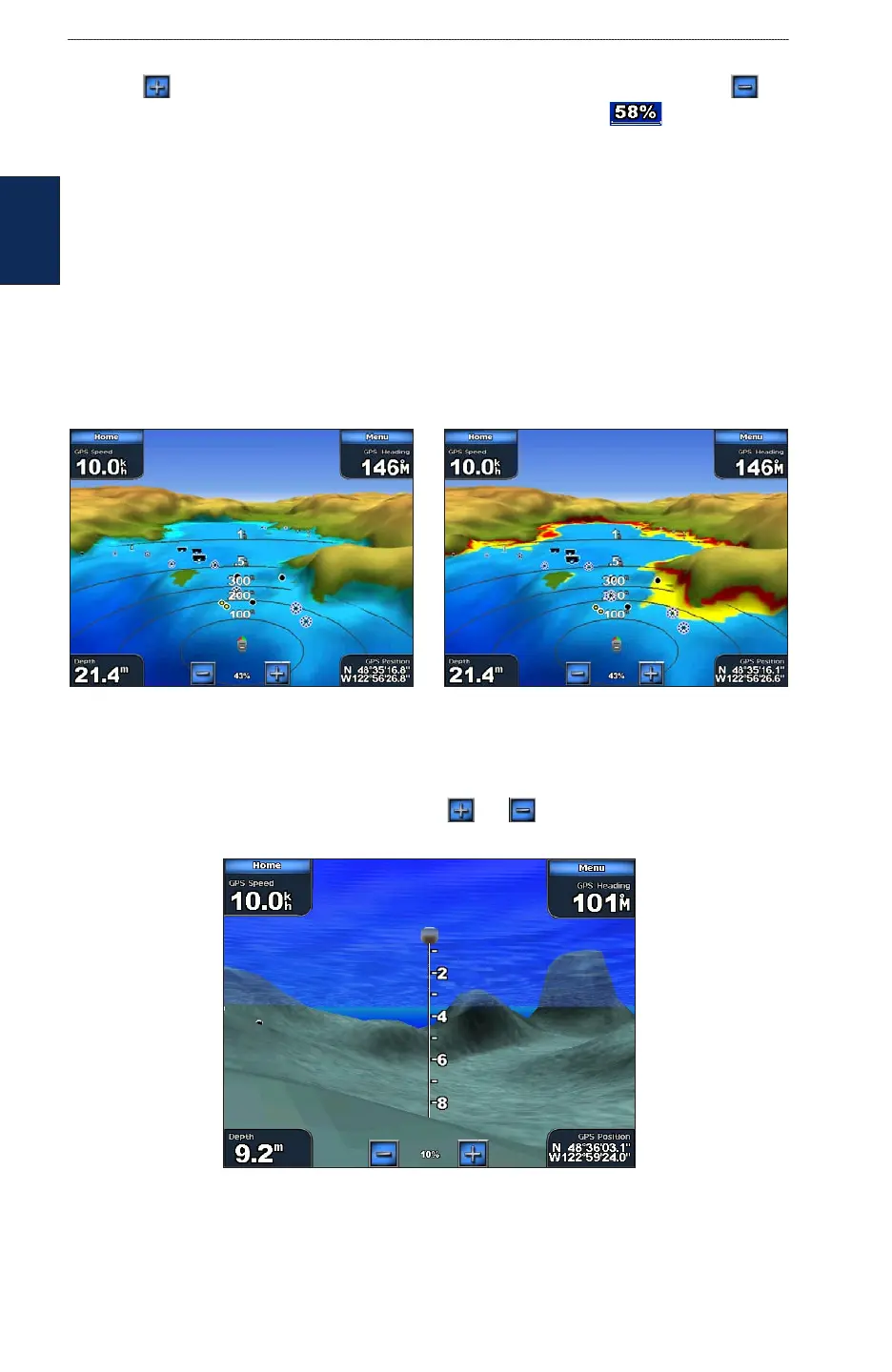
Colors —selects between Normal (Default), Water Hazard, and All Hazard. The Normal setting
shows the land as seen from the water. The Water Hazard settings indicates shallow water and land
with a color scale. Blue indicates deep water, yellow is shallow water, and red is very shallow. The
Water Hazard setting indicates land in green and brown, and the All Hazard shows land as dark
red.
Mariner’s Eye 3D, Normal Colors Mariner’s Eye 3D, Hazard Colors
Using Fish Eye 3D
Using the depth contour lines of the BlueChart g2 Vision cartography, Fish Eye 3D provides an
underwater view of the sea oor or lake bottom. The and buttons adjust the view in the
same way as the Mariner’s Eye 3D.
Fish Eye 3D


 To Next Page