GPSMAP
®
5000 Series Owner’s Manual 3
Getting Started
GettinG
Started
ashing question mark is indicated on the boat icon (on the chart screen).
For more information about GPS, visit the Garmin Web site at www.garmin.com/aboutGPS.
Inserting and Removing SD Cards
Your unit supports SD (Secure Digital) cards. Insert optional BlueChart
®
g2 Vision
™
SD cards to
view high-resolution satellite imagery, and aerial reference photos of ports, harbors, marinas and
other points of interest. Insert blank SD cards to transfer data such as waypoints, routes, and tracks
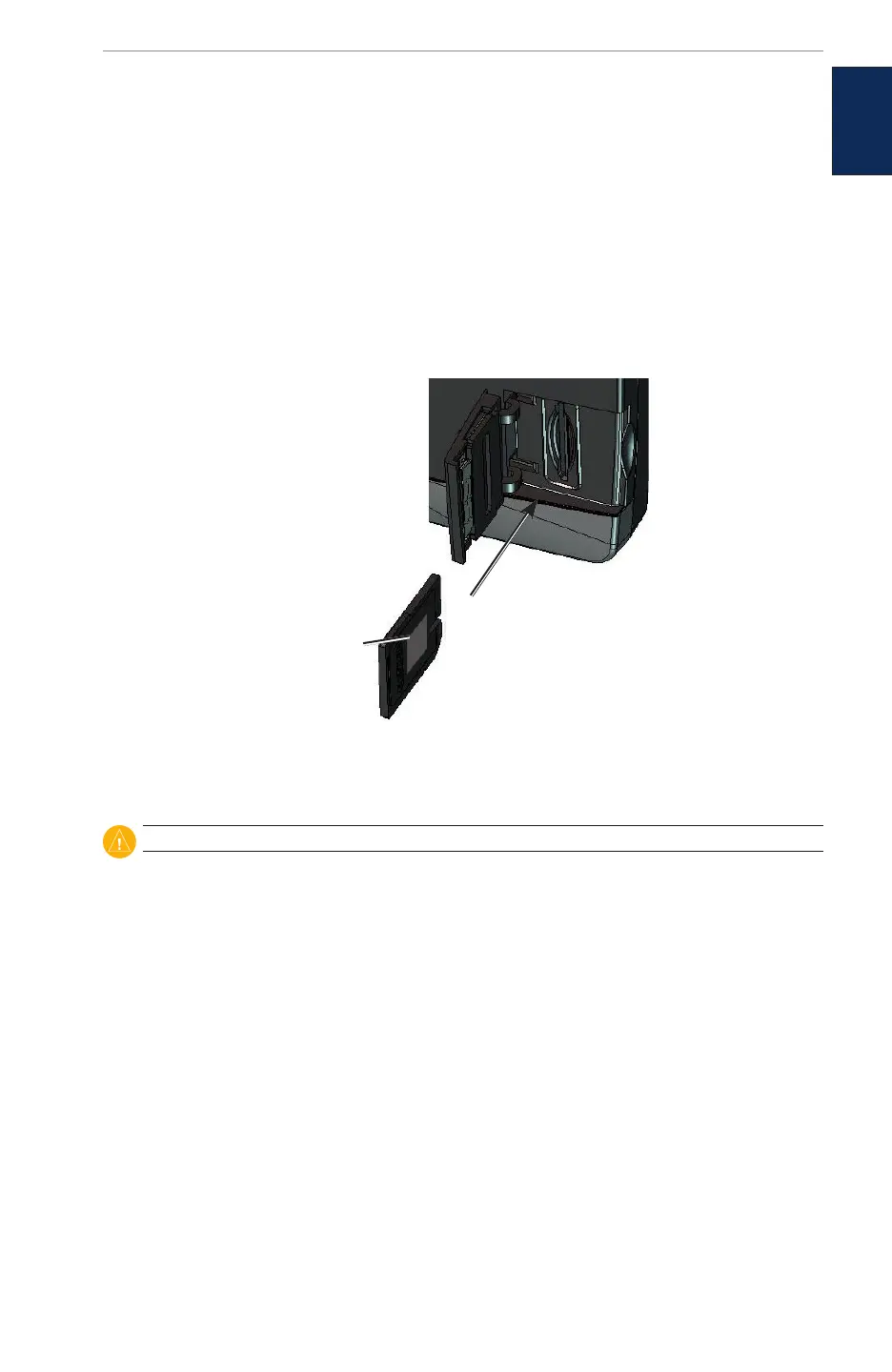
to another compatible Garmin unit or a computer. The SD card slot is located on the lower-right
corner of the unit.
To insert the SD card, open the access door and press it in until it clicks. Press the card in again and
release it to eject it from the chartplotter.
Card label
Restoring Factory Settings
You can restore your unit to the original factory settings.
CAUTION: This procedure deletes any information you have entered.
To restore factory settings:
1. From the Home screen, touch
Congure > System > System Information > Factory Settings > Reset.
2. Touch OK to restore all factory settings or touch Cancel.
Viewing System Information
You can view the software version, basemap version, unit ID number, and your XM WX weather
radio ID (if available). You may need this information to update the system software or purchase
additional map data information.
From the Home screen, touch Congure > System > System Information.
Using the Simulator Mode
Simulator mode turns the GPS receiver off for use indoors or for practice. The unit does not track
satellites in simulator mode.


 To Next Page