14 GPSMAP 5000 Series Owner’s Manual
Using Charts
USinG
ChartS
Appearance—customizes how items are shown on the Navigation chart.
Detail—adjusts the amount of detail shown on the map.
Photos—sets the high resolution satellite images to on, off, land only, or blend (page 16).
Spot Depth—turns on spot soundings and sets a dangerous depth.
Light Sectors—adjusts the drawing of light sectors on the map.
Symbols—sets the navaid symbol set (NOAA or IALA).
Symbol Size—adjusts the size of the symbols shown on the map.
Animated Tides
—provides additional tide and current information when a tide or current icon is
touched.
Using Tracks
A track is a recording of your path. The track currently being recorded is the active track. An active
track can be saved.
To turn the track log on:
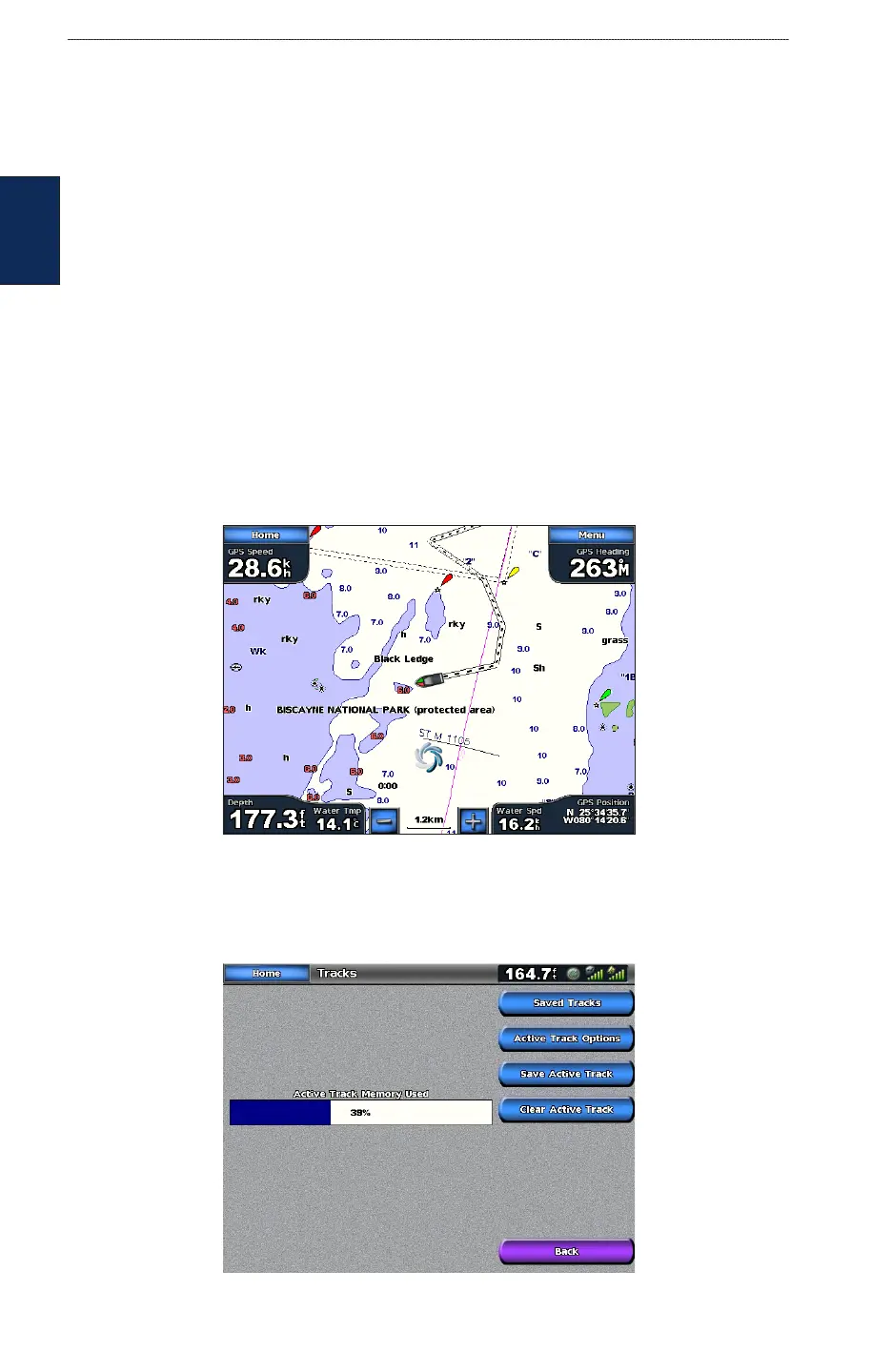
From the Navigation chart, touch Menu > Chart Setup > Tracks > On. A trailing line on the chart
indicates your track.
To save the active track:
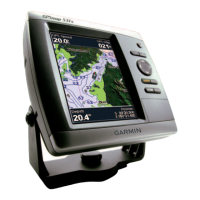
1. From the Home screen, touch Information > User Data > Tracks > Save Active Track.
2. Touch either the time the current track began (or Midnight, if shown) or Entire Log.
3. To name the track, change the color of the track, or save it as a route, touch Edit Track.
•
•
•
•
•
•
•


 To Next Page