GPSMAP
®
5000 Series Owner’s Manual 7
Using Charts
USinG
ChartS
5. Touch Go To (or Guide To when using a preprogrammed BlueChart g2 Vision card for Auto
Guidance, page 27).
6. Follow the colored line on the screen to the destination.
To create a route to a point on the chart, see page 26.
Panning the Navigation Chart
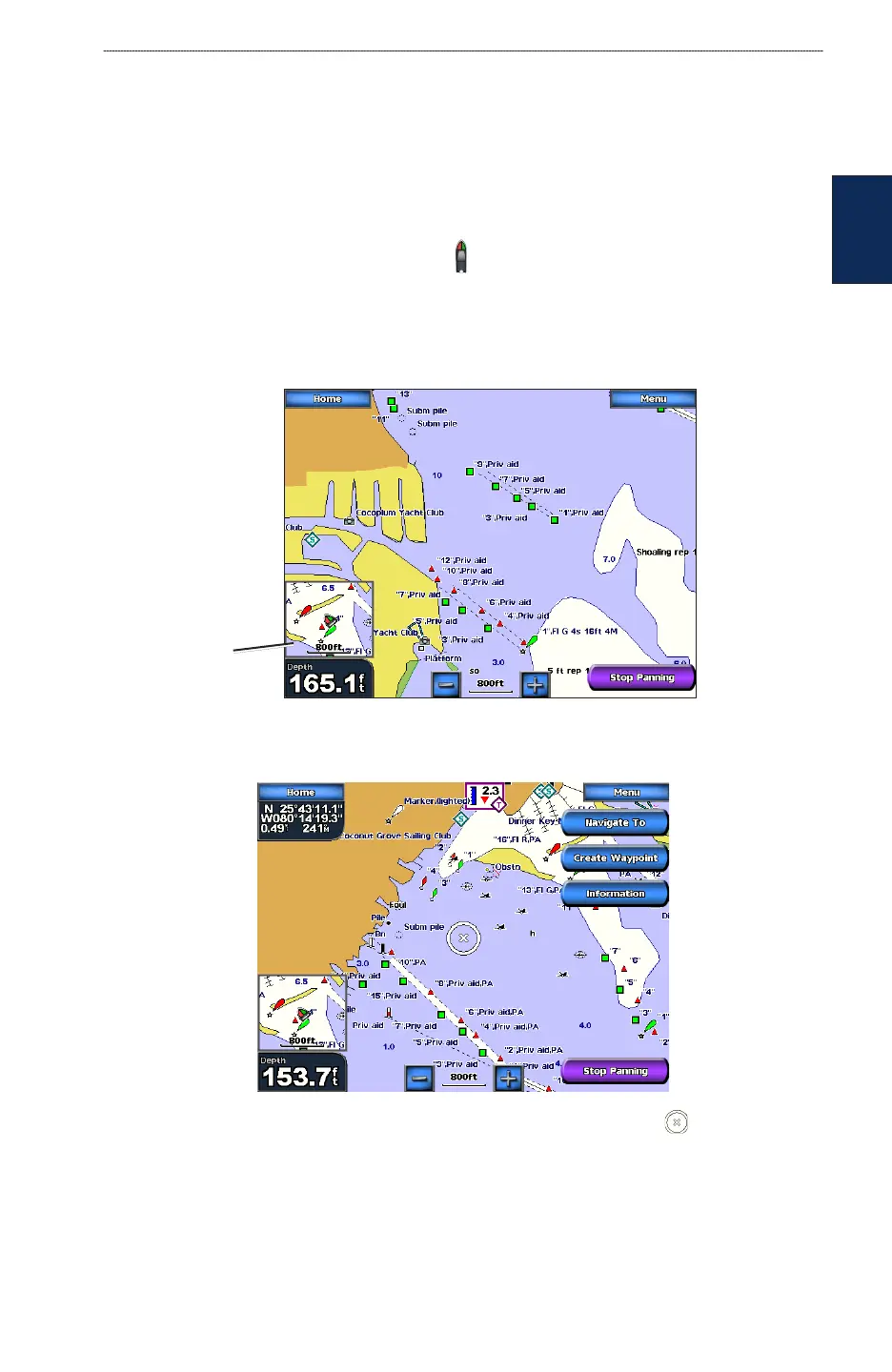
Touch and drag the Navigation screen to pan away from your current location and to scroll to other
areas on the Navigation chart. The position icon ( ) stays at your present location. If the position
icon leaves the map when you pan, a small window (inset map) appears on the left of the screen so
you can keep track of your current position.
As you pan, the Depth at your current location remains in the lower-left corner of the screen (if your
unit is connected to a sonar device through a Garmin Marine Network).
Panning on a Navigation Chart
Inset map
To stop panning and return the screen to your boat’s current location, touch Stop Panning.
When you touch a point on the Navigation screen without dragging, a pointer ( ) appears at that
spot, and a list of options appear along the right side. These options change, depending on the point
you touched. Touch a button to access that option.
Review—(Review does not appear if the pointer is not near an object—if the pointer is near only
one object, the name of the object appears.) This allows you to view details of objects in vicinity of
the pointer. When you touch Review, you are presented with a list of all the objects near the pointer.


 To Next Page