GPSMAP
®
5000 Series Owner’s Manual 51
Using Sonar
USinG
Sonar
Setting Up Sonar
Use the Sonar Setup screen to dene and adjust settings for all sonar screens.
From the Home screen, touch Sonar > Sonar Setup.
Color Scheme—choose white (black, if using night mode colors) or blue. This affects the
background on all sonar screens, but does not change the Temp Log screen.
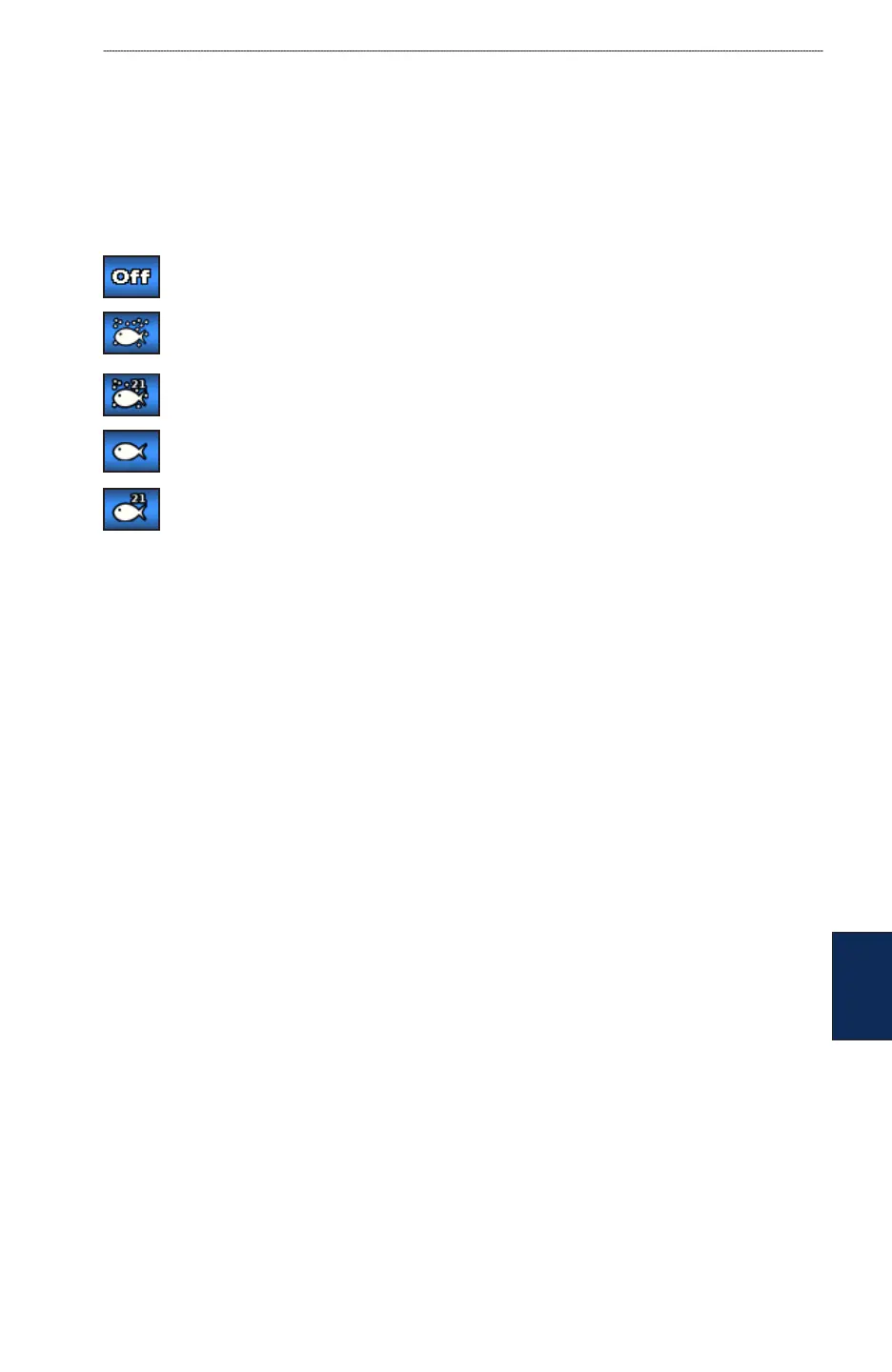
Fish Symbols—sets how the sonar interprets suspended targets.
The unit does not interpret the sonar return data (default).
Suspended targets appear as symbols. Background sonar information appears, making the
distinction between sh and structure easier.
Suspended targets appear as symbols with background information shown. The target
depth of each symbol is also indicated.
Suspended targets appear as symbols. No background information appears.
Suspended targets appear as symbols with no background information shown. The target
depth of each symbol is indicated.
Scroll Speed—adjusts the rate at which the sonar scrolls from right to left (Ultrascroll, Fast,
Medium, or Slow). If you are using a speed-capable transducer, touch Auto to have the scroll speed
automatically adjust to the water speed of your boat.
Surface Noise—shows or hides the sonar returns near the surface of the water. Hide surface noise to
help reduce clutter.
Whiteline—highlights the strongest signal from the bottom to help identify its hardness or softness.
Off
—(default) Whiteline is disabled.
High—the most sensitive setting. Almost all strong returns are highlighted in white.
Medium—many strong returns are highlighted in white.
Low—the least sensitive setting. Only the strongest returns are highlighted in white.
Overlay Numbers
—shows or hides water temperature, water speed (if your transducer is capable),
and navigation. If Auto is selected and the transducer is capable, the data is shown.
•
•
•
•


 To Next Page