GPSMAP
®
5000 Series Owner’s Manual 13
Using Charts
USinG
ChartS
Fish Eye 3D Settings
To access additional settings or options for the Fish Eye 3D screen, touch MENU.
Sonar Cone—turns a cone on or off that shows the area covered by your transducer.
Sonar Data—visually shows the sonar readings received by your transducer for the best
combination of sonar and mapping.
Tracks
—turns the track log on or off.
Overlay Numbers
—shows or hides cruising, navigation, shing, sailing, fuel, or XM audio
numbers just as on the Navigation chart (page 6).
Changing the Chart Settings
To change chart settings from the Home screen, touch Charts > Chart Setup, or touch Menu >
Chart Setup while viewing the navigation chart.
Orientation
—changes the perspective of the map display:
North Up
—sets the top of the map display to a north heading.
Track Up
—sets the map display to the current track heading.
Course Up
—sets the map so the direction of navigation is always up. The heading line appears
vertically on the screen if it is shown.
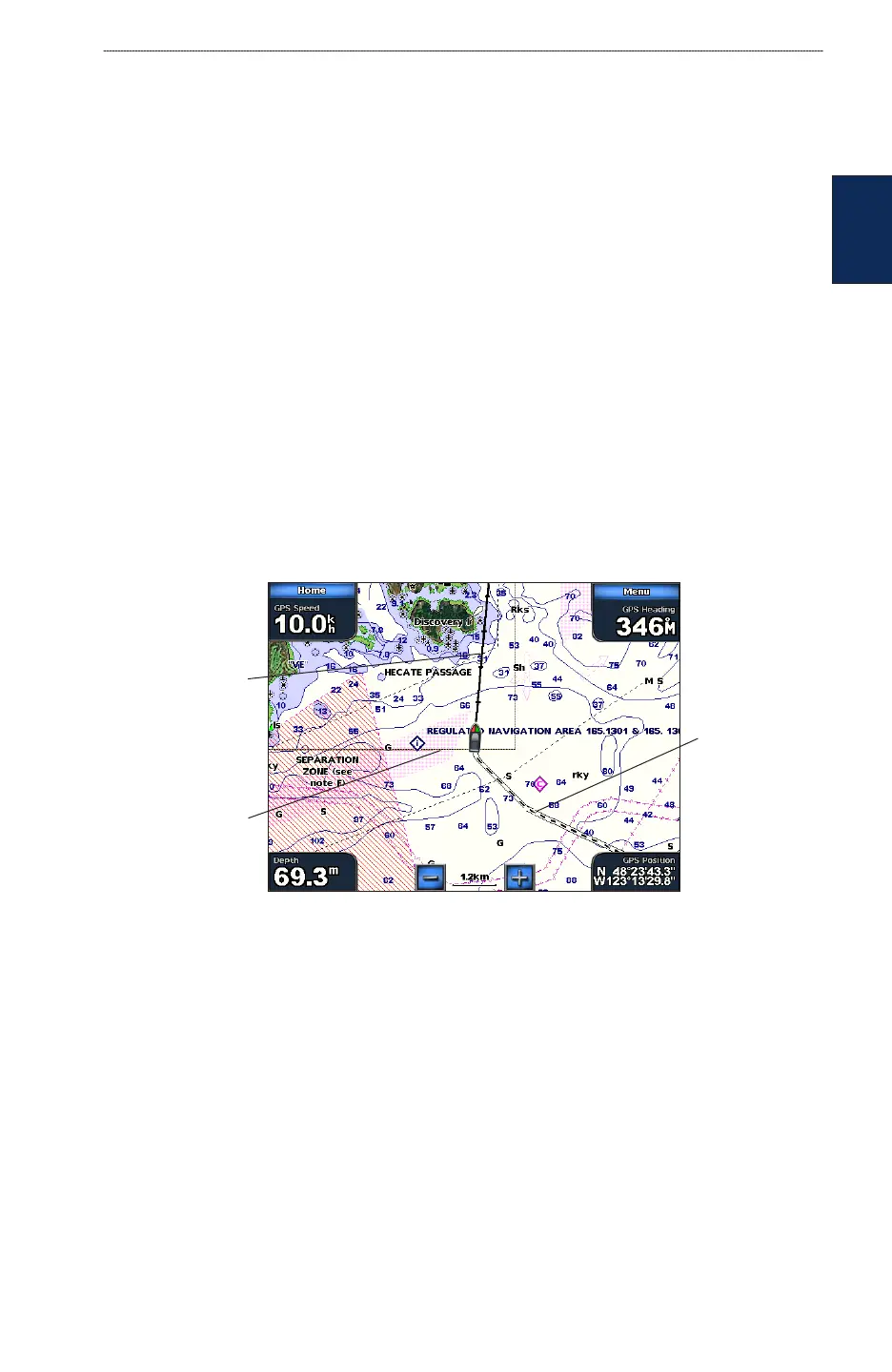
Heading line
Track
Chart border
Heading Line—draws an extension from the bow of the boat in the direction of travel.
Off
—turns the heading line off.
Distance—sets the distance to the end of the heading line.
Time
—sets the amount of time until you reach the end of the heading line.
Chart Borders—turns chart borders on when using a BlueChart g2 Vision SD card and you want to
see what area the maps cover.
Tracks
—turns the visible track log on or off (page 14). The chartplotter continues to record tracks if
you turn this setting off, but they are hidden from view.
Inset Map—turns the inset map on or off when panning (page 7).
•
•
•
•
•
•


 To Next Page