31
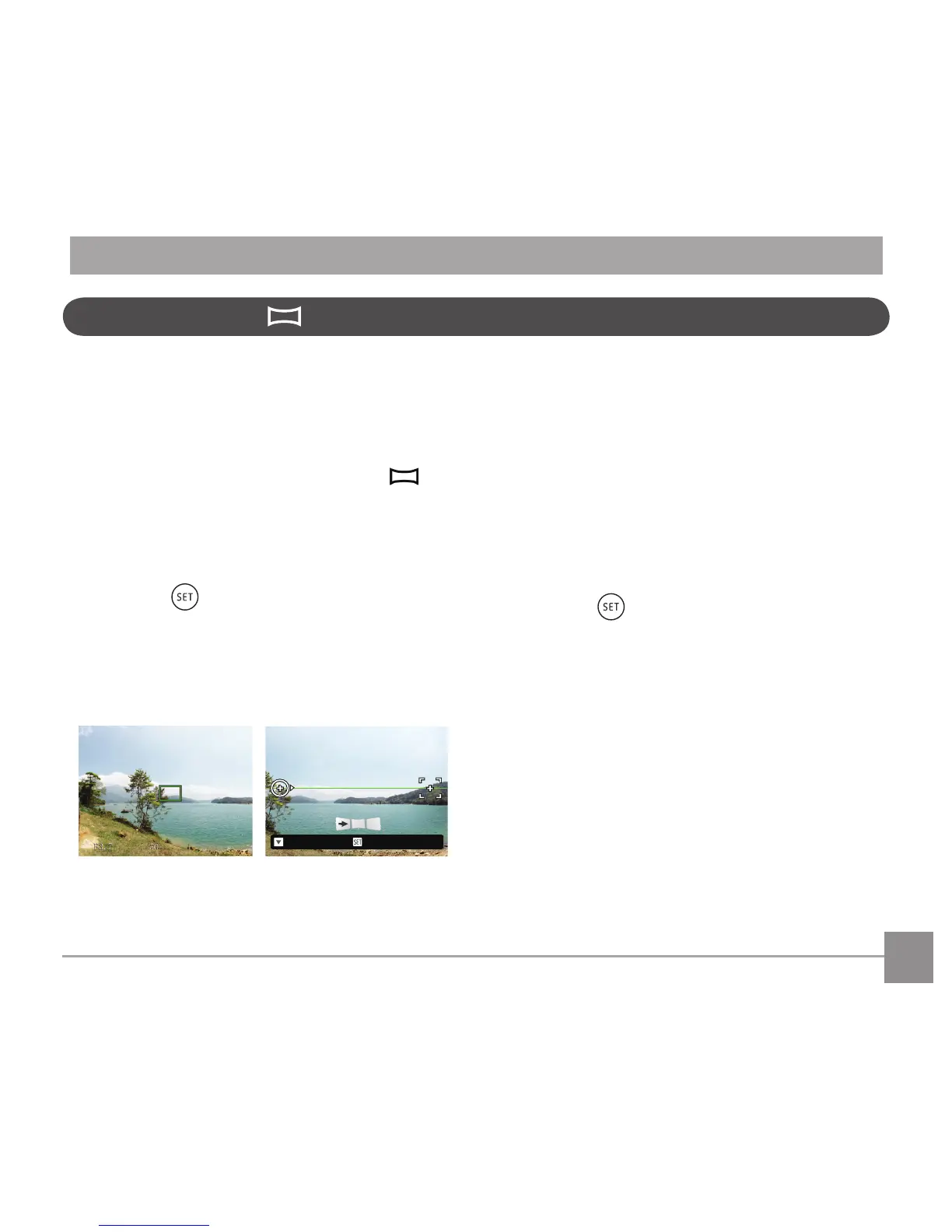
4. Whenyounishshootingtherstphoto,two
target icons will display on the LCD screen at
left and right sides. Move the camera to the
right until the round target icon is directly
positionedoverthesquarebox.Theboxwill
turn green when they overlap and the camera
willautomaticallytakethenextpicture.Repeat
the same steps for additional shots. Up to 4
frames can be stitched together.
5. If continuous pictures are less than 4 shots,
press the button and the camera will stitch
the pictures automatically. Press the playback
button to enter playback mode to see the
eect.
6. If you take 4 pictures, the camera will
automatically stitch the pictures. Press the
playback button to enter playback mode to see
theeect.
Panorama Mode
With Panorama Mode, you can take a series of
pictures which will be stitched automatically into a
ultra-wide panoramic picture by the camera.
Follow the steps below:
1. Turn the Mode Dial to Panorama Mode
.
2. Press the arrow buttons to select a shooting
direction. (The right direction is used as default if
you do not make any choice) 2 seconds later, the
camera is ready to take pictures. You can also
press the button or half press the shutter
button to be ready to take pictures.
3. Composetherstviewofthepanoramic
picture on the LCD screen and press the Shutter
button to capture the image.



 To Next Page