10
Control Panel
Keys
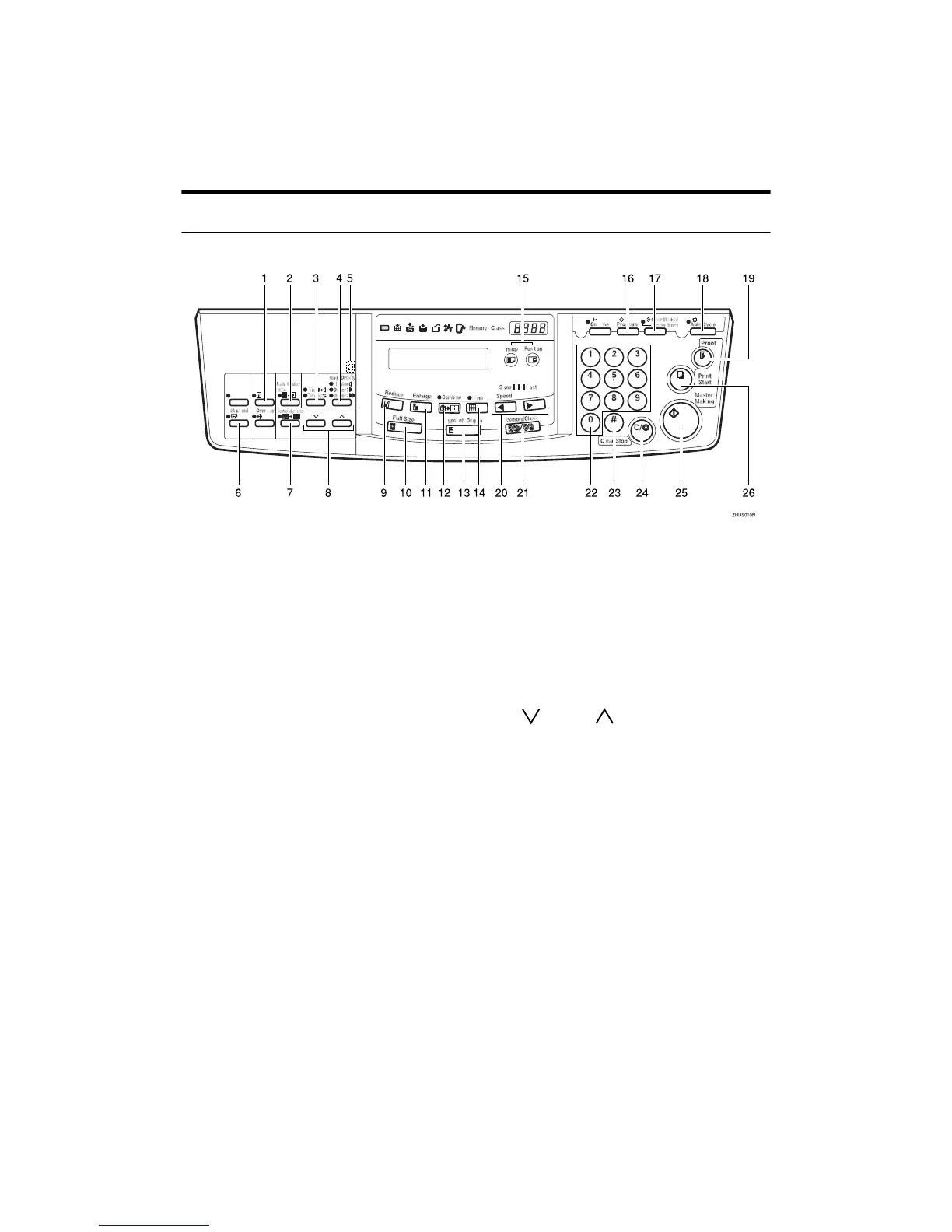
1. {
{{
{Security}
}}
} key
Press to make prints of secret documents.
See ⇒ p.54 “Security Mode—Printing Se-
cret Documents”.
2. {
{{
{Paste Shadow Erase}
}}
} key
Press to erase the shadow of pasted orig-
inals. See ⇒ p.34 “Paste Shadow Erase—
Erasing the Shadow of Pasted Originals”.
3. {
{{
{Tint/Economy}
}}
} key
Press to make halftone prints. See ⇒ p.24
“Tint Mode—Halftone Printing”.
Press to save ink. See ⇒ p.38 “Economy
Mode—Saving Ink”.
4. {
{{
{Image Density}
}}
} key
Press to make prints darker or lighter. See
⇒ p.23 “Adjusting the Print Image Den-
sity”.
5. Check Indicator
This indicator lights when you have se-
lected one or more of the functions ac-
cessed by lifting the behind cover and
pressing the keys underneath (e. g. {
{{
{Secu-
rity}
}}
} key, {
{{
{Paste Shadow Erase}
}}
} key etc.).
This lets you know whether one or more
of these functions is selected, even if the
cover is lowered.
6. {
{{
{Skip Feed}
}}
} key
Press to select skip feed printing. See ⇒
p.49 “Skip Feed Printing”.
7. {
{{
{Center/Edge Erase}
}}
} key
Press to print book originals that have a
solid image on the center or edges. See ⇒
p.30 “Center/Edge Erase—Erasing cen-
ter and Edge Margins”.
8. {
{{
{}
}}
} and {
{{
{}
}}
} keys (Scroll keys)
Press to select size and direction of paper
or original in Center/Edge Erase.
9. {
{{
{Reduce}
}}
} key
Press to reduce the image. See ⇒ p.28
“Preset Reduce/Enlarge—Reducing and
Enlarging Using Preset Ratios”.
10. {
{{
{Full Size}
}}
} key
Press to make full size prints.
11. {
{{
{Enlarge}
}}
} key
Press to enlarge the image. See ⇒ p.28
“Preset Reduce/Enlarge—Reducing and
Enlarging Using Preset Ratios”.
12. {
{{
{Combine}
}}
} key
Press to combine originals onto 1 print.
See ⇒ p.46 “Combine—Combining 2
Originals onto One Print”.


 To Next Page