86
FRONT PANEL CONTROL | 333/334 HPLC PUMPS
FRONT PANEL CONTROL
File Management
From the Start screen press Edit > File to reach the File Directory screen. The soft keys on this
screen will change based on the locked [*x] or unlocked status [x] of the file number highlighted.
[ 1 ] [*2] -- -- -- -- -- --
-- -- -- -- -- -- -- --
-- -- -- -- -- -- -- --
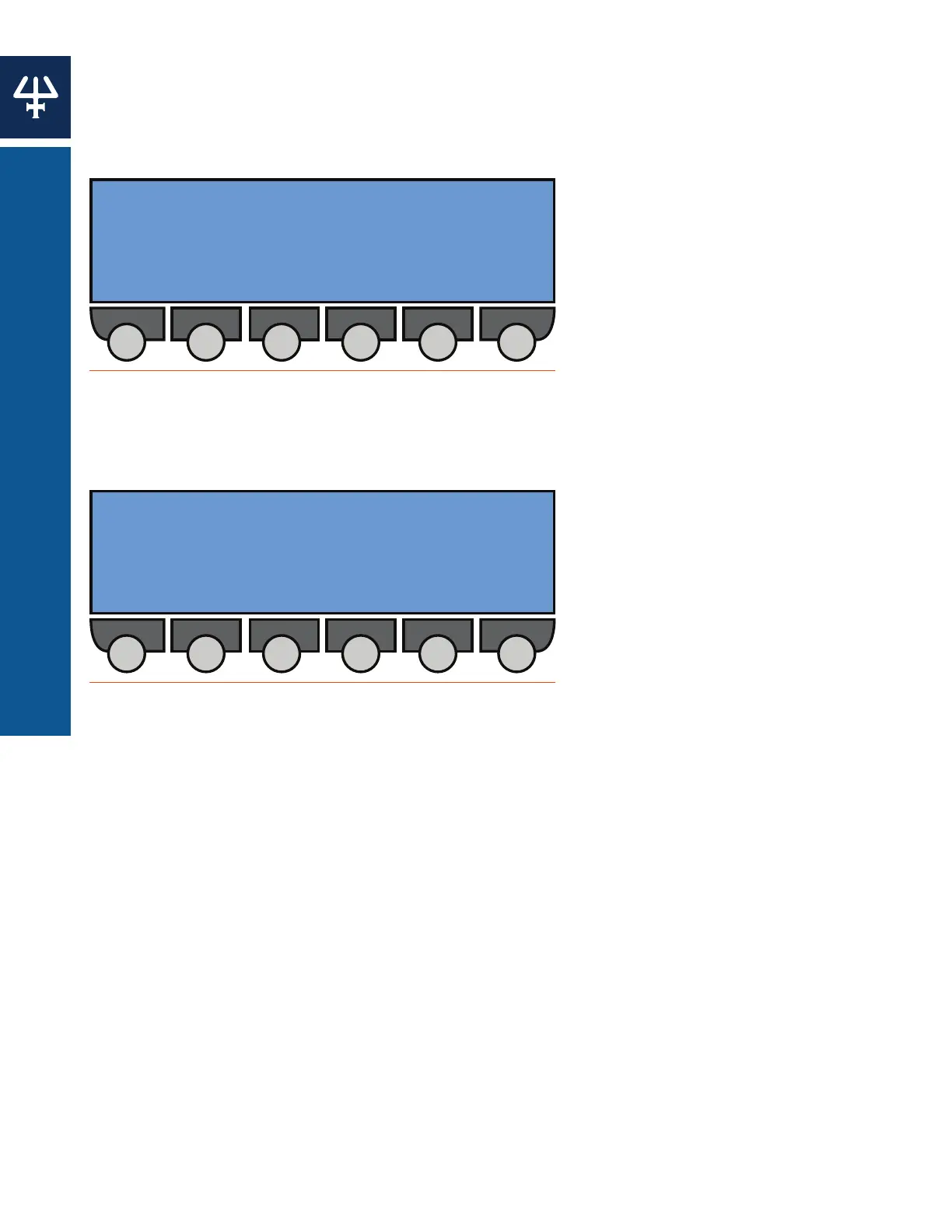
File Directory [Locked File]
LinksView Unlock Copy
Figure 80
File Directory Screen [Locked File]
[ 1 ] [2+] -- -- -- -- -- --
-- -- -- -- -- -- -- --
-- -- -- -- -- -- -- --
File Directory [Unlocked File]
Links EditDelete Lock Copy
Figure 81
File Directory Screen [Unlocked, Linked]
Create File
Navigate to an empty file space on the File Directory screen using the arrow keys and press
the Create soft key.
Edit File
Navigate to a file number using the arrow keys and press the Edit soft key. File numbers will
appear as ‘[#]’ when the file is unedited, ‘[*#]’ when the file is locked, and ‘[#+]’ when the file
contains a link to another file.
View File
Navigate to a file number using the arrow keys and press the View soft key. This options allows
users to view a locked file, using the same screen as the Edit Method, but without the possibility
of using the Delete soft key to remove the events from the file currently selected, or to delete
the file itself. However, you may copy a locked file, then edit the copied file.



 To Next Page