GKB 4CH/8CH VFire Server
114
Keyboard Control Simulator
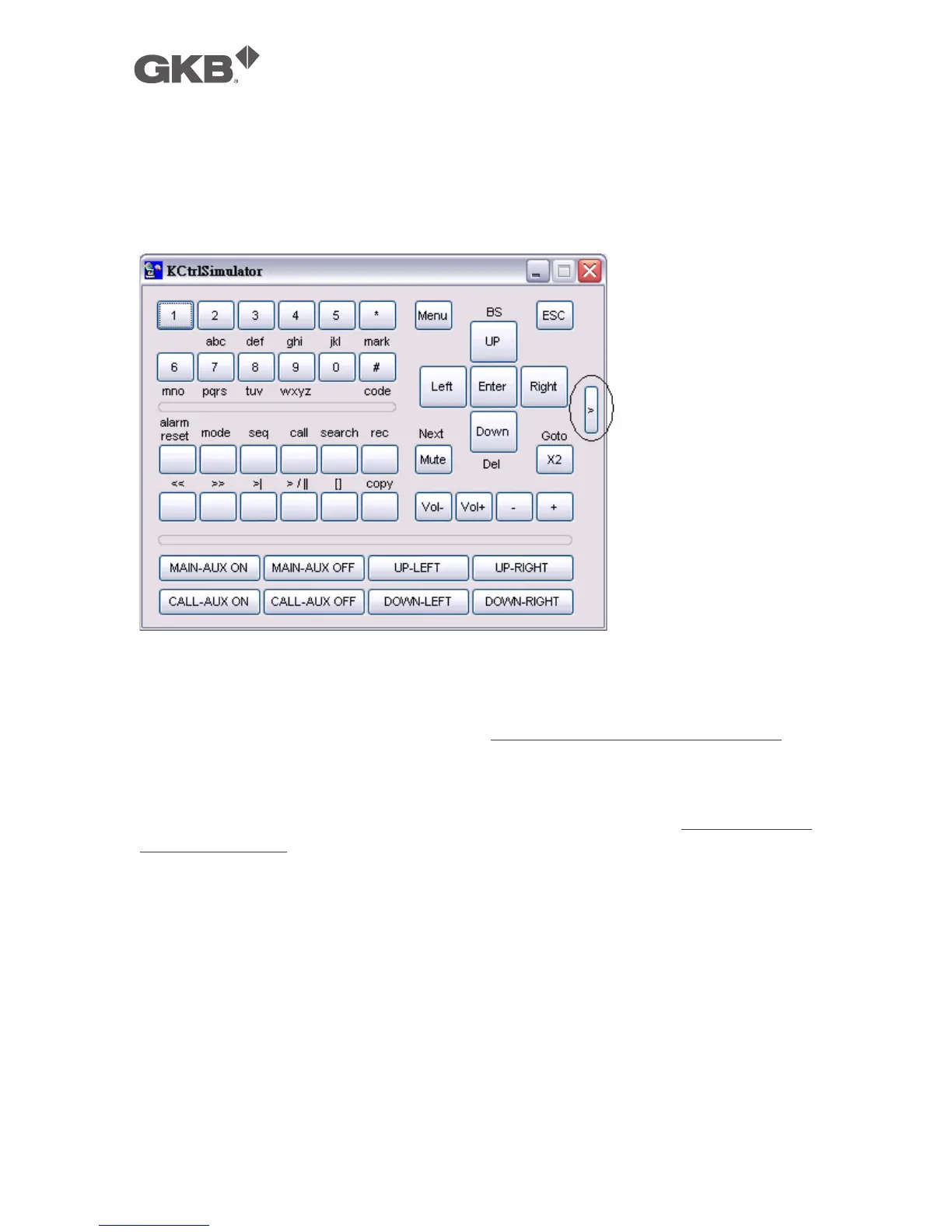
To run the Keyboard Control Simulator under MS-Windows, please select
Start->Programs->Hyper Electronics Mappers->KCtrlSimulator, and the screen will be
shown as below.
Please note that most of the buttons correspond to the keypads on the front panel. If
you connect the PC through RS-232 and use an RS-232/RS-485 converter to connect
to multiple DVR/NVRs, you would be able to control multiple DVR/NVRs via the
simulation software. Please refer to Section 3.2 Optional Connections to
connect/cascade the DVR/NVRs to the PC.
To select the DVR/NVR to control, please click on the button as circled in the above
diagram to set the corresponding DVR/NVR ID. Please note that the RS-232/422/485
setup (Section 6.9), including the DVR/NVR ID, in the DVR/NVRs must be configured
correctly (Model must be set as Control Protocol).
Note: UP-LEFT, UP-RIGHT, DOWN-LEFT, and DOWN-RIGHT are newly added to control
the PTZ cameras diagonally.



 To Next Page