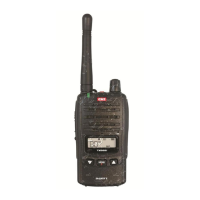
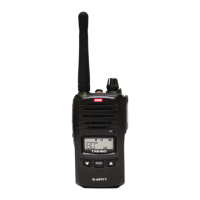
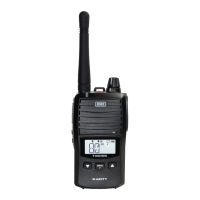
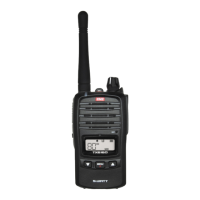
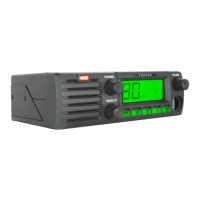
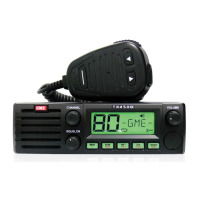
TX6600PRO INSTRUCTION MANUAL
53
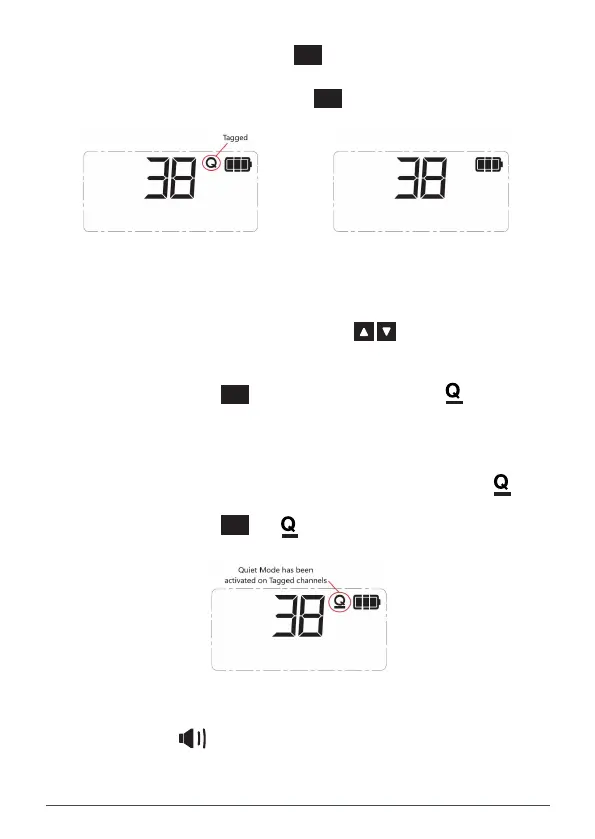
3. To tag the channel, hold the
QUIET
PWR
key. QT CH On will be displayed
briey and the Q icon will appear to the right of the channel number.
4. To un-tag the channel, hold the
QUIET
PWR
key. QT CH OFF will be displayed
briey and the Q icon will disappear from the display.
ii. To un-tag the channel, hold the key. QT CH OFF will be displayed briefly and the
icon will disappear from the display.
To acvate the QUIET mode
Before acvang the Quiet mode you must first select a tagged channel.
1. Rotate the Channel knob or press the keys to select a channel that has been tagged
for Quiet operaon. The icon will be visible on that channel.
2. Briefly press the key. The icon will change to indicang the Quiet mode is now
acve. All channels tagged for Quiet operaon will now be operang in the Quiet Mode.
To de-acvate the QUIET mode
1. Select any channel that has been tagged
for
Quiet operaon. will be visible.
2. Briefly press the key. will change to and
all channels tagged for Quiet operaon will now be
open to all incoming signals.
Receiving signals in the QUIET mode
• If a signal is received on a QUIET channel, the channel will appear busy (the icon will be
visible) but no sound will be heard from the speaker.
• If a signal is received on an Open channel (one that is not tagged with ) the signal will be
heard in the usual way.
If a signal containing your SelCall Ident
is received on any channel – Open or QUIET – the QUIET
mode will be cancelled, and the alarm will beep to alert you to the call. In addion, the caller’s
Ident or ALPHA Name will be displayed. All channels will now be open for normal transmission and
recepon.
SCANNING IN THE QUIET MODE
Scanning while in the Quiet mode allows you to monitor a group of Quiet channels or a
combinaon of Quiet and Open channels.
To activate the QUIET mode
Before activating the QUIET mode you must rst select a tagged channel.
1. Rotate the Channel knob or press the keys to select a channel
that has been tagged for Quiet operation. The Q icon will be visible
on that channel.
2. Briey press the
QUIET
PWR
key. The Q icon will change to indicating the
QUIET mode is now active. All channels tagged for Quiet operation will
now be operating in the QUIET Mode.
To de-activate the QUIET mode
1. Select any channel that has been tagged for Quiet operation. will
be visible.
2. Briey press the
QUIET
PWR
key. will change to Q and all channels
tagged for Quiet operation will now be open to all incoming signals.
ii. To un-tag the channel, hold the key. QT CH OFF will be displayed briefly and the
icon will disappear from the display.
To acvate the QUIET mode
Before acvang the Quiet mode you must first select a tagged channel.
1. Rotate the Channel knob or press the keys to select a channel that has been tagged
for Quiet operaon. The icon will be visible on that channel.
2. Briefly press the key. The icon will change to indicang the Quiet mode is now
acve. All channels tagged for Quiet operaon will now be operang in the Quiet Mode.
To de-acvate the QUIET mode
1. Select any channel that has been tagged
for
Quiet operaon. will be visible.
2. Briefly press the key. will change to and
all channels tagged for Quiet operaon will now be
open to all incoming signals.
Receiving signals in the QUIET mode
• If a signal is received on a QUIET channel, the channel will appear busy (the icon will be
visible) but no sound will be heard from the speaker.
• If a signal is received on an Open channel (one that is not tagged with ) the signal will be
heard in the usual way.
If a signal containing your SelCall Ident
is received on any channel – Open or QUIET – the QUIET
mode will be cancelled, and the alarm will beep to alert you to the call. In addion, the caller’s
Ident or ALPHA Name will be displayed. All channels will now be open for normal transmission and
recepon.
SCANNING IN THE QUIET MODE
Scanning while in the Quiet mode allows you to monitor a group of Quiet channels or a
combinaon of Quiet and Open channels.
Receiving signals in the QUIET mode
• If a signal is received on a QUIET channel, the channel will appear
busy (the icon will be visible) but no sound will be heard from the
speaker.


 To Next Page