Applications and Entertainment 125
2. Touch > My Apps.
3. Touch the application you want to uninstall, and then touch Uninstall.
4. When prompted, touch OK.
Get Help with Google Play
If you need help or have questions about Google Play, touch > Help while in the Google Play
Store app. The Web browser will take you to the Google Play help site.
Navigation
Your phone offers a number of location-based navigation programs to help you figure out where
you are and get you where you’re going.
HTC Car
While you drive, you can easily use your phone to reach your destination, keep you entertained,
and help you stay in touch with people that matters to you. Get easy access to music, maps,
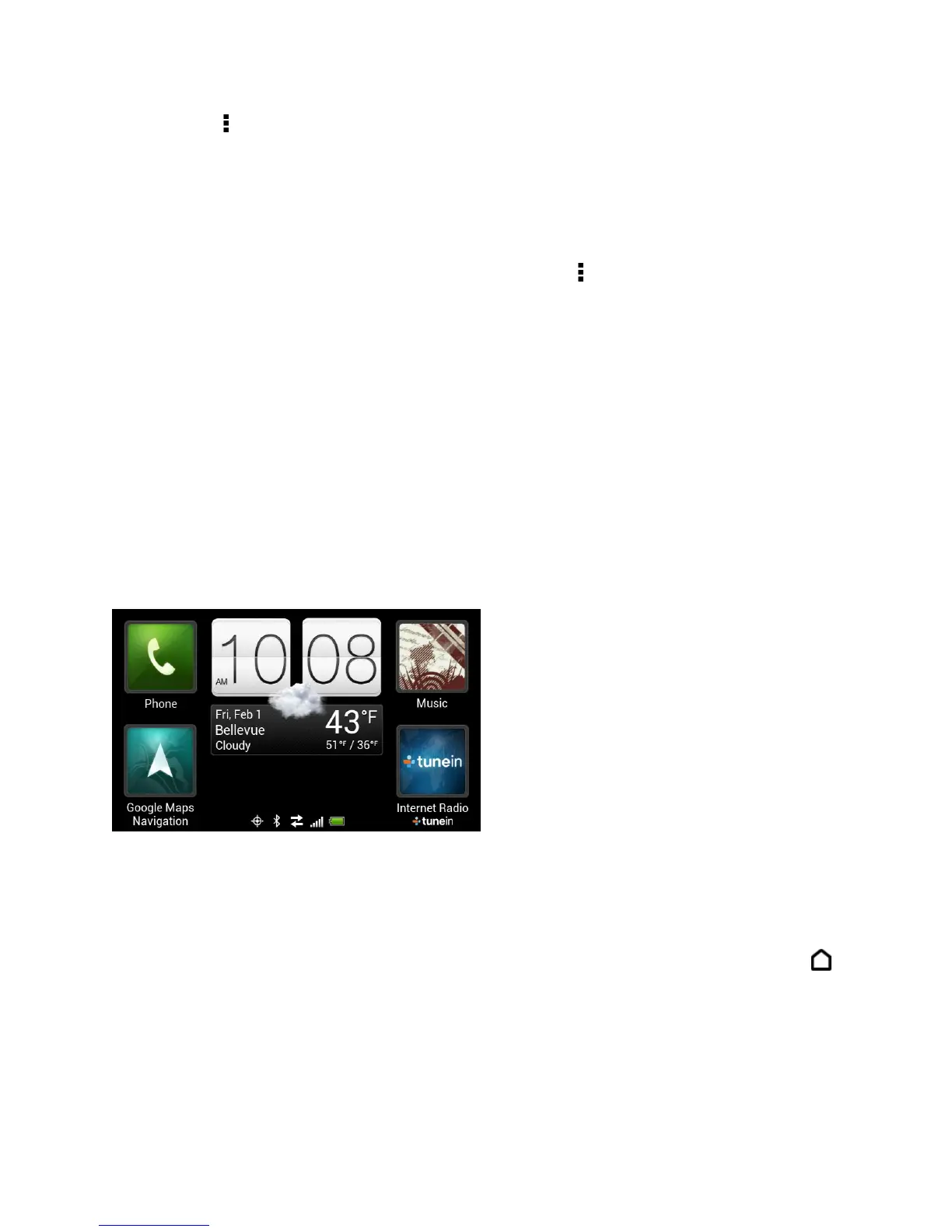
navigation, and phone calls with HTC Car.
HTC Car instantly launches when you mount your phone in the HTC Car Kit or connect to your
specified Bluetooth device.
● Swipe left or right to go to the other panels such as Music or Phone.
● Touch a shortcut to do something right away. For example, touching Music immediately
plays the last song you were listening to.
● When you navigated away from the main panel, return to the main panel by touching .
Play Music in HTC Car
1. On the HTC Car main panel, swipe left until the Music panel displays.
2. Slide up from the bottom of the screen. You can then browse music by category or
search your collection.



 To Next Page