Phone Basics 18
Note: HTC gestures is enabled by default, which makes the three-finger gesture work only
when sharing content or using HTC apps. If you want to use the multi-finger gesture in
other apps or games, clear the HTC gestures option in Settings > Display, gestures &
buttons.
The 3-finger gesture may not be available when TalkBack gestures are enabled. For
details, see Navigate Your Phone with TalkBack.
Motion Gestures
Use motion gestures to rotate the screen, mute, lower the ringtone volume, and more.
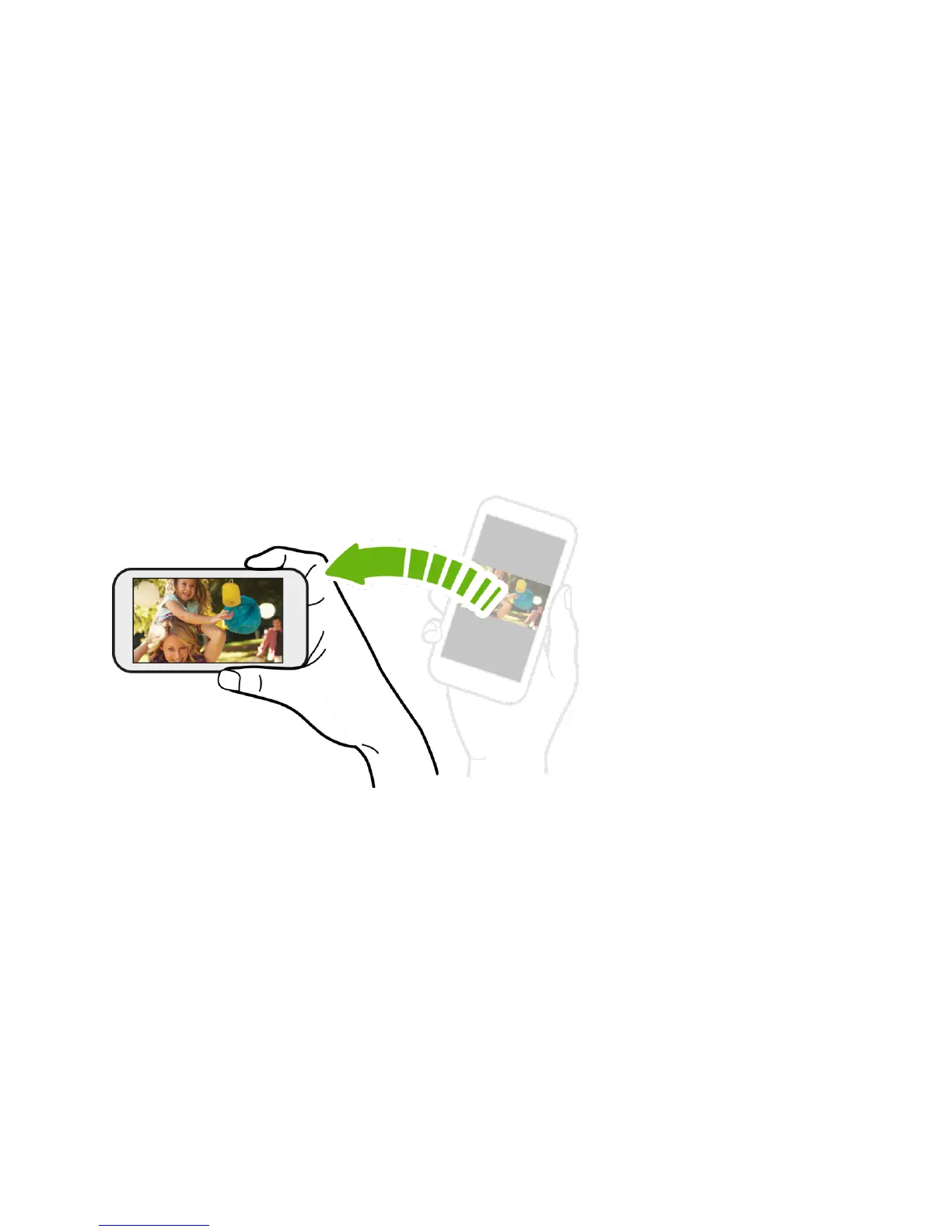
Rotate
For most screens, you can automatically change the screen orientation from portrait to
landscape by turning the phone sideways. When entering text, you can turn the phone sideways
to bring up a bigger keyboard. See HTC Sense Input Keyboard for more details.
Note: The Auto-rotate screen option in Settings > Display, gestures & buttons needs to be
selected for the screen orientation to automatically change.
The TalkBack accessibility feature works best if you turn off auto-rotate. For details, see
Navigate Your Phone with TalkBack.



 To Next Page