Phone Basics 33
1. Open the Notifications panel, and then touch > Language & keyboard > Google
voice typing.
2. Touch Choose input languages.
3. Clear the Automatic option, and then select the language you want.
Tips for Editing Text
Your phone gives you many options to make entering text easier, including copying, cutting, and
pasting text, using voice-to-text input, customizing the user dictionary, using predictive text, and
more.
Using Predictive Text
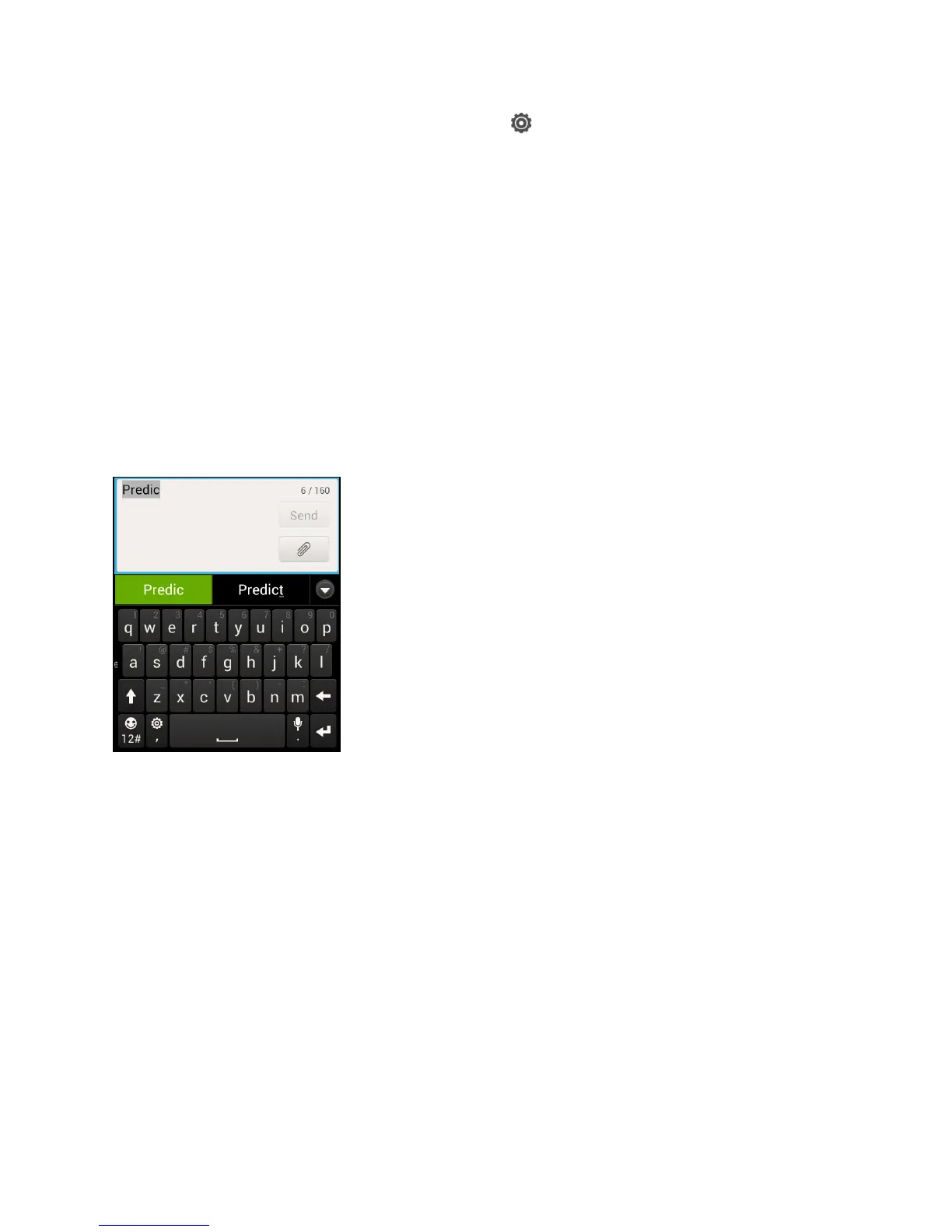
The onscreen keyboard has predictive text to help you type quickly and accurately. Predictive
text input is enabled by default, and word suggestions are displayed as you type.
To enter a word in predictive mode, do any of the following:
● If you see the word you want highlighted, you can simply touch the space bar to insert
the word into your text.
● If you see the word you want shown in the suggestions before you have finished typing
the entire word, touch the word to insert it into your text.
● If an arrow is shown to the right of the suggestion list, touch the arrow to see more
suggestions.
Add a Word to the Predictive Text Dictionary
Your phone comes with a list of words that it references for predictive text suggestions.
Sometimes you may need to add a word to the predictive text dictionary, for example a name or
a specialized technical word.



 To Next Page