Phone Basics 24
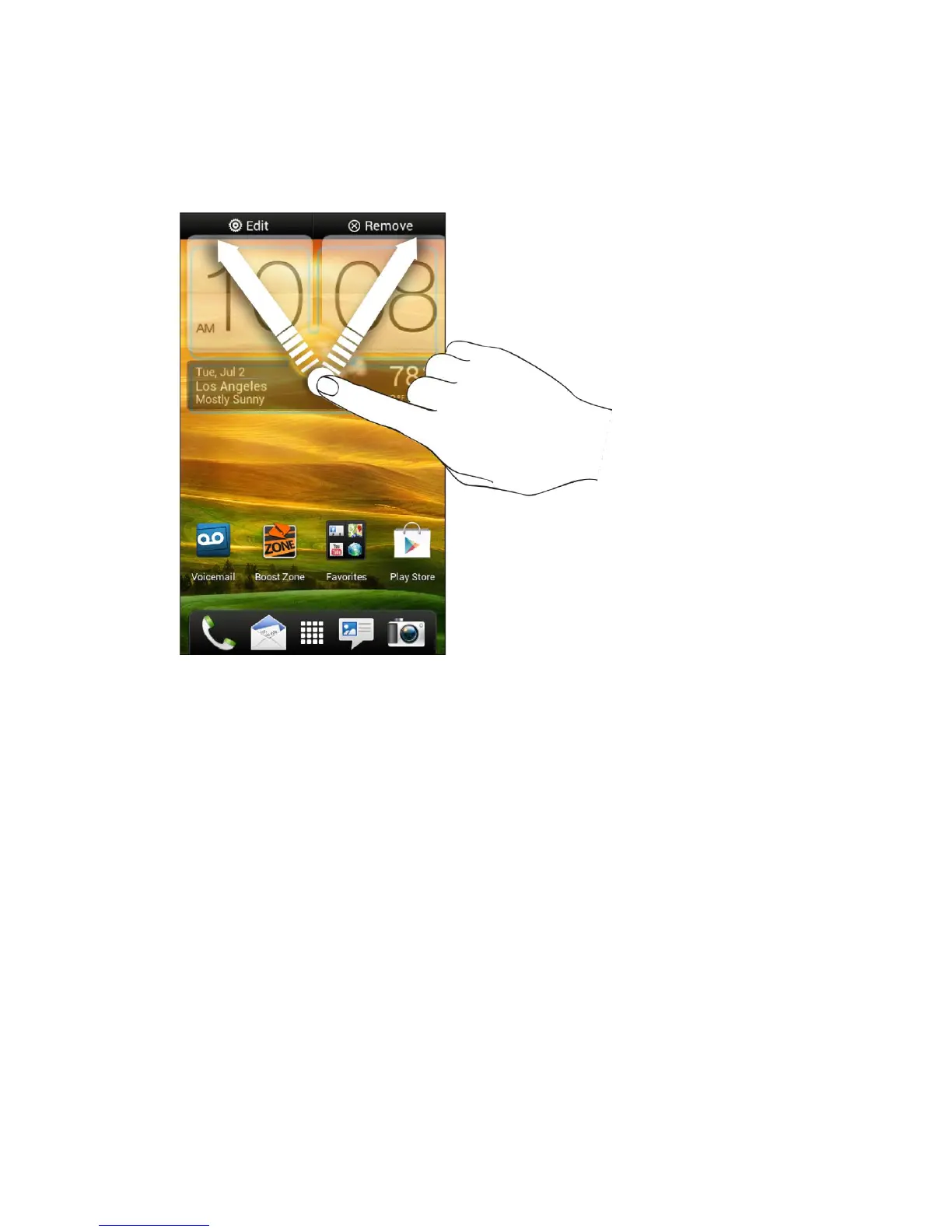
Move, Remove, or Edit Items on Your Home Screen or Extended Screens
1. Touch and hold the item you want to move, remove, or edit.
2. Do one of the following:
To move the item, drag it to a new area and then release it.
To remove the item, drag it to the Remove button and then release it.
You can change the settings of some of the widgets (for example, you can change
the city that is displayed on the weather clock widget). To edit a widget, drag it to the
Edit button, and then follow screen instructions.
Launch Bar, Apps, and Folders
From your Home screen, you can customize your phone’s launch bar, group apps into custom
folders, and easily access recently used apps.
Customize the Launch Bar
The launch bar on your Home screen gives you one-touch access to commonly used apps. You
can replace the apps on the launch bar with other apps that you often use.
Tip: The apps or shortcuts you see on the lock screen are the same as the ones in the
launch bar.



 To Next Page