Phone Basics 21
Rearrange the Home Screen
Reorder your extended screens in any way that fits how you use them. For example, move the
screens with frequently used widgets, shortcuts, and folders closer to the Home screen.
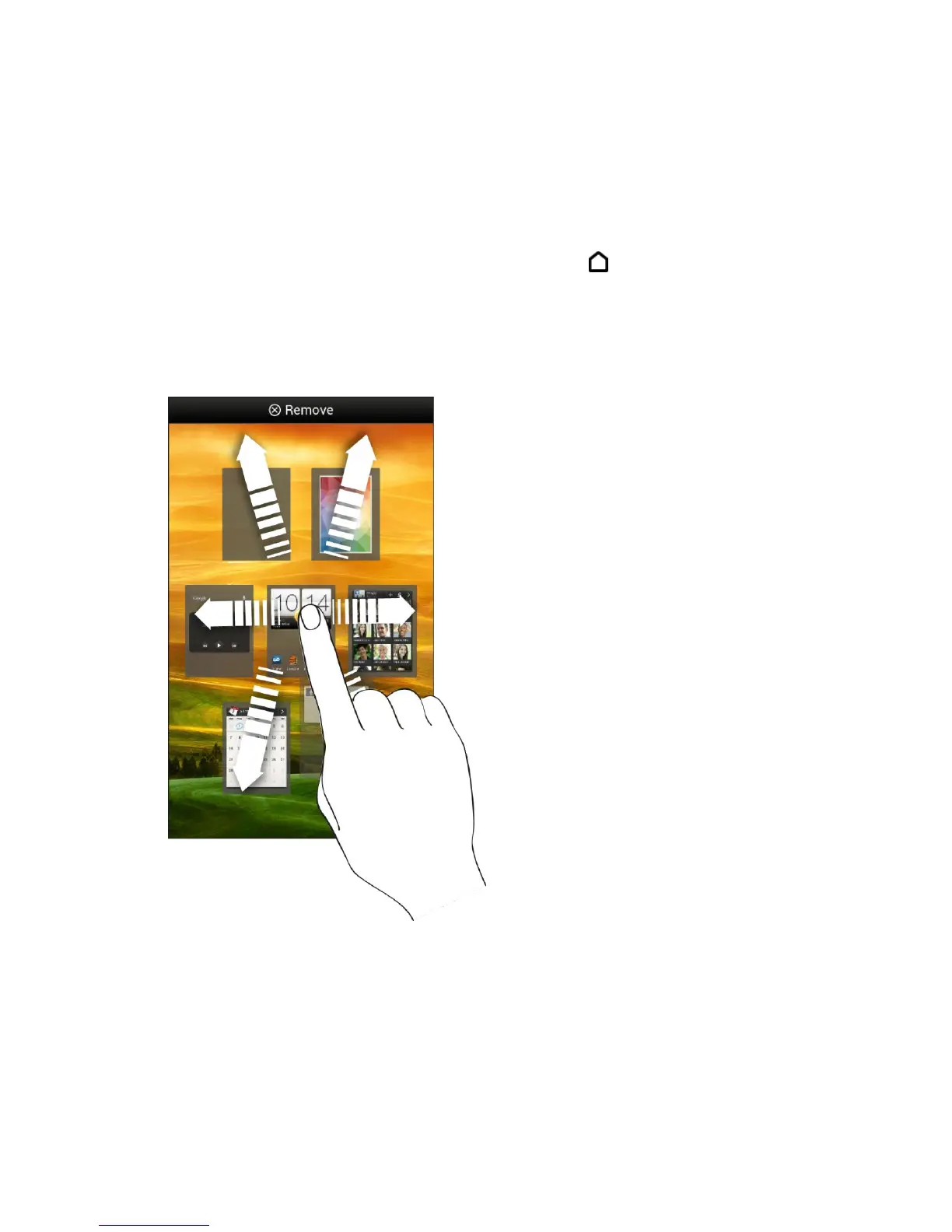
1. Pinch the Home screen to display thumbnail images of all the screens.
Note: The main Home screen is indicated by the Home icon ( ).
2. Touch and hold the thumbnail of the screen you want to move. Your phone vibrates.
Don’t lift your finger just yet.
3. Drag the thumbnail to its new position, and then lift your finger.
Remove a Home Screen Panel
Remove any unwanted screens to make your phone less cluttered.
1. Pinch the Home screen to display thumbnail images of all the screens.
2. Touch and hold the thumbnail of the screen you want to remove. Your phone vibrates.
Don’t lift your finger just yet.



 To Next Page