3-27
Load Clinical Software and Configure System
032-0330-EN Rev K
5. In the Storage Commitment section, select the Perform Storage Commitment checkbox if you
want to enable storage commitment of sent DICOM images. When selected, two radio buttons
become active:
• Select Use Existing Connection to use the same connection for sending a Storage
Commitment request and receiving a Storage Commitment response from the PACS
server.
- or -
• Select New Connection to receive Storage Commitment responses on a new
connection initiated by the PACS. In the New Connection Configuration section, enter
the IP Address and Port for the server that will send the Storage Commitment response.
A Storage Commitment request is sent after all the DICOM files of a study are sent successfully.
The status of a Storage Commitment operation is displayed in the SmartScan STUDIO
Manager Exam List under the PACS Status heading.
6. Click OK.
Modality Worklist Settings
NOTE: The Modality Worklist software should have been loaded during the installation of
SmartScan STUDIO Client components. Install it from the SmartScan STUDIO Client media if it is
not installed.
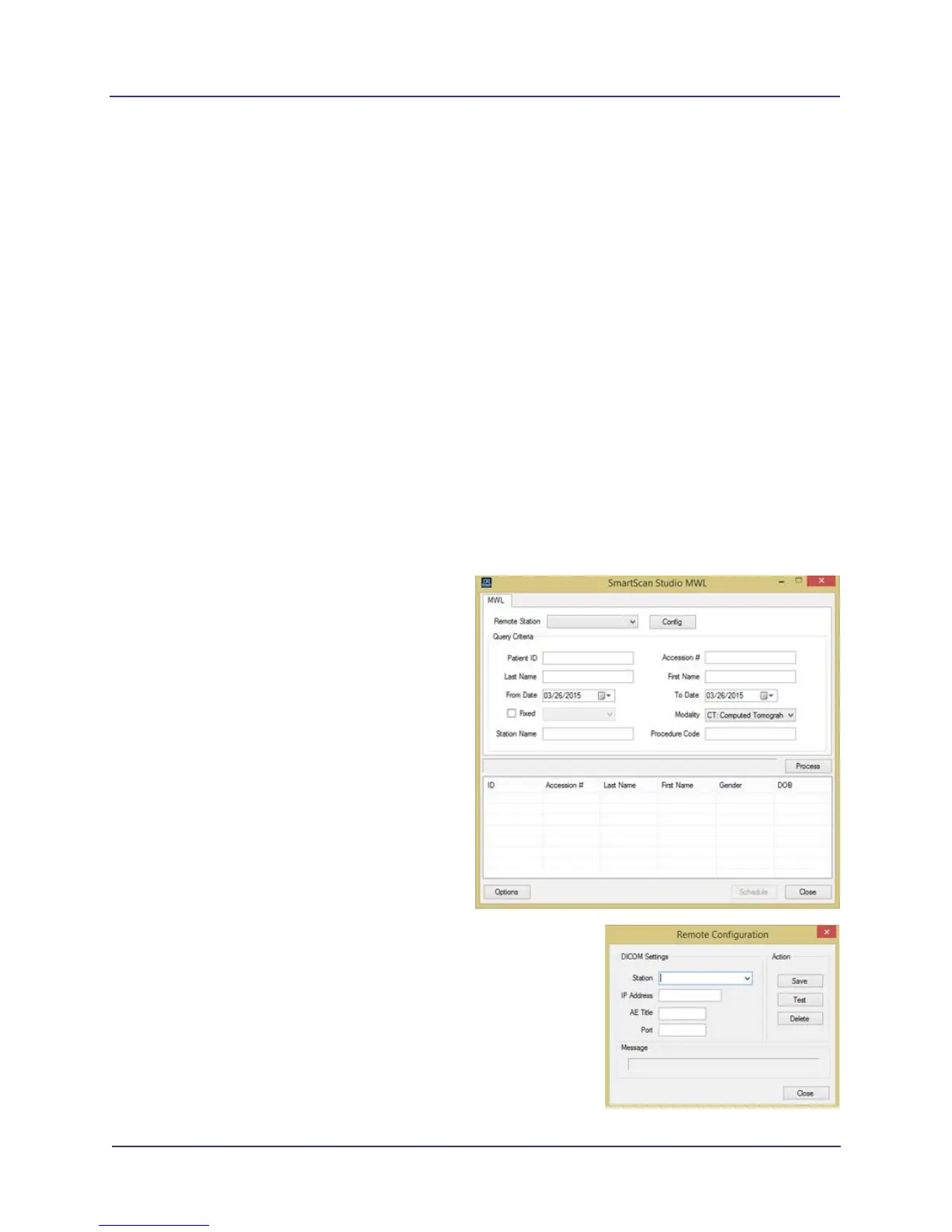
1. Start SmartScan STUDIO MWL.
NOTE: Coordinate with the site RIS
administrator for the data to be
entered in these fields.
2. Click Config (remote RIS
configuration settings).
a. Enter Station name (user defined for
identifying a particular PACS server
setup). Enter IP Address, AE Title,
and Port number for the RIS server,
from where patient data is retrieved.
This information should be provided
by hospital IT or RIS administrator.
b. Click Save, then Close.


 To Next Page