3-28
i-CAT FLX Installation Manual
032-0330-EN Rev K
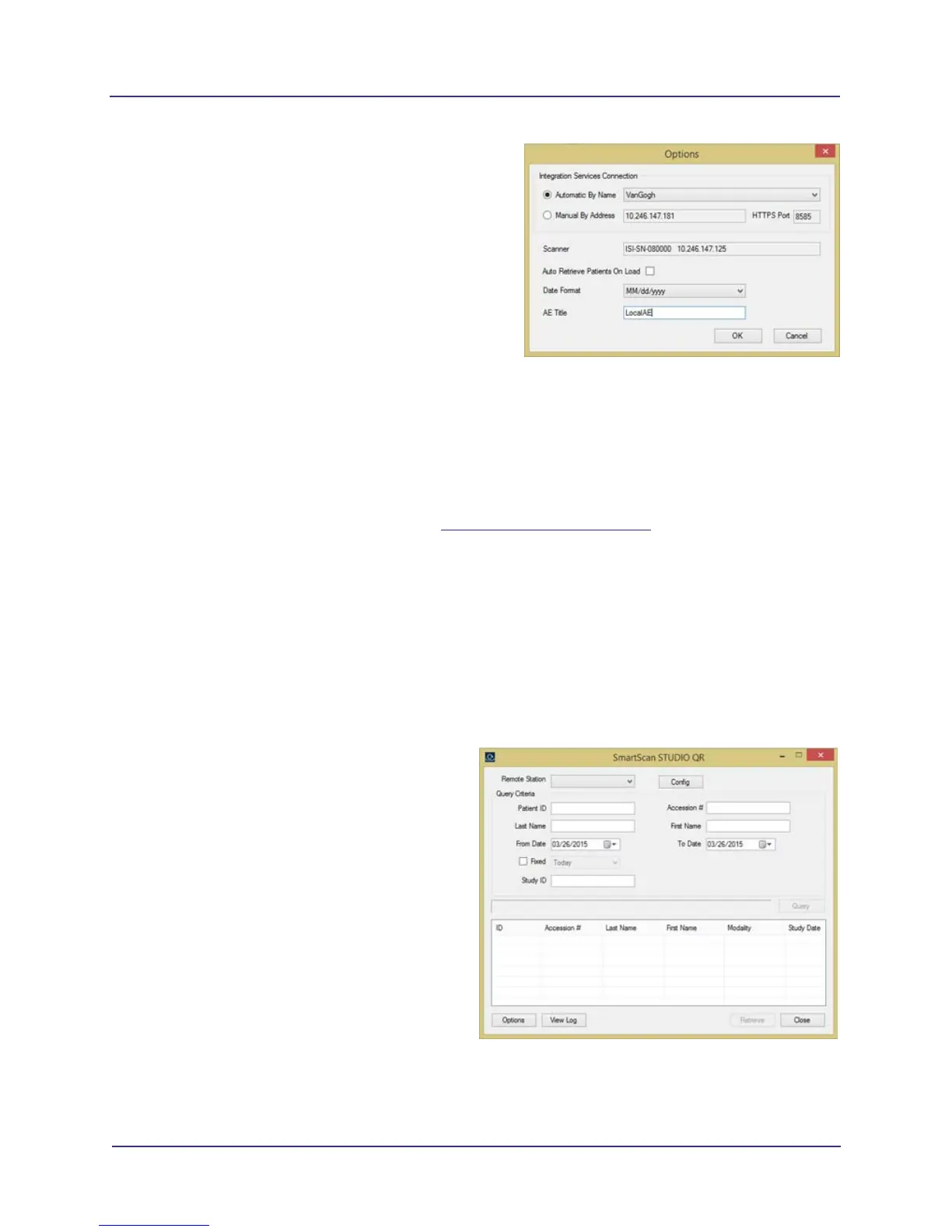
3. Click Options.
a. Under Integration Service Connection,
select one of the following:
• Automatic by Name (Default) - This is
the preferred option. Connects to
SmartScan STUDIO Integration
Services server location by computer
name. This prevents connection
problems caused by changing IP
addresses. This field must match the
name in SmartScan STUDIO Integration
Services Configuration window. Some
network setups may not be able to
resolve the computer name, and will
have to use an IP address (for example,
computers on different subnets).
• Manual by Address - When required, select this option to specify the server running
SmartScan STUDIO Integration Services by IP address and Port (must match address/
port in SmartScan STUDIO Integration Services Configuration window). A fixed IP
address should be used. See Fixed IP Addresses (page 3-8) for additional information.
b. To retrieve scheduled patient data from the remote RIS server automatically, select Auto
Retrieve Patients On Load checkbox.
c. Select desired date format and AE Title for the local computer.
d. Click OK.
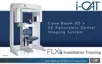
Query/Retrieve Settings
NOTE: The Query/Retrieve software should have been loaded during the installation of SmartScan
STUDIO Client components. Install it from the SmartScan STUDIO Client media if it is not installed.
1. Start SmartScan STUDIO Query/
Retrieve Module.
NOTE: Coordinate with the site PACS
administrator for the data to be
entered in these fields.


 To Next Page