C-3
Setup of Alternative Network Configurations
032-0330-EN Rev K
2. Configure Windows Service Log On
The remaining steps are performed on the SmartScan STUDIO Integration server.
Update the SmartScan STUDIO Integration Services to use the Network Service account for logon so that
the network share can be accessed.
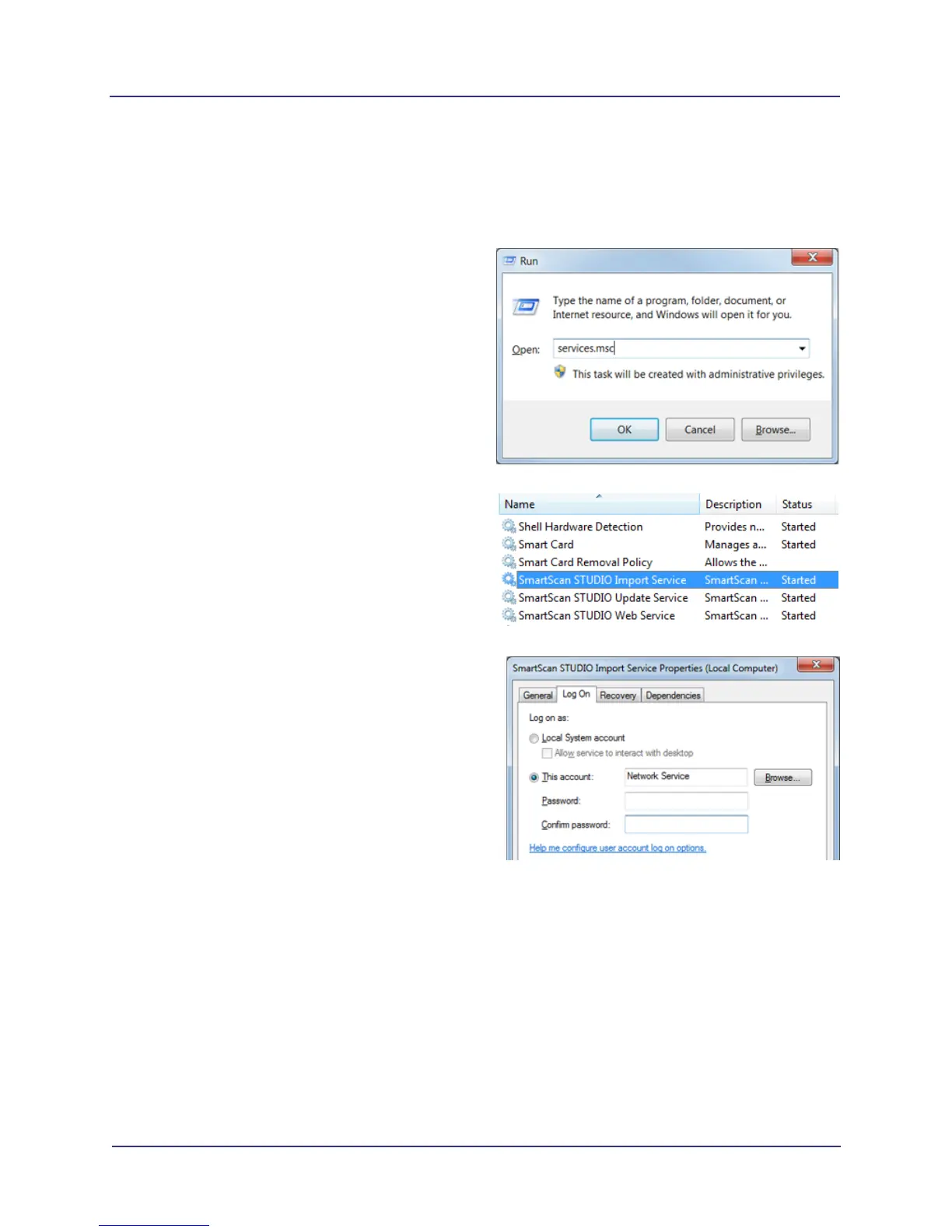
1. Open the Services control panel by pressing the
Windows key and R key.
2. Type services.msc and click OK.
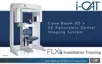
3. On the resulting list, double-click one of the three
SmartScan STUDIO services to display the
Properties window.
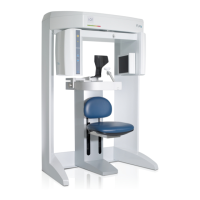
4. Click the Log On tab, then select This account
button.
5. Enter Network Service in the username field and
blank out the two password fields. Click OK.
Repeat for all SmartScan STUDIO services.
3. Grant Permission to Change the Registry
Grant the Network Service account permissions to modify the registry:
1. In a command window, run regedit.
2. Navigate to:
HKEY_LOCAL_MACHINE\SOFTWARE\Wow6432Node\Dental Imaging Technologies
Corporation\SmartScan STUDIO Integration Services
3. Right-click and select Permissions.
4. Click Add button.


 To Next Page