25
Cable length power savings enabled. PerfectReach works by determining the cable length
and lowering the power for ports with short cables.
Controls whether EEE is enabled for this switch port. For maximizing power savings, the
circuit isn't started once data is ready for transport from a port, but is instead queued until
a burst of data is ready to be transmitted. This will give some traffic latency. If desired it
is possible to minimize the latency for specific frames, by mapping the frames to a specific
queue (done with QOS), and then mark the queue as an urgent queue. When an urgent
queue gets data to be transmitted, the circuits will be powered up at once and the latency
will be reduced to the wakeup time.
Queues set will activate transmission of frames as soon as data is available. Otherwise the
queue will postpone transmission until a burst of frames can be transmitted.
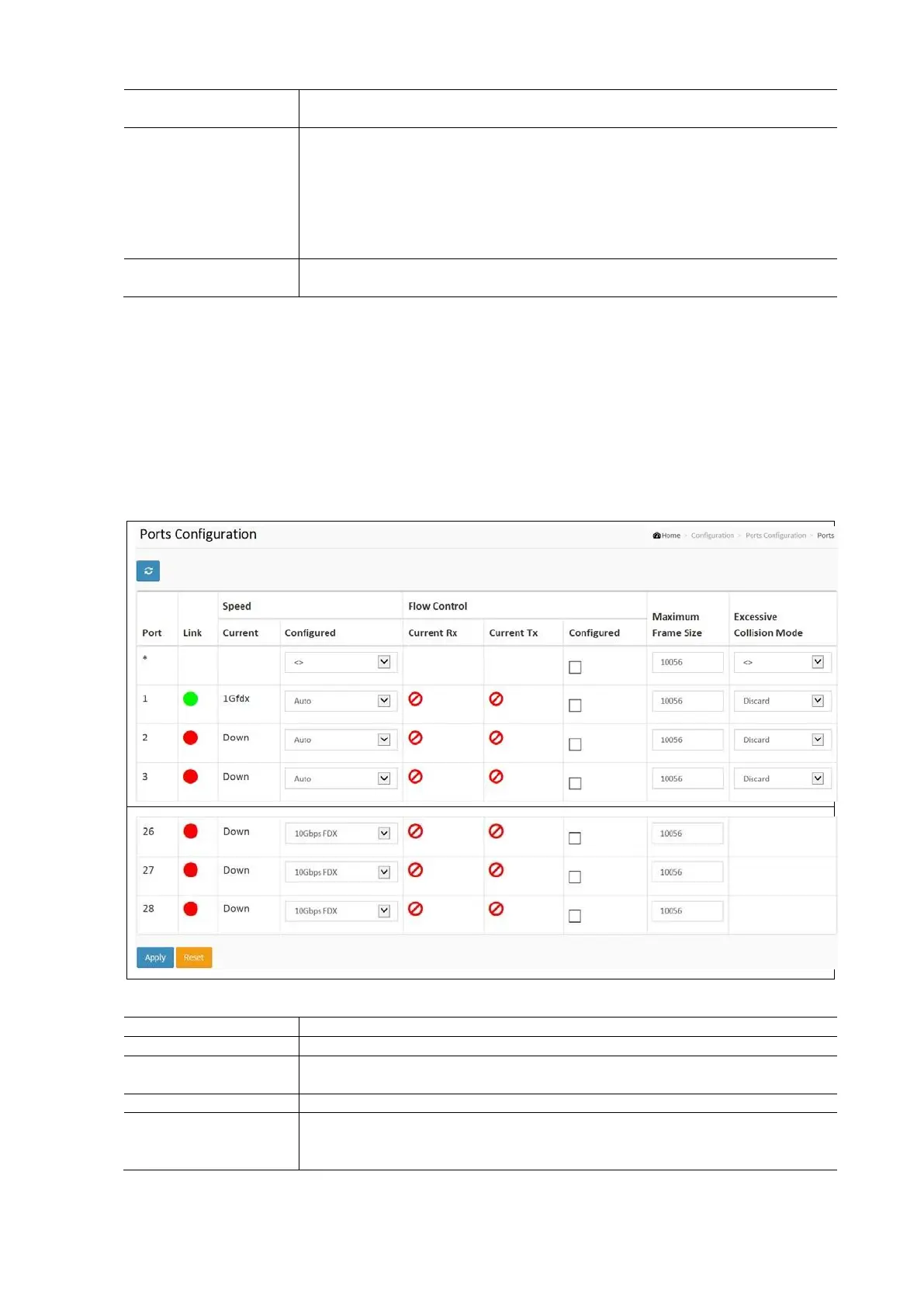
Ports Configuration
This Section describes how to configure the Port detail parameters of the switch. This includes enabling and disabling the
ports of the switch as well as monitoring the ports content and status.
The Ports
This page displays the current port configurations as well as allowing management of those configurations.
To configure the Current Port configuration in the web interface:
Click Configuration / Ports Configuration / Ports.
Specify the speed Configured, Flow Control, Maximum Frame size, Excessive Collision mode and Power Control.
Click Apply and click the Save icon in the upper right corner to save the settings or click Reset to cancel. The
Form will return to the previously saved settings.
Port Configuration Parameters:
This is the logical port number for this row.
The current link state is displayed graphically. Green indicates the link is up and red that it
is down
Provides the current link speed of the port.
Selects any available link speed for the given switch port. Only speeds supported by the
specific port are shown. Possible speeds are:
Disabled – Disables the switch port operation.


 To Next Page