How to create a message with a User Input Field
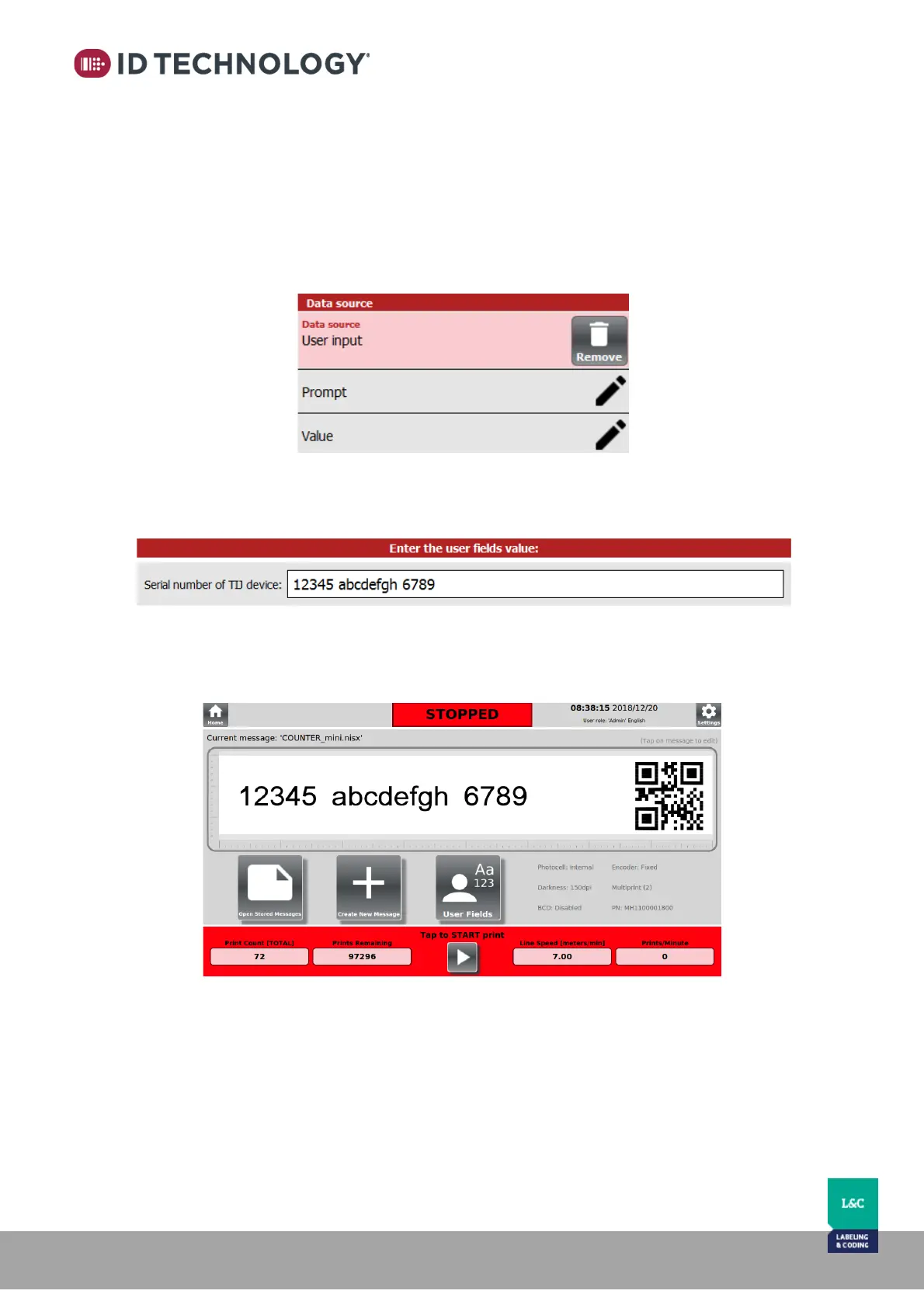
To create a User Input Field, follow these steps:
1. Go to the Message Editor and create a new message (or edit one).
2. Add/edit an item.
3. On Data source select “User Input”
4. Fill: “Prompt” and “Value” to input the value which will have the User Input element.
(i.e. Prompt could be “enter lot number”. Value could be “123456”)
5. Save and select the message and exit the editor
6. A pop-up window will appear with the user prompts and fields available to be populated
with text.
7. The message on the home screen will display the updated fields with the new values.
There will now also be a ‘User Fields’ button that can be used to update the values when
desired. In addition, this prompt is displayed when user taps the start print button.


 To Next Page