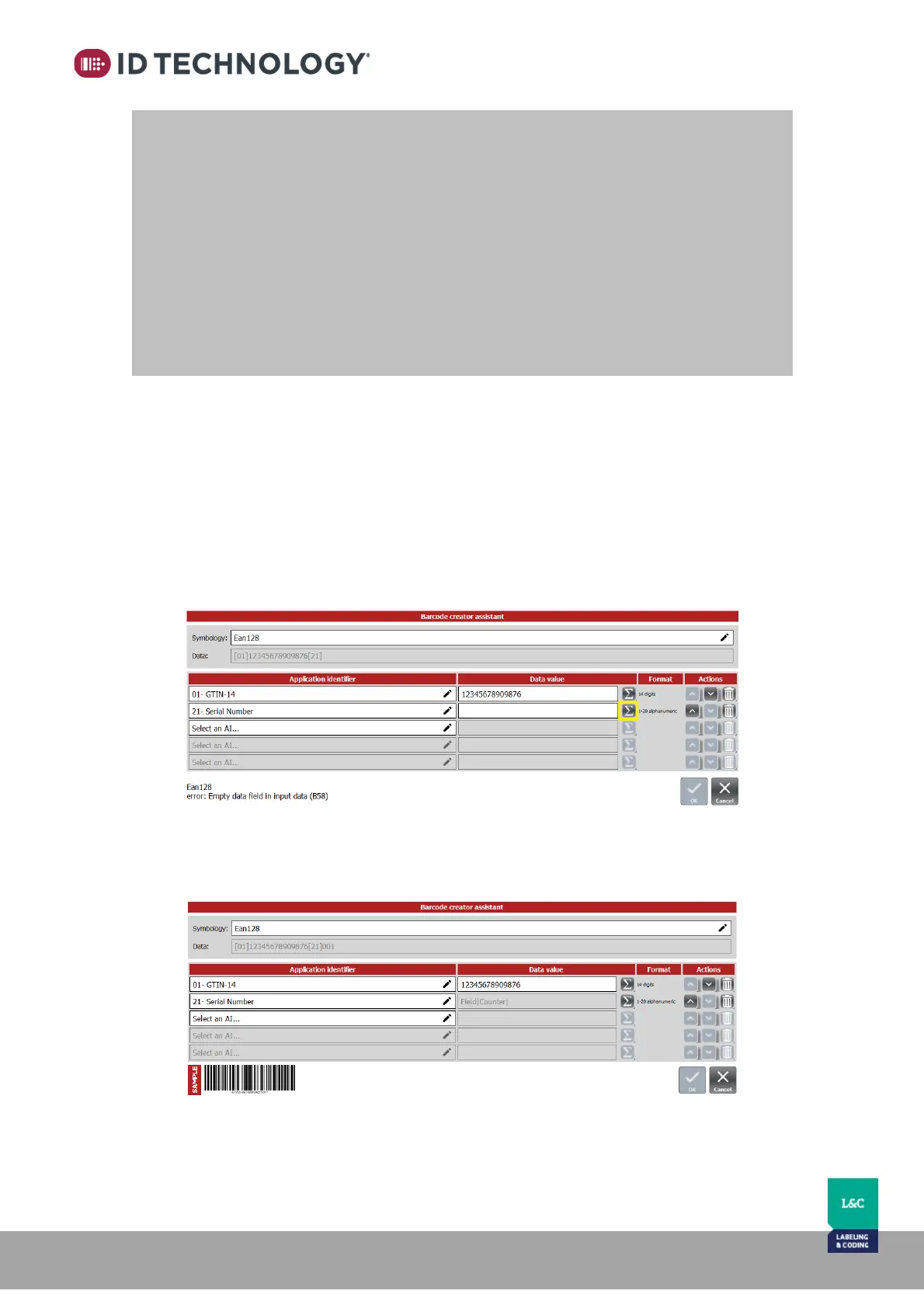
GS1 barcodes with application identifiers
To create a barcode with AI components, use the following steps:
1. Go to the message editor.
2. Select a Barcode item.
3. Go to the barcode assistant.
4. Select a symbology that contains AI: Ean128, for example.
5. Select an AI.
6. Tap on the formula button and the barcode creation assistant will display.
7. Once the AI is edited with a formula, the entire barcode will be converted to a GS1
format. Tap to the formula button to edit the AI with the formula.
NOTES:
- Only barcodes and text can be used for composite data source.
- A Composite item cannot be composed from itself or by another composite item that
uses it.
- It is recommended to change the name of the items that will be part of the formula
to easily recognize the components of the field while creating.
- If an item that is used in a composition is removed, it will be removed in the formula
as well.
- It is possible to edit the formula manually from the “Composite assistant”.
- A composite item can be composed by other Data Sources such as counters and
dates.


 To Next Page