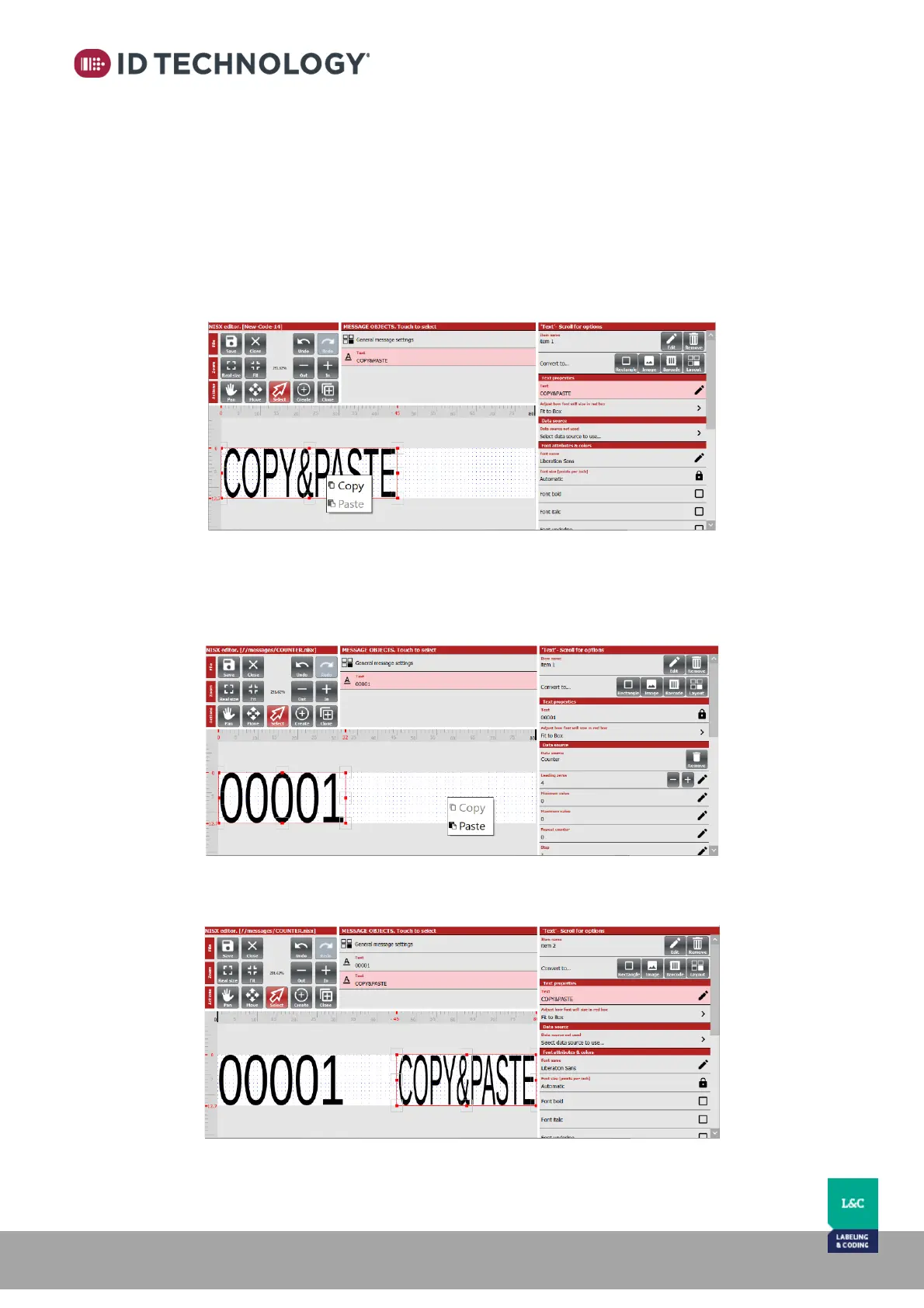
How to create a new item as existed one: Clone vs Copy & paste
Copy & Paste
Allows saving an item/field of a message in order to paste within the same message or within
other messages. The copied item will have the same properties as the original item except the
field name, position and size.
To copy & paste an item, follow these steps:
1- In the message editor, select an item by tapping on it.
2- Press on the selected item for a few seconds and the COPY & PASTE pop up will appear.
3- Press on “Copy” to save the current item to memory for copying.
4- In the desired message, press on the canvas for a few seconds to bring up the COPY &
PASTE pop up.
5- Tap on “Paste” and select where on the canvas you wish to paste.



 To Next Page