1.
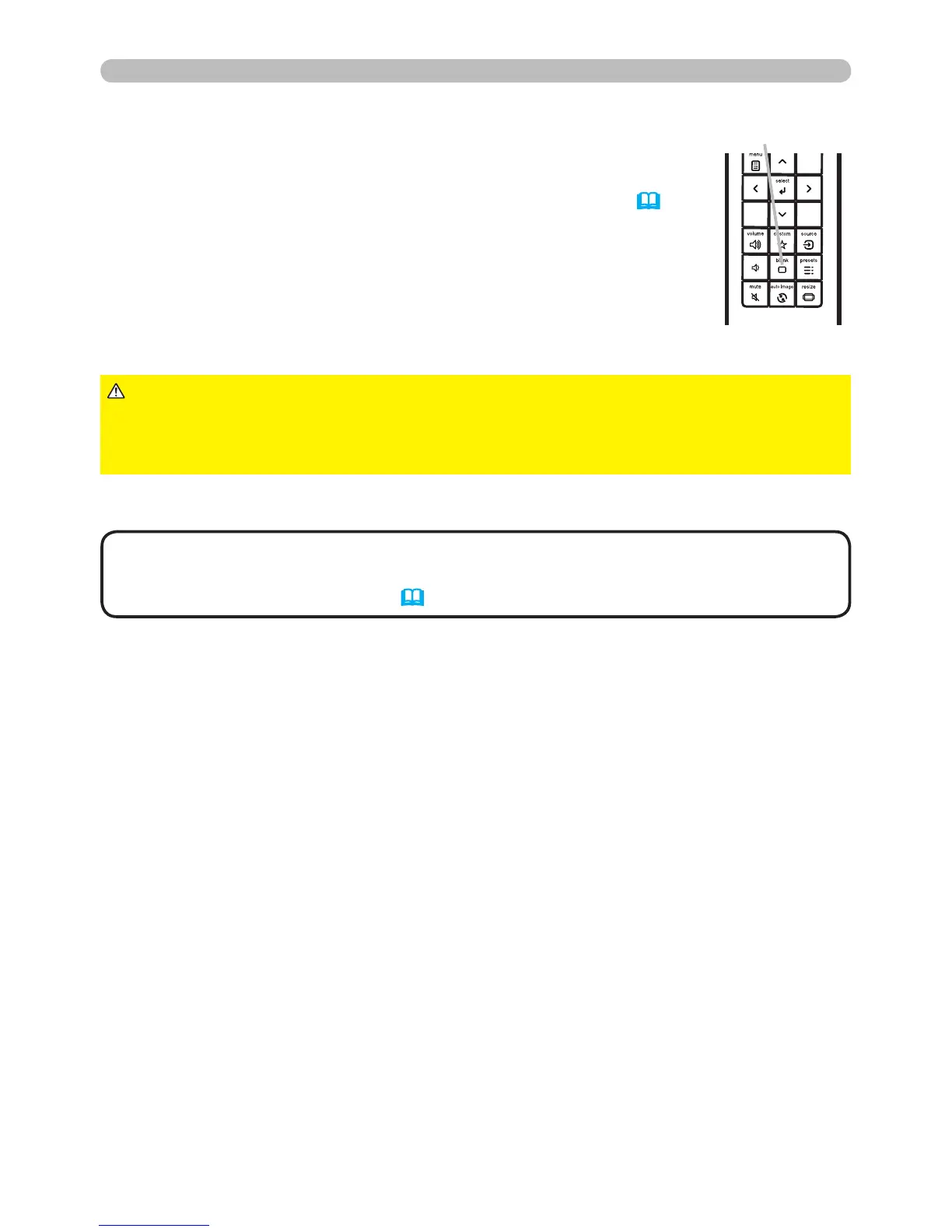
Press the BLANK button on the remote control.
The BLANK screen will display instead of the input signal
image. Please refer to BLANK in the SCREEN menu (43).
To exit the BLANK screen and return to the input signal
screen, press the BLANK button again.
Temporarily blanking the screen
● The projector automatically exits from the
BLANK
mode when
some control buttons are pressed.
•
Sound is not affected by the BLANK screen feature. If necessary, mute
or adjust volume rst. To display the BLANK screen and mute the sound at one
time, use the AV MUTE feature
(51).
NOTE
BLANK button
►If you wish to have a blank screen when the projector's lamp
is on, use the BLANK feature above.
Taking any other action may cause the damage on the projector.
CAUTION
Operating



 To Next Page