Picture menu
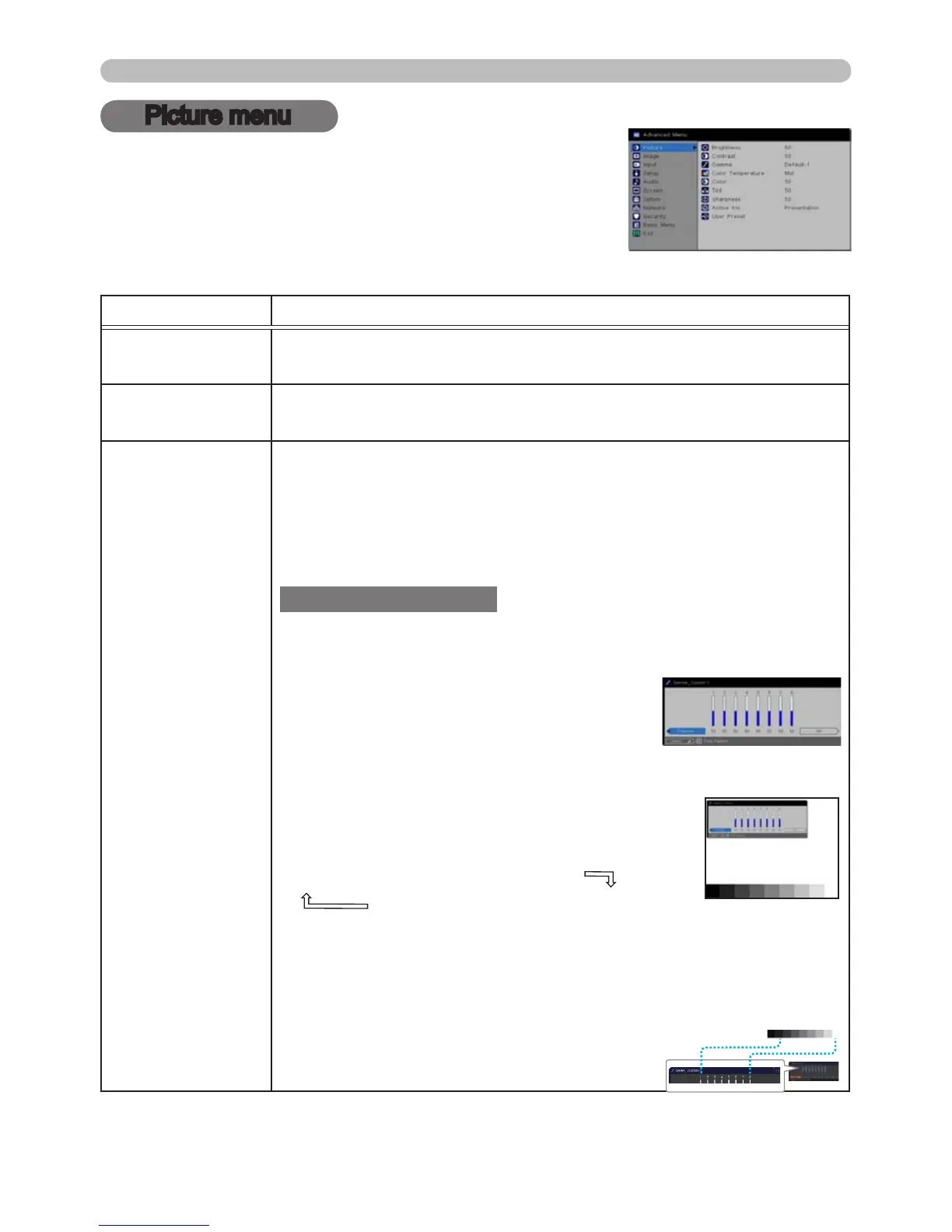
From the Picture menu, the following items can be
performed as shown in the table below.
Highlight an item using the ▲/▼ cursor buttons, and
press the ► cursor button or SELECT button to execute
the item. Then make adjustments based on the table
below.
Item Description
BRIGHTNESS
Using the
◄/►
buttons adjusts brightness.
Dark
ó
Light
CONTRAST
Using the
◄/►
buttons adjusts contrast.
Weak
ó
Strong
GAMMA
Using the ▲/▼ buttons switches the gamma mode.
To adjust CUSTOM
If you highlight one of the CUSTOM modes and then press the ►
or the SELECT button, a dialog will appear to help you adjust the
mode.
This feature is useful when you want to
change the brightness of particular tones.
Choose an item using the ◄/► buttons,
and adjust the level using the ▲/▼ buttons.
You can display a test pattern to check your adjustment by pressing
the SELECT button.
Each time you press the SELECT button, the
pattern changes as below:
No pattern
ð
Gray scale of 9 steps
Ramp
Gray scale of 15 steps
The eight equalizing bars correspond to eight tone levels (not the
darkest one on the left) of the Gray scale test pattern. To adjust the 2nd
tone on the left of the test pattern, use the equalizing adjustment bar “1”.
The darkest tone on the left end of the test pattern cannot be controlled
with any equalizing adjustment bar.
• Lines or other noise may appear on the
screen when this feature is operated, but this
is not a malfunction.
(continued on next page)



 To Next Page