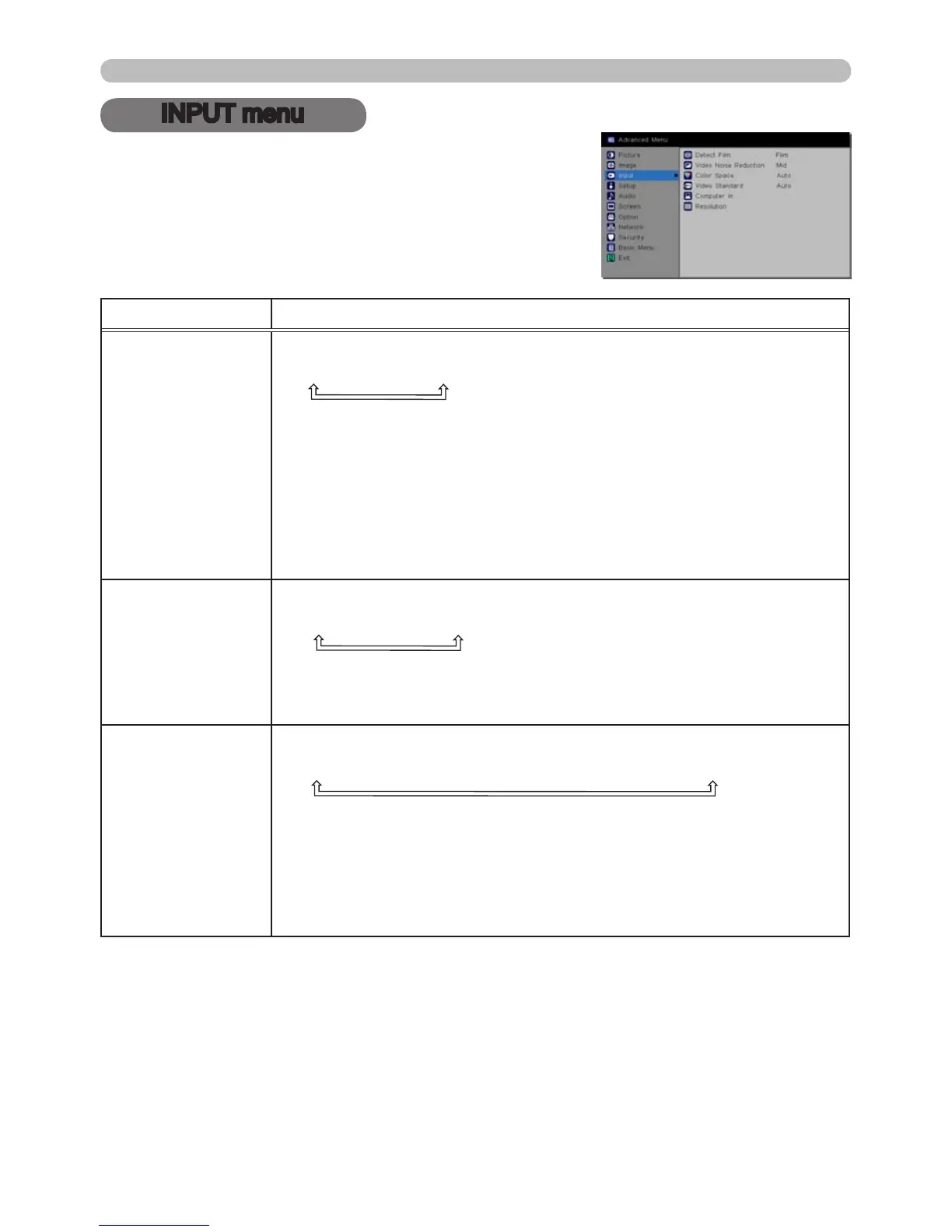
INPUT menu
From the INPUT menu, the items in the table below
can be performed.
Highlight an item using the ▲/▼ cursor buttons, and
press the ► cursor or SELECT button to select the
item. Then make adjustments per the following table.
Item Description
DETECT FILM
Using the ▲/▼ buttons switches the progress mode.
TV
ó
FILM
ó
OFF
•
This feature only works with video, S-video, component video
(480i@60, 576i@50 or 1080i@50/60) and HDMI™ (480i@60,
576i@50 or 1080i@50/60) signals
.
• When TV or FILM is selected, the screen image will be sharp.
FILM adapts to the 2-3 Pull-Down conversion system. But this
may cause certain image defects (for example, jagged lines) when
viewing quick moving objects. If that happens, please select OFF,
even though the screen image may lose sharpness.
VIDEO NOISE
REDUCTION
Using the ▲/▼ buttons switches the noise reduction mode.
HIGH
ó
MID
ó
LOW
•
This feature only works with video, S-video, component video
(480i@60, 576i@50 or 1080i@50/60) and HDMI™ (480i@60,
576i@50 or 1080i@50/60) signals
.
COLOR SPACE
Using the ▲/▼ buttons switches the mode for color space.
AUTO
ó
RGB
ó
REC709
ó
REC601
ó
RGB VIDEO
• This feature can only be selected for computer signals (excluding
LAN, USB TYPE A and USB TYPE B port signals) and component
video signals.
• The AUTO mode automatically selects the optimum mode.
• The AUTO operation may not work well with some signals. If that
happens, any option other than AUTO is recommended.
(continued on next page)



 To Next Page