INTRODUCTION
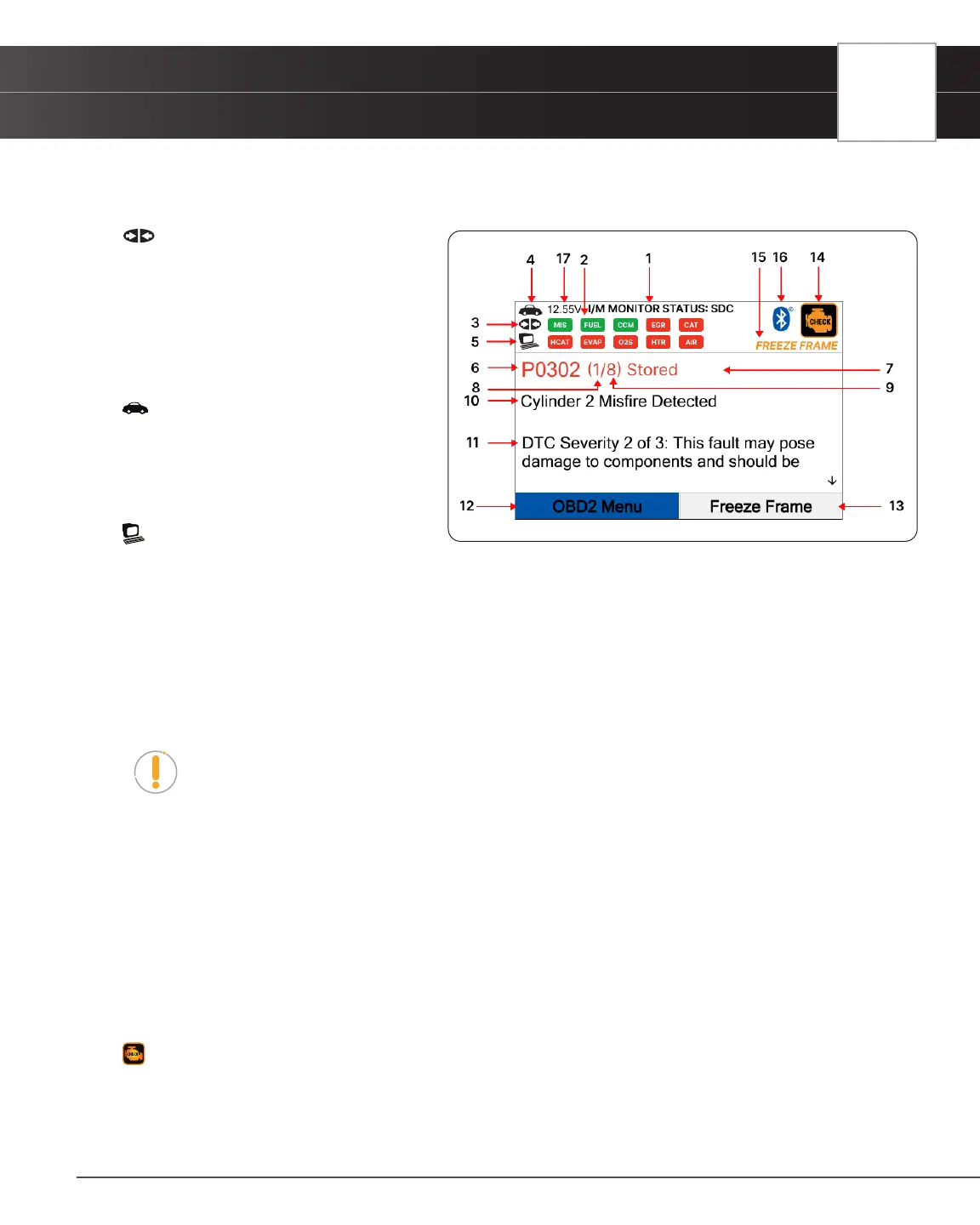
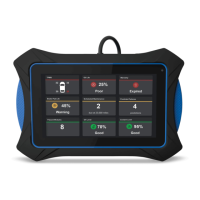
Tablet Display Functions
7
all fteen Monitors. When the Tablet Scan Tool is linked to a vehicle, only the icons for
Monitors that are supported by the vehicle under test are visible on the display.
3. Link Icon - Indicates whether or not
the Tablet Scan Tool is communicating
(linked) with the vehicle’s on-board
computers. When visible, the Tablet Scan
Tool is communicating with the computers.
If the Link icon is not visible, the Tablet
Scan Tool is not communicating with the
vehicle’s computers.
4. Vehicle Icon - Indicates whether or not
the Tablet Scan Tool is being properly
powered through the vehicle’s Data Link
Connector (DLC). A visible icon indicates
that the Tablet Scan Tool is being powered
through the vehicle’s DLC connector.
5. Computer Icon – When visible,
indicates the Tablet Scan Tool is linked to a
personal computer.
6. DTC Display Area - Displays the Diagnostic Trouble Code (DTC) number. Each fault is assigned a code number that
is specic to that fault.
7. Code Type – Indicates the type of code being displayed: Stored, Pending, Permanent.
8. Code Number Sequence - The Tablet Scan Tool assigns a sequence number to each DTC that is present in the
computer’s memory, starting with “1”. This helps keep track of the number of DTCs present in the computer’s memory.
Code number ”1” is always the highest priority code and the one for which “Freeze Frame” data has been stored.
NOTE: If “1” is a “Pending” code, there may or may not be “Freeze Frame” data stored in
memory.
9. Code Enumerator - Indicates the total number of codes retrieved from the vehicle’s computer.
10. Test Data Display Area – Displays DTC denitions, Freeze Frame data and other pertinent test information messages.
11. Severity – Indicates the level of severity for the priority code (code number “1”), as follows:
[1] This fault typically does not cause damage to components and should be serviced when convenient.
[2] This fault may pose damage to components and should be repaired as soon as possible.
[3] This fault will cause damage to components and should be repaired immediately.
12. OBD2 Menu button – Displays menu to perform the 10 modes of OBD2 functions.
13. Freeze Frame button – Quick access to Freeze Frame data.
14. MIL Icon - Indicates the status of the Malfunction Indicator Lamp (MIL). The MIL icon is visible only when a DTC
has commanded the MIL on the vehicle’s dashboard to light.
15. FREEZE FRAME Icon - Indicates that there is Freeze Frame data stored in the vehicle’s computer memory (Captured
when Priority Code was set / Code #1).
Figure 2� Tablet Display Functions


 To Next Page