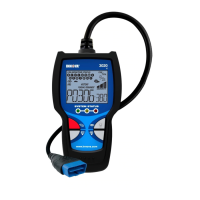
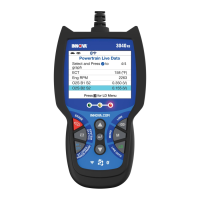
USING THE TABLET
Tool Library
41
Tool Library
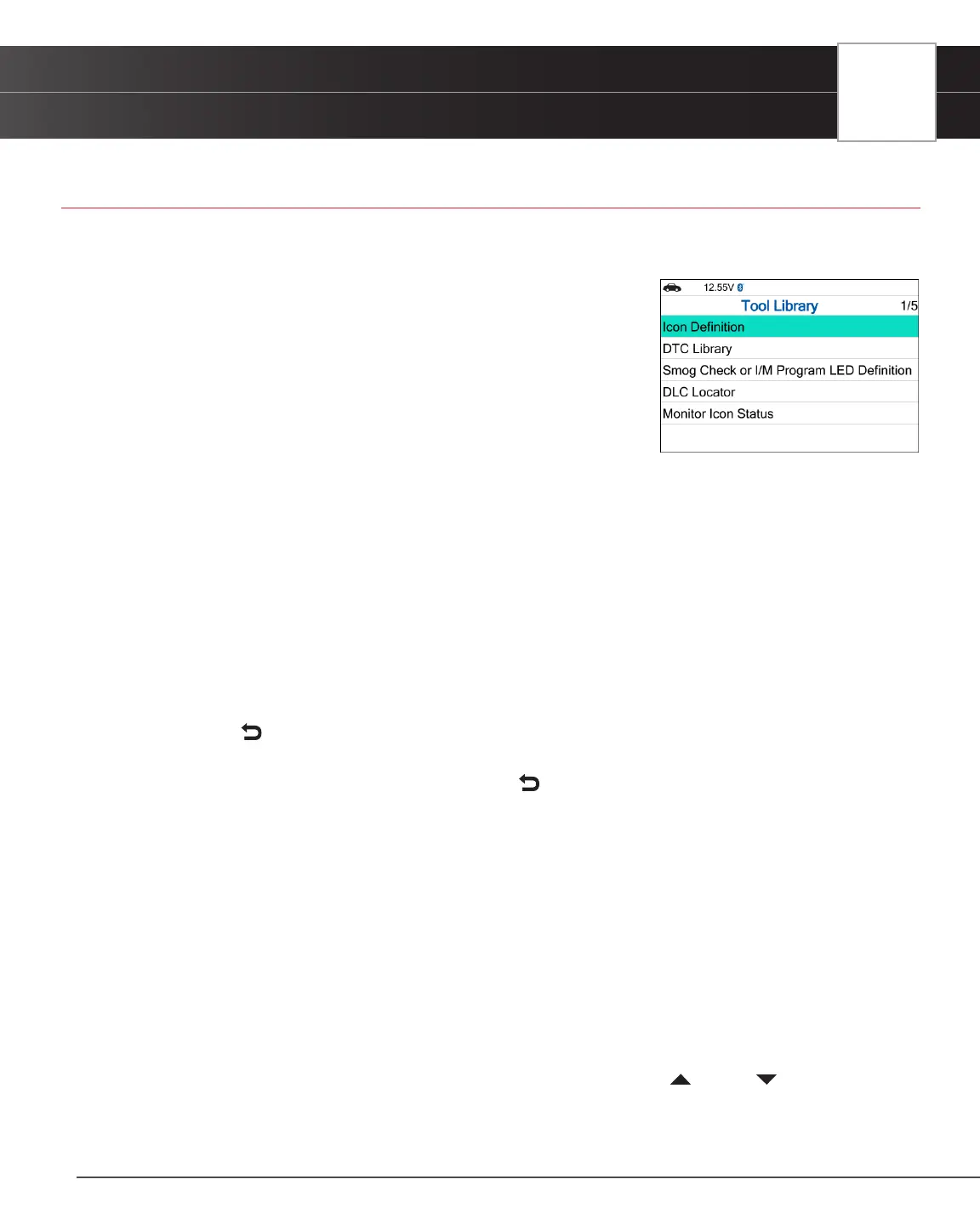
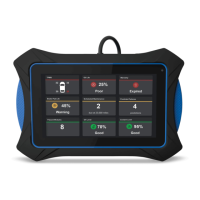
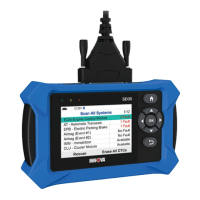
The Tool Library includes valuable reference information for the your tablet. The following functions are available:
Icon Denition – Shows the full names for the I/M Monitor Status
icons shown and descriptions of informational icons on the Tablet’s
display.
DTC Library – Provides access to a library of OBD2 DTC denitions.
Smog Check or I/M Program LED Denition - Provides
descriptions of the meaning of the Tablet System Status LEDs.
DLC Locator - Use this search function to quickly nd the location
of the Data Link Connector (DLC) for a specied vehicle.
Monitor Icon Status - Denes the icon monitor status’ color coding and provides tips on how to
proceed.
Icon Denition
1. Select Icon Denition in the Tool Library menu, then press the OK button.
n The Icon Denition screen displays.
2. Select the type of icons you wish to view – Spark Ignition Monitors, Compression Ignition Monitors, or Tool Icons,
then press the OK button.
n The screen shows a list of Monitor for the selected category.
n Choose Back to return to the Icon Denition menu. If desired, repeat step 2 to view additional
icon denitions.
3. When you have nished viewing the descriptions, choose Back to return to the Icon Denition menu.
DTC Library
1. From the Tool Library menu, select DTC Library, then press OK.
n The Select Manufacturer screen displays.
2. Select the desired vehicle manufacturer, then press OK.
n A conrmation message shows.
━ If the correct manufacturer is not shown, choose No to return to the list of vehicle manufacturers.
━ If the correct manufacturer is shown, choose Yes.
3. The Enter DTC screen displays.
n The screen shows the code “P0001,” with the “P” highlighted. Press UP and DOWN, as
necessary, to scroll to the desired DTC type (P=Powertrain, U=Network, B=Body, C=Chassis), then
choose Next Digit.
n The selected character displays solid, and the next character is highlighted.


 To Next Page