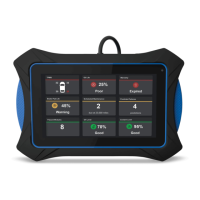
USING THE TABLET
OBD2 Diagnostics
13
warning message displays “This vehicle does not support this monitor type.” Press the Back
button to return to the previous dialog.
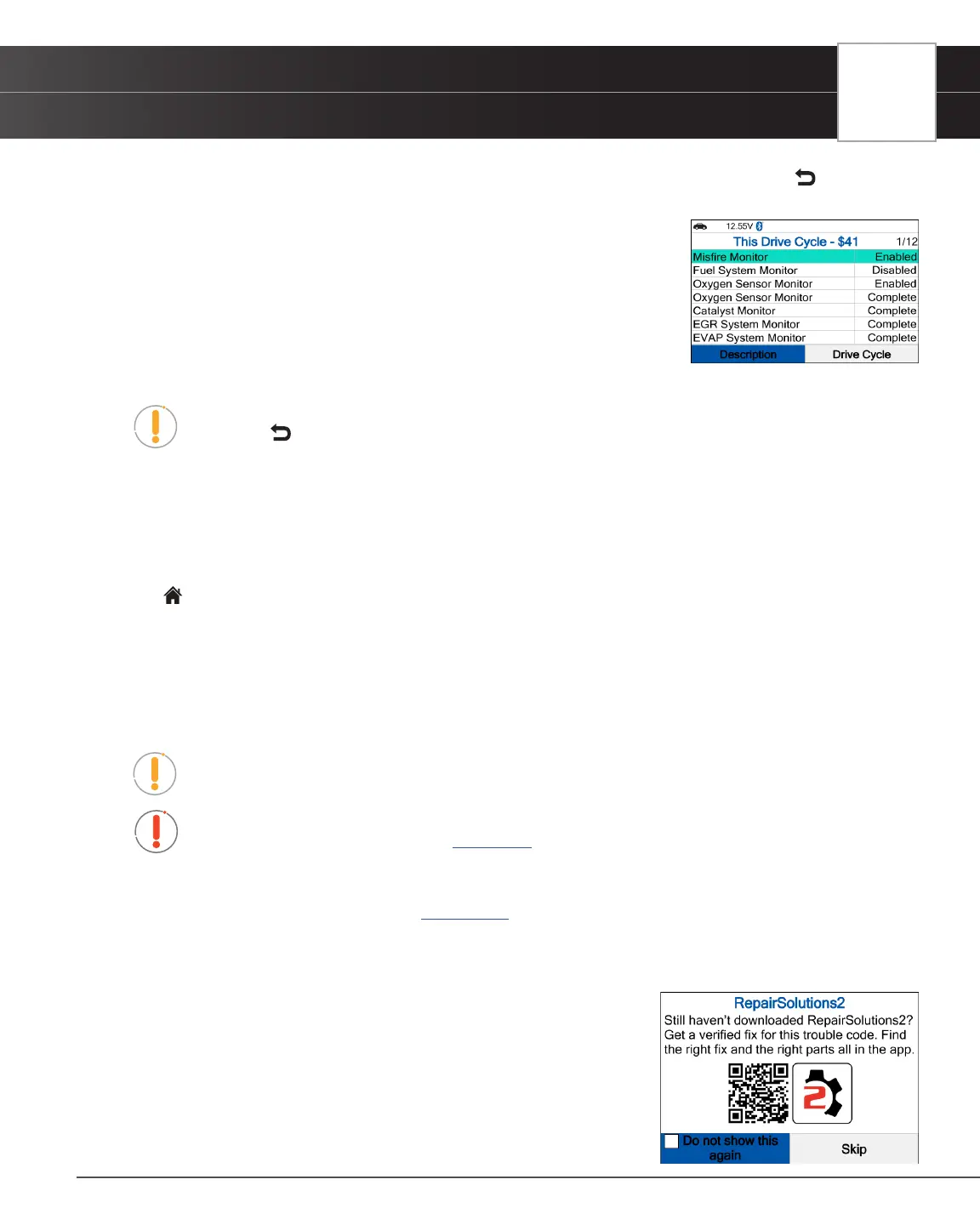
3. The Select Monitor screen displays listing all Monitors supported by the
vehicle.
4. To view a Monitor description, select the desired Monitor, then choose
Description.
n A description for the selected Monitor displays.
5. To view Drive Cycle Procedures for a Monitor, select the desired Monitor, then
choose Drive Cycle.
NOTE: If Drive Cycle Procedures are not available for the vehicle, an advisory message
show. Press Back to return to the OBD2 Menu.
n The Drive Cycle Procedures screen for the Monitor display.
6. The Drive Cycle Procedure screen shows the specic set of operating procedures that ensure the vehicle is driven
in such a way that all the required “Enabling Criteria” for the Monitor to run and complete its diagnostic testing are
met.
7. When you are nished viewing the Drive Cycle Procedures, choose Other Monitors to view other monitors or press
the Home button to return to the Home Screen.
Read DTCs – $03, $07, & $0A
Never replace a part based only on the DTC denition. Each DTC has a set of testing procedures, instructions and
ow charts that must be followed to conrm the location of the problem. Always refer to the vehicle service manual
for detailed testing instructions.
NOTE: Check your vehicle thoroughly before performing any test.
WARNING: ALWAYS observe safety precautions whenever working on a vehicle. See
IMPORTANT SAFETY INFORMATION. [See page 3]
1. From the OBD2 Menu, select Read DTCs - $03, $07, & $0A, then press OK button.
2. Follow the AutoLink Connection steps. [See page 11]
3. If the Tablet can decode the Vehicle Identication Number (VIN) for the vehicle under test, the OBD2 results screen
displays. Proceed to step 5.
4. If the Tablet cannot decode the Vehicle Identication Number (VIN) for the
vehicle under test, the Vehicle Selection screen displays.
n Select your vehicle information then press Yes to continue.
5. The screen displays the RS2 QR code. Using any mobile device, scan the
code to download and install the free RS2 app.
n Select the Skip button to continue. Proceed to step 5.
n Press the OK button to tick the checkbox, then select the Skip


 To Next Page