40
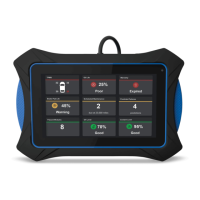
USING THE TABLET
Settings
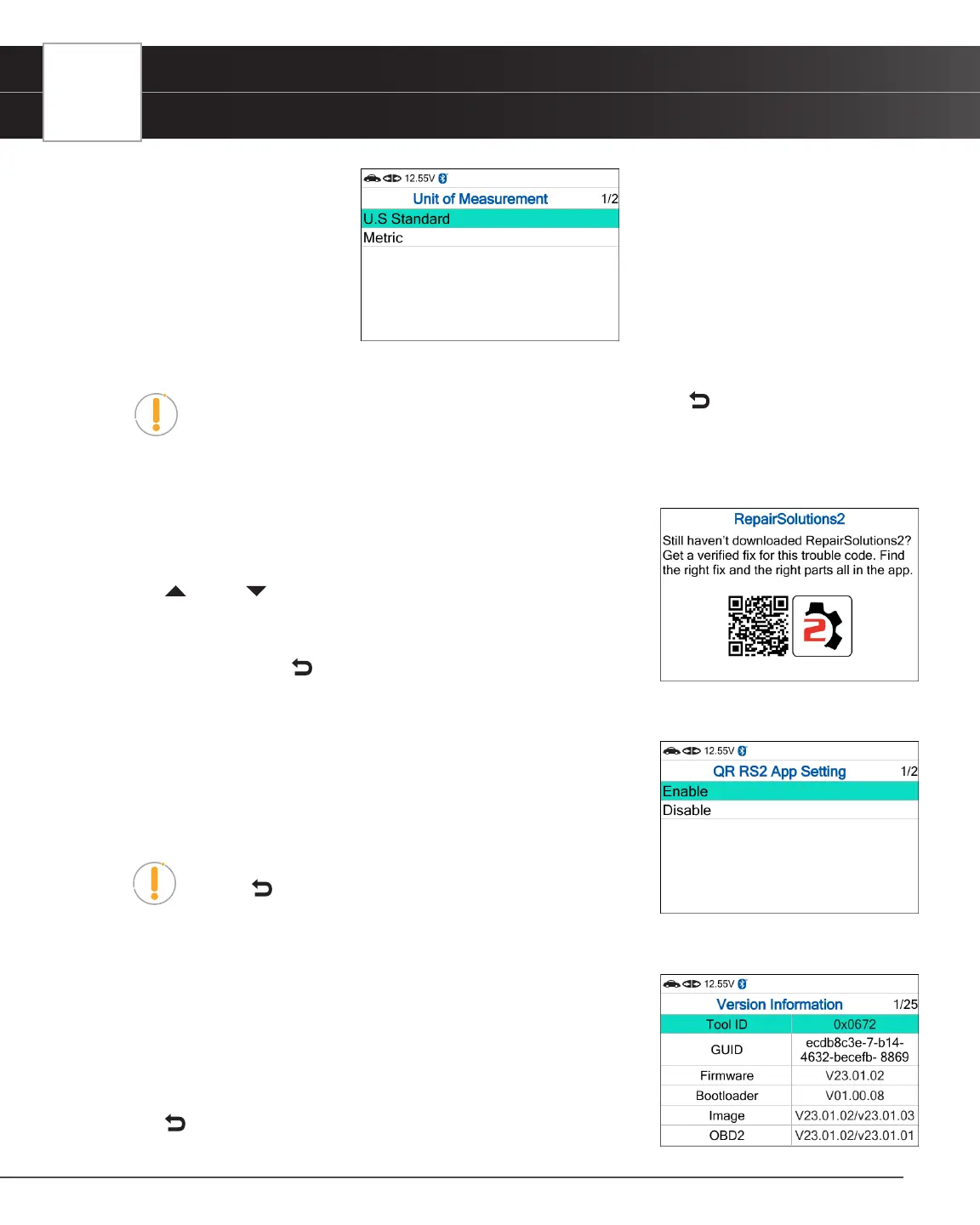
n The tablet automatically saves the change.
NOTE: To return to the Settings menu without making changes, press the Back
button.
Viewing the RepairSolutions2
®
App QR Code
1. Select QR RS2 App in the Settings menu, then press the OK button.
n The QR RS2 App screen displays.
2. Press UP and DOWN to navigate through the options.
n Using a mobile device, scan the QR Code to download the
RepairSolutions2 App.
n To exit, choose Back to return to the Settings menu.
Setting the QR RepairSolutions2 App Mode
1. Select QR RS2 App Setting in the Settings menu, then press the OK button.
n The QR RS2 App Setting screen displays.
2. Select Enable or Disable as desired.
NOTE: To return to the Settings menu without making changes,
press the Back button.
Viewing the Version Information
1. Select Version Information in the Settings menu, then press the OK button.
n The Version Information screen displays.
n The screen shows the tablet’s Tool ID, GUID, current Firmware
version, Bootloader version and database (DB) version for the
specic make.
2. Press Back to return to the Settings menu.


 To Next Page