20
USING THE TABLET
OBD2 Diagnostics
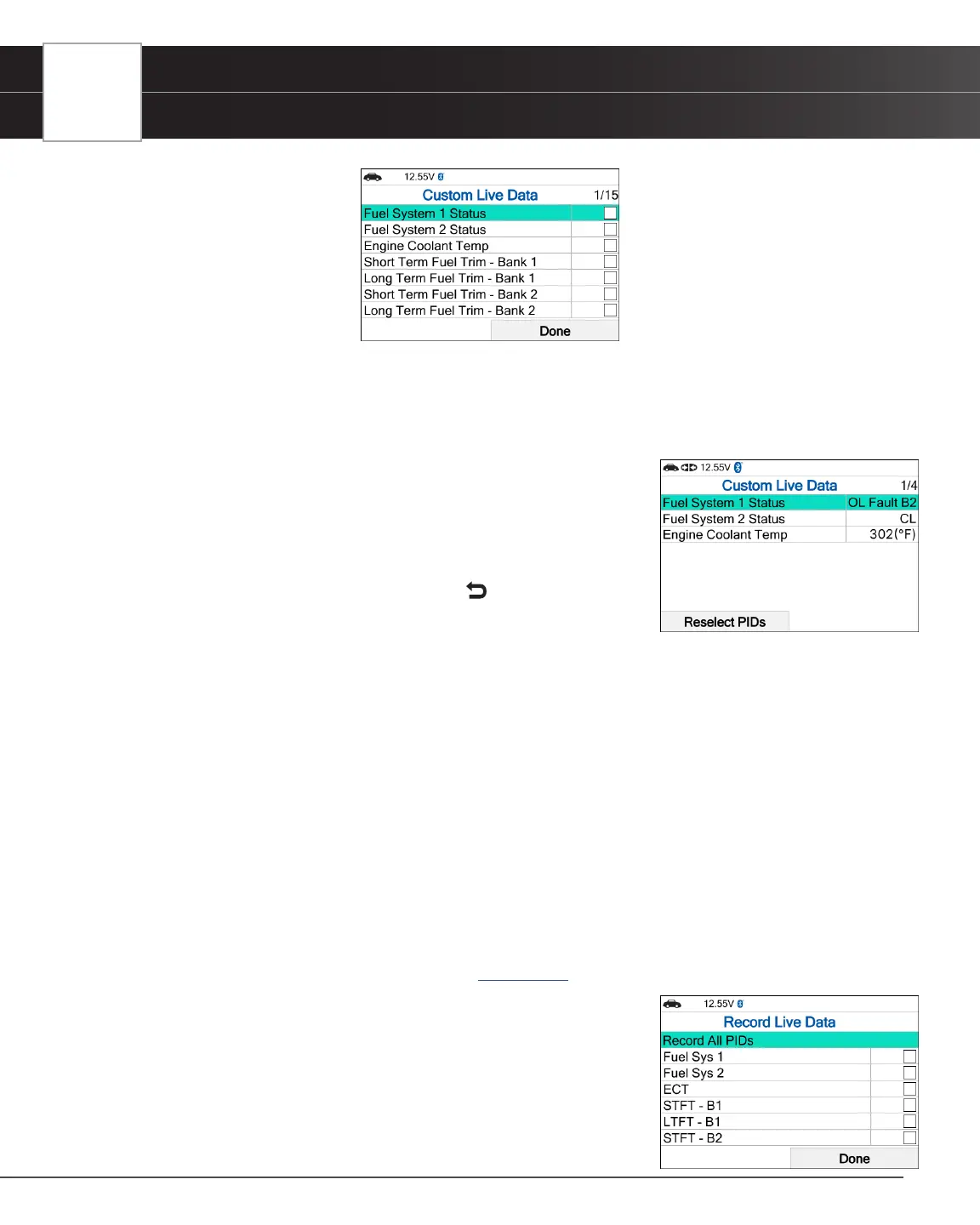
n To deselect a PID, highlight the PID, then press OK. The check-mark is removed.
3. When you are nished making your selection(s), choose Done to continue.
n If no PIDs have been selected, an advisory message displays. Press OK to return to the Custom
Live Data menu.
4. The Scan Tool is now in “Custom Live Data” mode. Only the PIDs you
selected are shown.
n To change the current custom Live Data selections, select
Reselect PIDs, then press OK to return to the Custom Live Data
menu. Repeat step 2.
5. To exit the “Custom Live Data” mode, press Back to return to the
Live Data Menu.
Record Live Data
You can record and save several frames of Live Data information for each PID supported by the vehicle in the Tablet Scan
Tool’s memory. Once recorded, each session can be played back for further analysis.
There are two ways that the Tablet Scan Tool can record Live Data:
Record by DTC Trigger
Record Manually
Record by DTC Trigger
This function automatically records Live Data information when a DTC sets and saves it in the Tablet Scan Tool’s
memory. The recorded data can be a valuable troubleshooting aid, particularly if you are experiencing a fault that is
causing a DTC to set. The Tablet Scan Tool can record approximately 100 frames of Live Data.
1. With the Tablet Scan Tool in Live Data mode [See page 17] select Live Data Menu and press OK to display
the Live Data Menu.
2. Select Record by DTC Trigger, then press OK.
n The Select PIDs to Record screen displays.
n If the Tablet Scan Tool fails to establish communication with the
vehicle, a “Communication Error” message displays.
━ Ensure the vehicle is OBD2 compliant.
━ Verify the connection at the DLC, and verify the ignition is ON.


 To Next Page