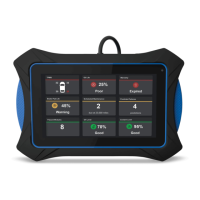
USING THE TABLET
OBD2 Diagnostics
21
━ Turn the ignition OFF, wait 5 seconds, then back ON to reset the computer.
━ Press Relink to continue.
3. Press UP and DOWN to scroll through the available PIDs. When a PID you wish to display is highlighted,
press OK (a “check-mark” shows to conrm your selection). Repeat until only the PIDs you want to record are
selected.
n To select all PIDs, choose Record All PIDs.
n To deselect a PID, highlight the PID, then press OK. The check-mark is removed.
4. When you are nished making your selections, choose Done to continue.
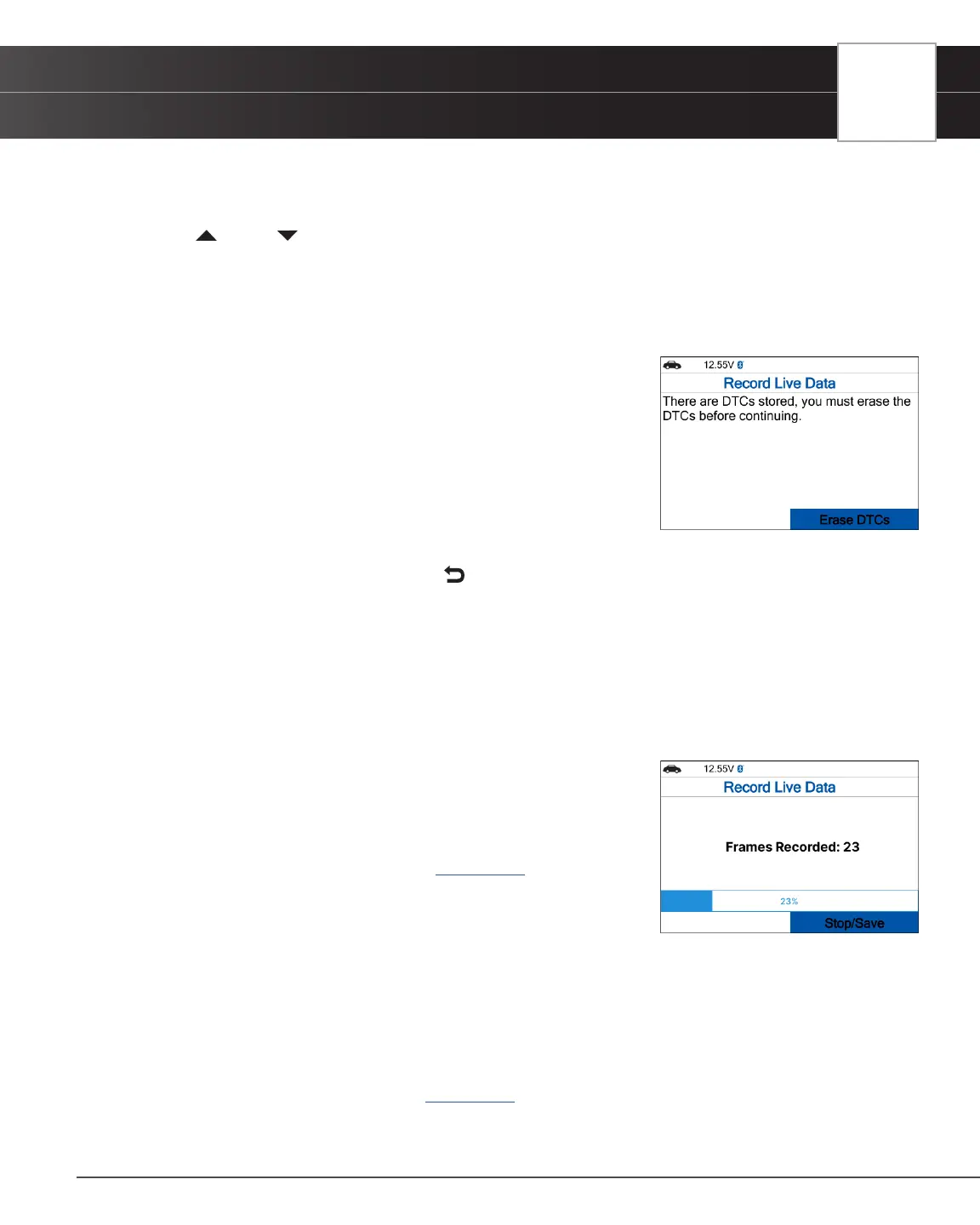
n If DTCs are presently stored in the vehicle’s computer, an advisory
message displays.
━ Choose Erase DTCs. A “One moment please…” message
displays while DTCs are erased from the vehicle’s computer.
n If the erase is not successful, an advisory message displays.
━ To retry the erase process, verify that the Scan Tool is properly
connected to the vehicle’s DLC, and that the ignition is on. Select Erase DTCs.
━ To exit the record function, press Back to return to the Record Live Data menu.
n When the Erase process is complete, the Record Live Data screen displays the message “Ready
to record. Waiting for DTCs.”
5. Put the engine in the operating condition that causes the DTC to set.
n If necessary, drive the vehicle until you reach the vehicle speed at which the problem occurs.
6. When the Scan Tool detects a fault that causes a DTC to set, it automatically records and saves approximately
100 frames of Live Data information in its memory for each PID selected.
n A progress message shows on the display.
━ You can stop and save recorded Live Data at any time by
choosing Stop/Save.
n When the recording is complete, a conrmation screen displays.
Choose Yes to Playback Live Data [See page 22] or No to return
to the Live Data menu, as desired.
n If recording was not successful, an advisory message displays.
Choose Continue to return to the Live Data menu.
Record Manually
This option lets you select the precise time at which the Live Data recording will occur. Recording by Manually can be
a very valuable tool when troubleshooting intermittent problems that do not meet the requirements for a DTC to set. The
Tablet Scan Tool is capable of recording approximately 100 frames of Live Data.
1. With the Scan Tool in Live Data mode [See page 17] select Live Data Menu and press OK to display the Live
Data Menu.
2. Select Record Manually, then press OK.


 To Next Page