38
USING THE TABLET
Settings
n Vehicle Inspection – The Vehicle Inspection Report test results will be displayed.
n Workshop Tools – The Memory Workshop Tools allows you to review Oil Maintenance Reset
procedures and Battery Reset procedures.
3. When you have nished viewing the information, choose Back to return to the Previous Vehicles screen or press
Home to exit to the Home Screen.
n An “advisory” conrmation message displays.
n Select Yes to exit and return to the Home Screen. Or select No to proceed.
Settings
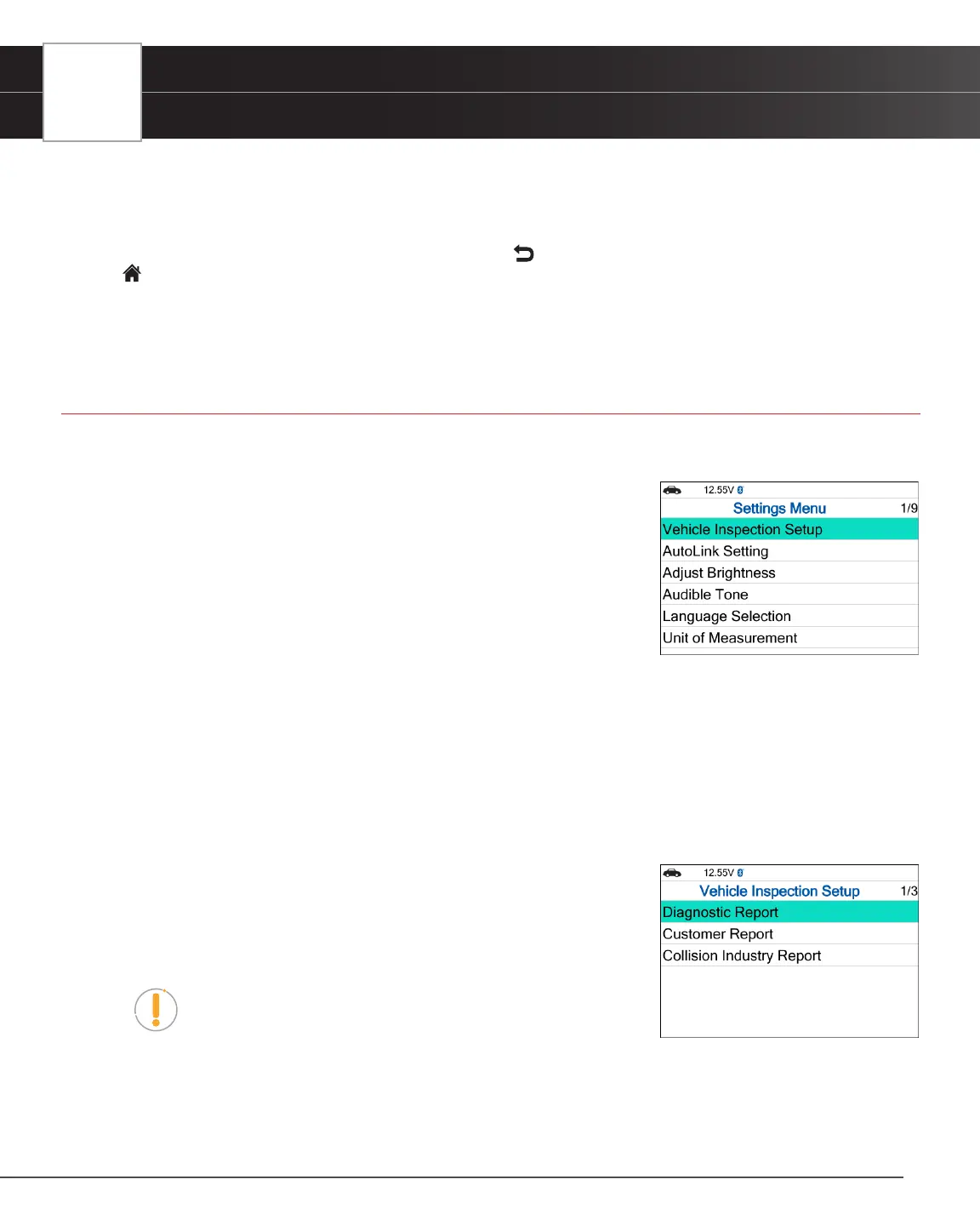
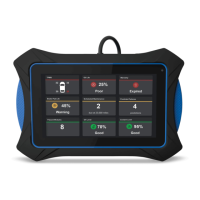
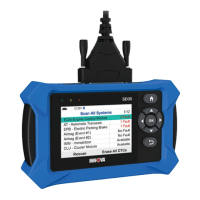
The Tablet lets you make several adjustments and settings to congure it to your particular needs. The following functions
can be performed:
Vehicle Inspection Setup
AutoLink Setting
Adjust Brightness
Audible Tone
Language Selection
Unit of Measurement
QR RS2 App
QR RS2 App Setting
Version Information
Vehicle Inspection Setup
1. Select Vehicle Inspection Setup in the Settings menu, then press the OK button.
n The Vehicle Inspection Setup screen displays.
2. Select the type of report you wish to set up, then press the OK button.
n The Report Selection screen displays.
n Select or unselect functions as desired, then press the OK button.
NOTE: The OBD2 Diagnostics (DTCs, Monitor, Freeze Frame
Data) status is always ON; this function cannot be turned OFF.
3. Select Save to save your changes and auto-return to the Report Selection screen.
n To exit without proceeding, select Cancel to return to the Report Selection screen.


 To Next Page