26
USING THE TABLET
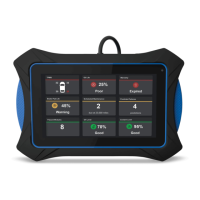
OBD2 Diagnostics
displays while the Tablet retrieves Monitor status.
NOTE: If the Tablet retrieves Permanent DTCs only, MIL Off and California state is
selected, Drive Cycle Procedures can be viewed from the OBD2 Diagnostic screen.
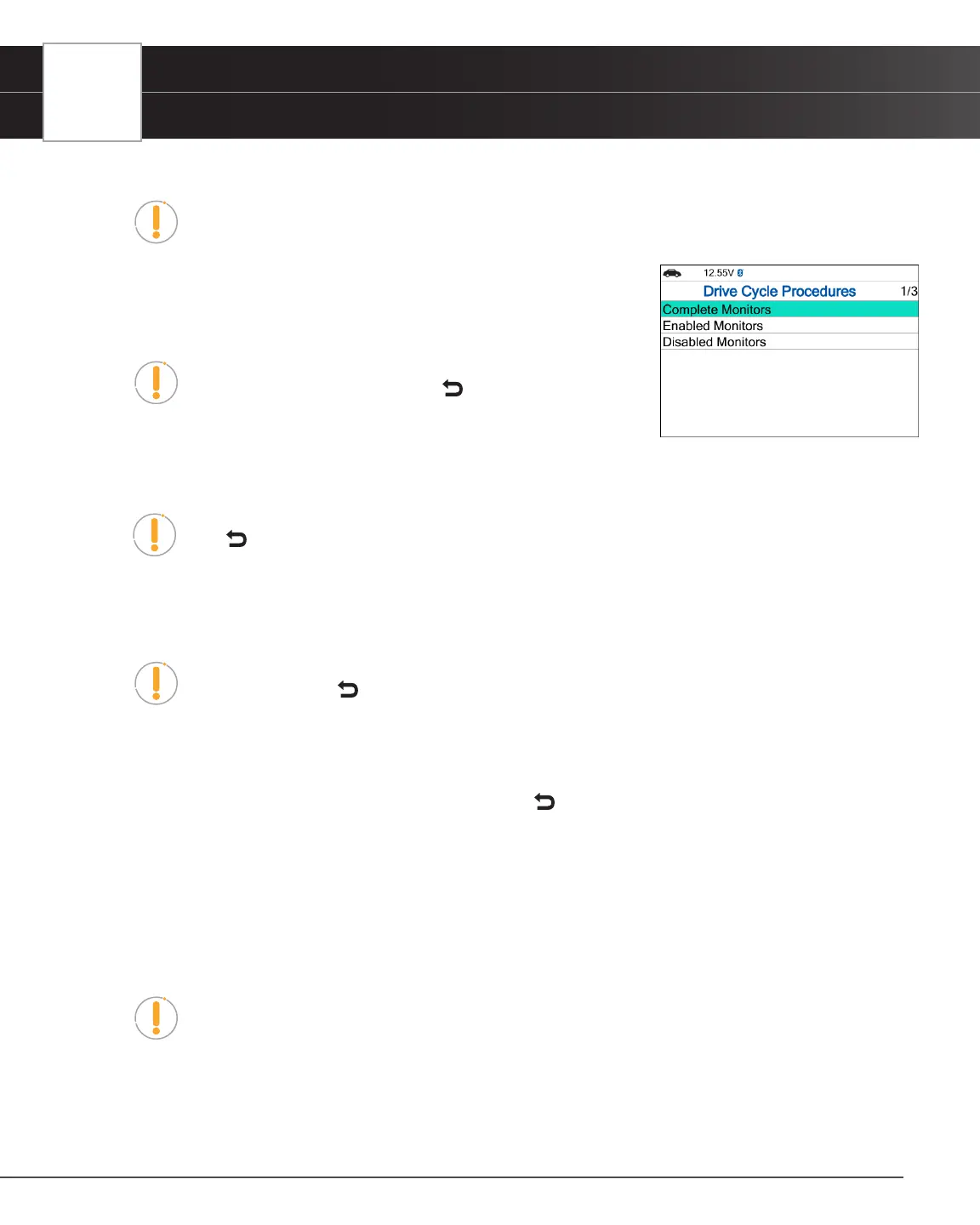
2. When Monitor status has been retrieved, the Drive Cycle Procedures menu
displays. Depending on the Monitor status, you can view Drive Cycle
Procedures for Complete Monitors, Incomplete/Enabled Monitors or
Disable Monitors.
NOTE: If Drive Cycle Procedures are not available for the vehicle,
an advisory message displays. Press Back to return to the
OBD2 Menu.
3. Select Complete Monitors, Incomplete / Enabled Monitors or Disable Monitors, as desired, then press OK.
n A list of the available Monitors for the selected status displays.
NOTE: If no Monitors for the selected status are detected, an advisory message displays.
Press Back to return to the OBD2 Menu.
4. Select the Monitor for which you wish to view Drive Cycle Procedures, then press OK button.
n A “One moment please…” message displays while the Tablet retrieves the requested Drive Cycle
Procedure. Once retrieved, the Drive Cycle Procedures screen displays.
NOTE: If a Drive Cycle Procedure for the selected Monitor is not available, an advisory
message show. Press Back to return to the OBD2 Menu.
5. The Drive Cycle Procedure screen shows the specic set of operating procedures that ensure the vehicle is driven
in such a way that all the required “Enabling Criteria” for the Monitor to properly run and complete its diagnostic
testing.
6. When nished viewing the Drive Cycle Procedures, press Back to return to the Drive Cycle Procedures menu.
Viewing Vehicle Information - $09
The Tablet offers three options for retrieving reference information for the vehicle under test: Vehicle ID, Available Modules
and In-use Performance Tracking.
Viewing Vehicle ID
NOTE: The Vehicle ID function is applicable to model year 2000 and newer OBD2-
compliant vehicles.
The Tablet can retrieve a list of information (provided by the vehicle’s manufacturer), unique to the vehicle under test,
from its on-board computer. This information may include:
n The vehicle’s VIN number.


 To Next Page