USING THE TABLET
OBD2 Diagnostics
27
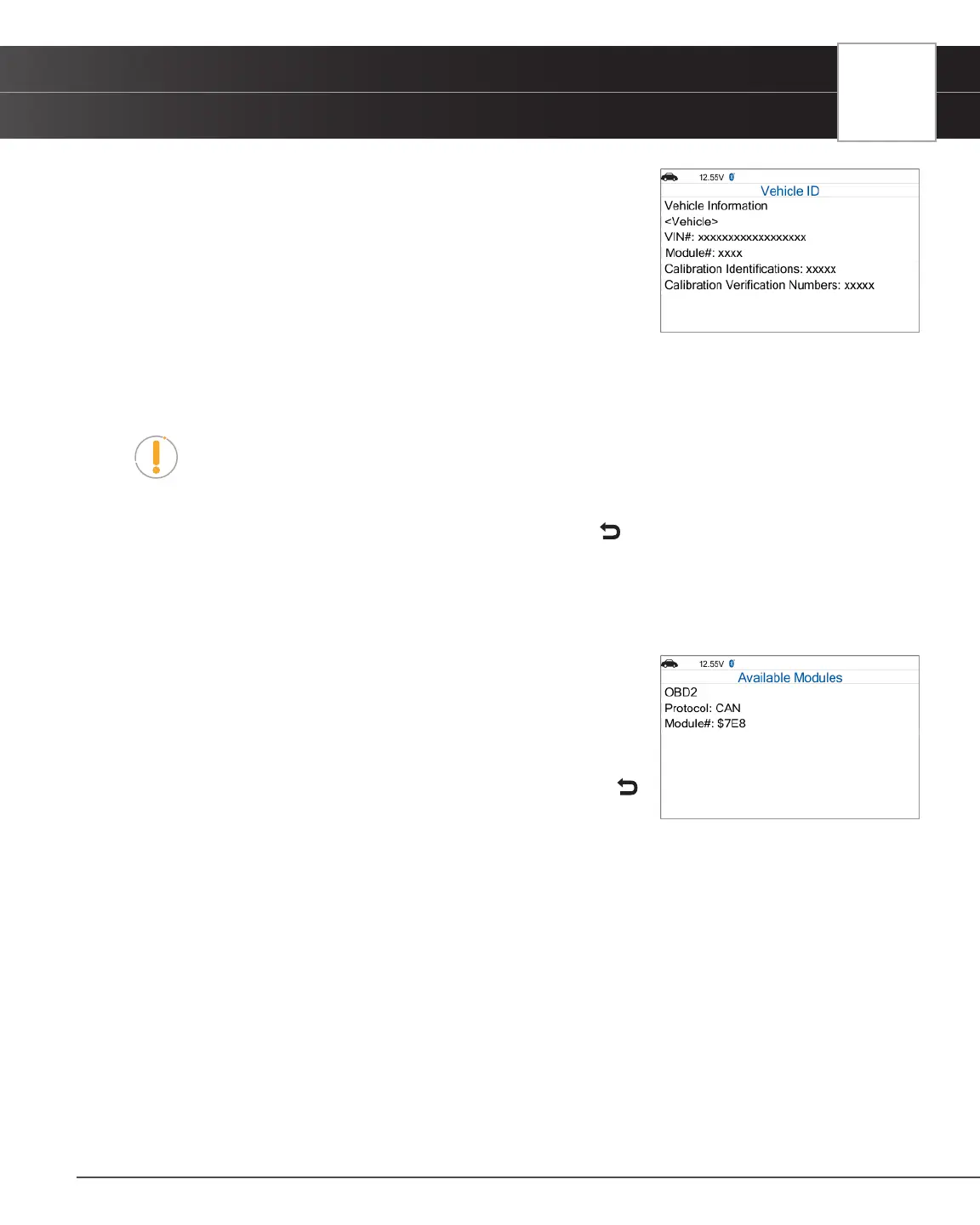
n The control module identication number.
n The vehicle’s calibration ID(s). These IDs uniquely identify the
software version(s) for the vehicle’s control module(s).
n The Vehicle’s Calibration Verication Number(s) (CVNs) required
by ODB2 regulations. CVNs are used to determine if emission-
related calibrations for the vehicle under test have been changed.
One or more CVNs may be provided by the vehicle’s computer.
1. From OBD2 Menu, select Vehicle Information - $09, then press OK.
n The Vehicle Information menu displays.
2. Select Vehicle ID, then press OK.
NOTE: The rst time the Vehicle ID function is used, it may take several minutes to
retrieve the information from the vehicle’s computer.
3. When the retrieval process is completed, the vehicle ID information displays.
4. When nished viewing the retrieved vehicle ID information, press Back to Vehicle Information menu.
Viewing Available Modules
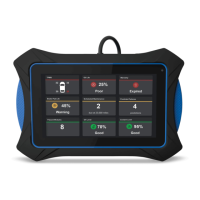
The Tablet can retrieve a list of modules supported by the vehicle under test.
1. From OBD2 Menu, select Vehicle Information - $09, then press OK.
n The Vehicle Information menu displays.
2. Select Available Modules, then press OK.
3. When the retrieval process is completed, a complete list of modules
supported by the vehicle under test displays.
4. When you have nished viewing the list of available modules, press
Back to return to the Vehicle Information menu.
Viewing In-Use Performance Tracking
The Tablet can retrieve In-use Performance Tracking (IPT) statistics for monitors supported by the vehicle under test.
Two values are returned for each monitor; the number of times that all conditions necessary for a specic monitor to
detect a malfunction have been encountered (XXXCOND), and the number of times that the vehicle has been operated
under the specic conditions for the monitor (XXXCOMP). Statistics are also provided for the number of times the vehicle
has been operated in OBD monitoring conditions (OBDCOND), and the number of times the vehicle’s engine has been
started (IGNCNTR).
1. From OBD2 Menu, select Vehicle Information - $09, then press OK.
n The Vehicle Information menu displays.
2. Select In-Use Performance Tracking then press OK.
3. When the retrieval process is completed, the In-use Performance Tracking statistics for the vehicle are under test
display.


 To Next Page