USING THE TABLET
OBD2 Diagnostics
19
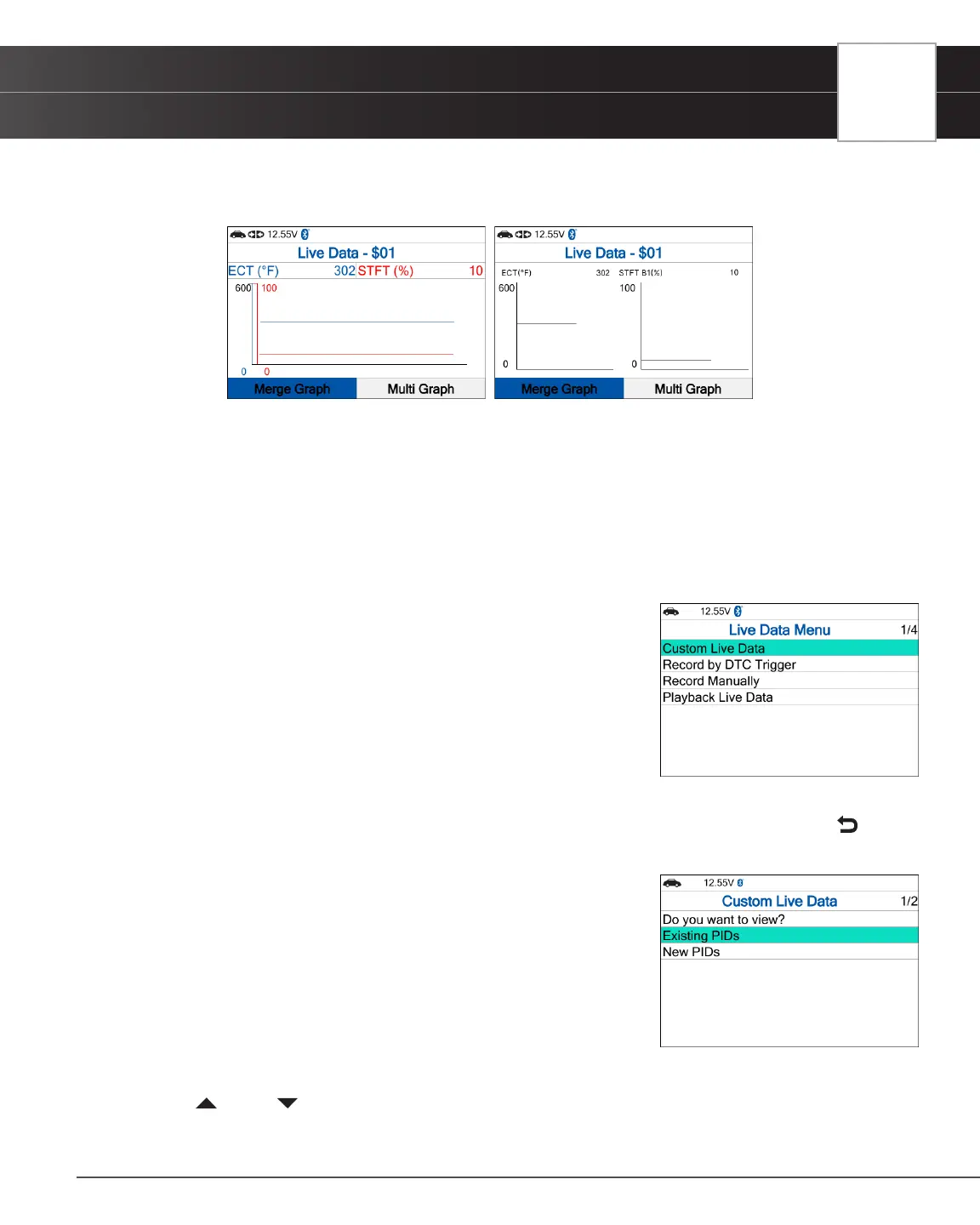
n Choose Merge Graph to view more PID results on one graph.
n Choose Multi Graph to view more Graphs in one screen.
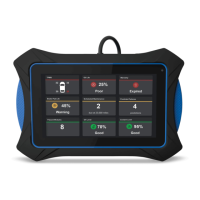
7. Troubleshoot any diagnostic issues by referencing your vehicle’s repair manual to view and/or compare Live Data
(PID) information displayed on the Tablet Scan Tool against recommended vehicle specications.
Customizing Live Data (PIDs)
You can customize the Live Data display by placing the Tablet Scan Tool in “Custom Live Data” mode and selecting
only the PIDs that you wish to display.
1. With the Tablet Scan Tool in Live Data mode, select Live Data Menu to access the Live Data menu, then select
Custom Live Data and press the OK button.
n If the Tablet Scan Tool fails to establish communication with the
vehicle, a “Communication Error” message displays.
━ Ensure the vehicle is OBD2 compliant.
━ Verify the connection at the DLC, and verify the ignition is ON.
━ Turn the ignition OFF, wait 5 seconds, then back ON to reset
the computer.
━ Press Relink to continue.
n If Live Data is not supported by the vehicle under test, an advisory message displays. Press
Back to return to the OBD2 Menu.
n If custom Live Data was previously congured, the Select PIDs to
Use screen displays.
━ To use the existing custom Live Data selections, select
Existing PIDs, then press OK. Proceed to step 5.
━ To congure new custom Live Data, select New PIDs, then
press OK. The Custom Live Data menu displays. Proceed to
step 2.
n If custom Live Data was not previously selected, the Custom Live
Data menu displays. Proceed to step 2.
2. Press UP and DOWN to scroll through the available PIDs. When a PID you wish to display is highlighted,
press OK (a “check-mark” shows to conrm your selection). Repeat until only the PIDs you want to display are
selected.


 To Next Page