48
Basic Setup
—Continued
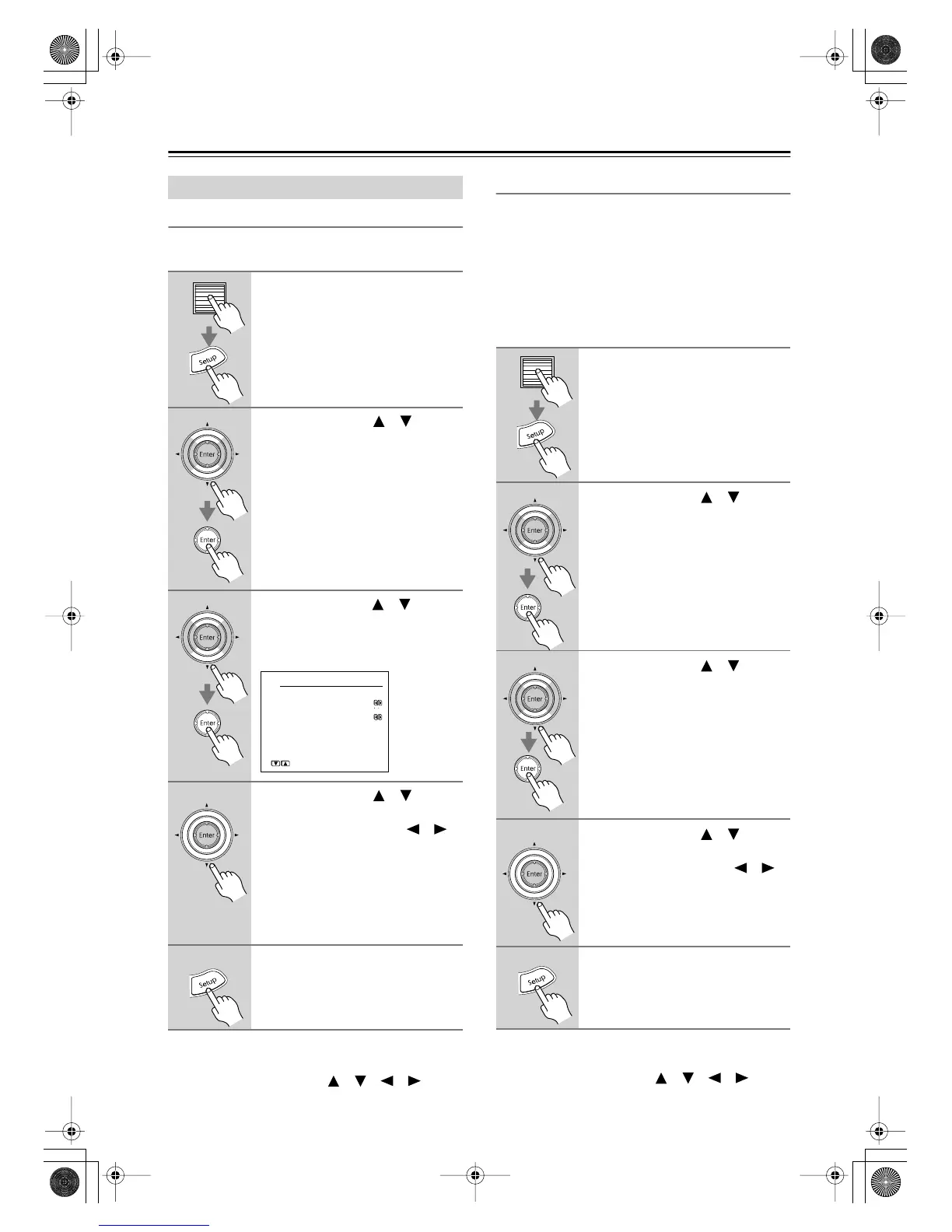
Specifying the Location of an IR Receiver
This section explains how to specify the location when
using a commercially available IR receiver.
Note:
• This procedure can also be performed by using the
DTR-8.4’s [Setup] button, [ ]/[ ]/[ ]/[ ] but-
tons, and [Enter] button.
Changing the DTR-8.4’s Remote Control ID
This section explains how to change the DTR-8.4’s
remote control ID. You may need to change this if the
DTR-8.4’s remote controller interferes with other Inte-
gra/Onkyo components located in the same room.
Note:
If you change the DTR-8.4’s remote control ID, be sure
to select the same ID on the remote controller (page 49).
The default ID for both the DTR-8.4 and remote control-
ler is 1.
Note:
• This procedure can also be performed by using the
DTR-8.4’s [Setup] button, [ ]/[ ]/[ ]/[ ] but-
tons, and [Enter] button.
Remote Setup
1
Press the scroll wheel, and then
press the [Setup] button.
The main menu appears onscreen.
2
Use the Up/Down [ ]/[ ] but-
tons to select “0. Hardware
Setup,” and then press the
[Enter] button.
The Hardware Setup menu appears.
3
Use the Up/Down [ ]/[ ] but-
tons to select “3. Remote Setup,”
and then press the [Enter] button.
The Remote Setup menu appears.
4
Use the Up/Down [ ]/[ ] but-
tons to select “a. Position,” and
then use the Left/Right [ ]/[ ]
buttons to select:
Main:
Select if the IR receiver is
located in the main room.
Zone 2:
Select if the IR receiver is
located in, and will be used to
control Zone 2.
5
Press the [Setup] button.
The setup menu closes.
0-3.Remote Setup
a.Position :Main
b.Remote ID :1
Quit:[SETUP]
1
Press the scroll wheel, and then
press the [Setup] button.
The main menu appears onscreen.
2
Use the Up/Down [ ]/[ ] but-
tons to select “0. Hardware
Setup,” and then press the
[Enter] button.
The Hardware Setup menu appears.
3
Use the Up/Down [ ]/[ ] but-
tons to select “3. Remote Setup,”
and then press the [Enter] but-
ton.
The Remote Setup menu appears.
4
Use the Up/Down [ ]/[ ] but-
tons to select “b. Remote ID,” and
then use the Left/Right [ ]/[ ]
buttons to select an ID: 1
(default), 2, or 3.
5
Press the [Setup] button.
The setup menu closes.
DTR-8.4En.book Page 48 Thursday, October 16, 2003 11:09 AM


 To Next Page