9BChapter 10: Camera setup
58 TruVision DVR 44HD User Manual
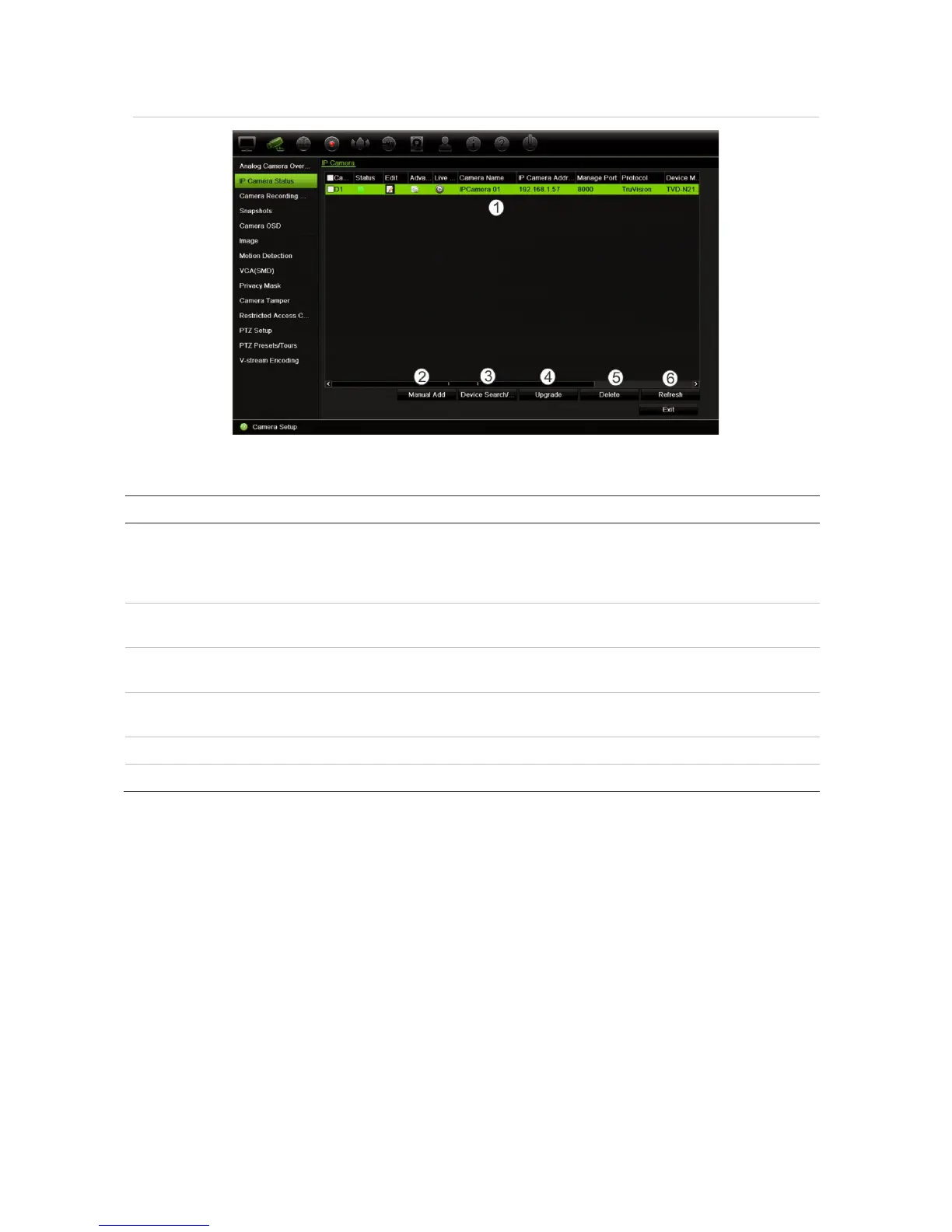
Figure 20: IP camera window
Table 12: Description of the IP camera window
Option Description
1.
This shows the list of IP cameras added to the recorder. The camera information
shown is: Camera No., Status, Edit, Advanced Set, Live View, Camera Name, IP
Camera Address, Manage Port, Protocol, Device Model, Serial Number, and
Firmware.
2.
Add the selected cameras from the search results list to the recorder system without
modifying the camera configuration.
3.
Search/Add Search the network for available IP cameras. Add an IP camera to the recorder
system.
4.
Upgrade IP camera software. Insert USB flash drive in the recorder and select the
upgrade file. The camera will automatically reboot once the software is upgraded.
5.
Delete the selected IP camera from the list.
6.
Update the information displayed on a camera in the recorder device list.
To automatically add an IP camera:
1. From the menu toolbar, click Camera Setup > IP Camera Status.
2. Click Device Search/Add to search for any supported IP cameras located in the recorder
LAN.
3. Check the boxes of the cameras that you want to add to the recorder.
4. Click Add to add the selected cameras to the list of devices in the recorder. Click Done
when complete in order to return to the main window.
The cameras are added to the end of the list of devices.
5. To test if a camera connection is operational, select the desired camera from the list of
devices connected to the recorder and click Live. A pop-up window should appear showing
the camera’s live view.



 To Next Page